
Controlling who can assign a recognition badge helps make sure the right badges are awarded to the right members. For example, you can set it up so that only community managers can assign MVP and VIP badges.
Required Editions
| Available in: Enterprise, Professional, Unlimited, and Developer editions. |
| User Permissions Needed | |
|---|---|
| To create recognition badges: | Create Custom Badge Definitions |
| To manage your recognition badges: |
Create And Set Up Experiences AND Moderate Chatter OR Manage Experiences AND Moderate Chatter |
| To manage badges created by someone else: |
Modify All Data AND Moderate Chatter |
By default, recognition badges are available to everyone with permission to assign badges. To be able to select specific givers, make sure to deselect Public when you create or edit the badge.
- In Experience Workspaces, click the Gamification tile.
- Click the dropdown and the end of the badge’s row, and click Manage Badge Givers.
-
In the window, search to add the users or public groups you want to have permission to
assign badges.
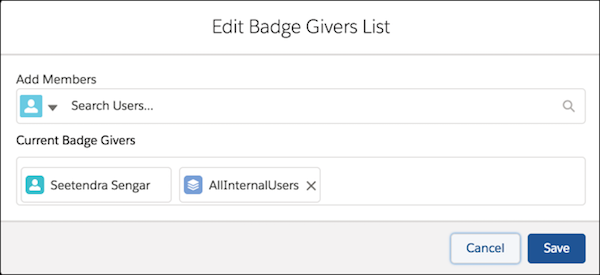
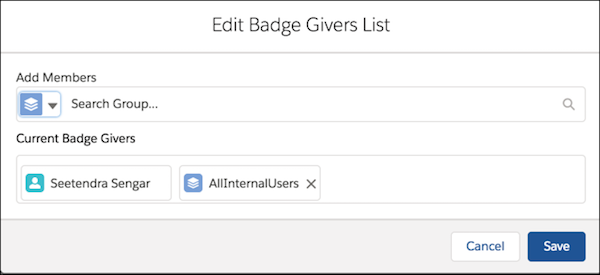
 Note Only those users with the Assign Recognition Badges in Experience Builder Sites permission are available. You can remove members from the list by clicking the X by their name.
 - Click Save.