
In addition to the four default badges, you can create your own to fit the needs of your site. You can edit both the default badges and your custom badges.
Required Editions
| Available in: Enterprise, Professional, Unlimited, and Developer editions. |
| User Permissions Needed | |
|---|---|
| To create recognition badges: | Create Custom Badge Definitions |
| To manage your recognition badges: |
Create And Set Up Experiences AND Moderate Chatter OR Manage Experiences AND Moderate Chatter |
| To manage badges owned by someone else: |
Modify All Data AND Moderate Chatter |
- To create a badge, in Experience Workspaces, click the Gamification tile and go to the Recognition Badges section.
- Click New.
-
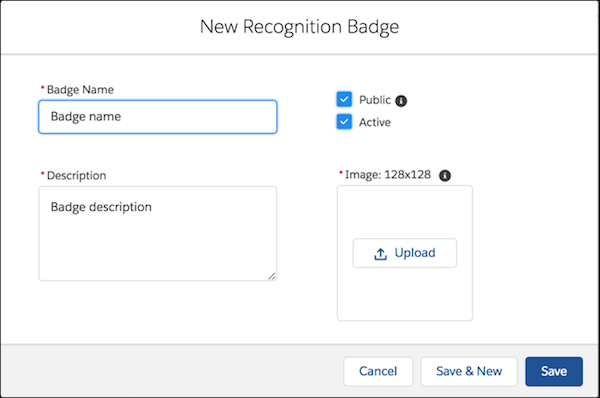
Give your badge a name and a description and upload an image. Click
Save. The Public and
Active checkboxes are selected by default. When you save, your badge is
immediately available to everyone with permissions to give a badge. If you want to limit who
can give a badge, deselect Public. If you aren’t ready for it to be
live, deselect Active. If you want the badge to be available for a
mission, select Mission Badge.
-
To edit the fields, go to the badge related list, click the dropdown at the end of the
badge’s row, and click Edit.
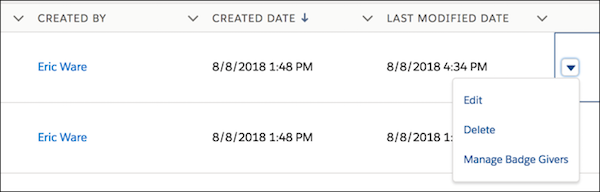
- To delete a badge, go to the badge related list, click the dropdown at the end of the badge’s row, and click Delete.