Moderators can review and act on flagged items in their Experience Cloud
sites.
If you haven’t already, install the Salesforce Communities Management (for Communities with
Chatter) package from AppExchange. This package automatically installs multiple insight
reports that you can use to moderate your site, such as the Flagged Private Messages and Flagged
Files reports. It also automatically installs the Flagged Discussions and Flagged Direct Messages
tiles to the Moderation tile in Experience Workspaces.
A small orange flag appears next to flagged items. The number next to the flag indicates how
many people have flagged the item.
A few things to keep in mind.
- Moderators can only moderate items that they have access to.
- Group owners or managers can moderate items in their groups.
- Members can only flag messages sent from sites that they’re a member and that allow members
to flag content.
- You can’t flag items from your internal org, the Salesforce mobile app, or in partner and
customer portals.
- Site members can only flag items if the Allow members to flag content
preference is enabled.
- If Allow members to flag content is disabled, only moderators can flag
items and view flagged items.
- To receive an email each time an item is flagged, select Flags an item as
inappropriate on your Email Settings page.
Flagged Posts and Comments
Moderators can review, delete, and remove flags from posts and comments that members
flag as inappropriate. Group owners or group managers can review and moderate flagged posts and
comments in their groups.
Required Editions
| User Permissions
Needed |
| |
|
| To moderate posts and comments: |
Moderate Experience Cloud Site Feeds
AND
Manage Experiences OR Create and Set Up Experiences
AND
Can Approve Feed Post and Comment
AND
Is a member of the Experience Cloud site
|
You can moderate flagged posts and comments from:
-
The Flagged Discussions tile on the Moderation tile in Experience Workspaces.
-
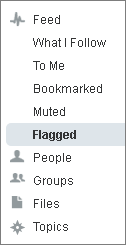
The Flagged feed in Chatter.
If you’re using a Salesforce Tabs + Visualforce Experience Cloud site, you can see a
list of flagged posts and comments on the Chatter menu. To see the Flagged feed, enable
the
Allow members to flag content preference.
-
A custom list. You can expose a list of flagged posts and comments using Connect REST
API or ConnectApi in Apex.
-
The link to the post or comment from the notification email.
-
The Experience Cloud site. Moderators can remove flags or delete content in the
feed.
Flagged Private Messages
Moderators can review, delete, and remove flags from private messages that members
flag as inappropriate or as spam.
Required Editions
| User Permissions
Needed |
| To moderate messages: |
Moderate Experiences Chatter Messages
AND
Access Experience Management
OR Manage Experiences OR Create and Set Up Experiences
AND
Is a member
of the Experience Cloud site
|
| To view the contents of a flagged message in reports: |
Moderate Experiences Chatter Messages |
| To remove flags or delete messages in the SOAP API: |
Modify All Data |
You can monitor and manage flagged messages from:
Flagged Direct Messages
Members can flag messages in Experience Cloud sites built using the Customer Service
template. Moderators can review, delete, and remove flags from direct messages that members flag
as inappropriate or spam.
Required Editions
| User Permissions
Needed |
| To view and moderate flagged direct messages: |
Moderate Experiences Chatter Messages
AND
Moderate Chatter Messages and
Direct Messages
AND
Moderate Experience Cloud Site
Feeds
AND
Access Experience Management OR Manage Experiences OR Create
and Set Up Experiences
AND
Is a member of the Experience Cloud
site
|
| To make all posts available to moderation, including direct messages, in
Digital Experiences Settings under Moderation Rule Settings: |
Moderation applies to all feed posts regardless of where they’re
visible |
-
Open Experience Workspaces.
-
Select Moderation and either click the Flagged Direct Messages
tile or click to see the flagged items.
-
Review and act on the flagged messages.
Flagged Files
Moderators can review, delete, and remove flags from files that members flag as
inappropriate or spam. Group owners or group managers can moderate files in their
groups.
Required Editions
| User Permissions
Needed |
| To view the file detail page, remove flags, and delete files: |
Moderate Experiences Files |
| To moderate files: |
Moderate Experiences Files
AND
Access Experience Management OR Manage Experiences OR Create and Set Up
Experiences
AND
Is a member of the Experience Cloud site
|
Members can flag files that they deem inappropriate because they contain sensitive
information or offensive content.
You can moderate flagged files from:
-
The Flagged Files Insights report on the Moderation Overview page in Experience
Workspaces. With this report, you can see flagged files, who created them, who flagged
them, and how many flags each file has. You can click a link to open a file and review its
content. You can remove the flag or delete the file. You can also select multiple items at
once.
-
A custom list. You can expose a list of flagged files using Connect REST API or
ConnectApi in Apex.
-
From the Experience Cloud site. You can remove flags or delete content on the file
detail page.
To limit the size and types of files allowed in your site, go to .
Flagged Discussions
Moderators can review, delete, and remove flags from posts and comments on discussions,
and freeze or communicate with the author of those posts, all from one place.
Required Editions
| User Permissions
Needed |
| To view flagged items, remove flags, and delete posts or comments: |
Moderate Experience Cloud Site Feeds |
| To moderate posts and comments: |
Moderate Experience Cloud Site Feeds
AND
Manage Experiences OR Create and Set Up Experiences
AND
Can Approve Feed Post and Comment
AND
Is a member of the Experience Cloud site
|
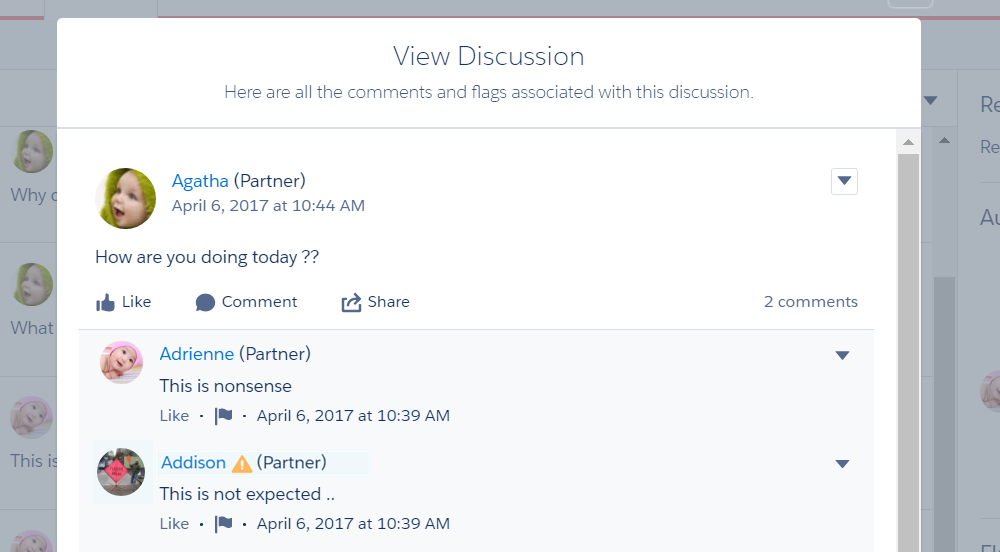
Moderators can view an entire discussion in context, including all comments related to a
post, and sort by the newest discussions or the oldest. To access a list of flagged
discussions, go to . To open a discussion thread, click View
Discussion.
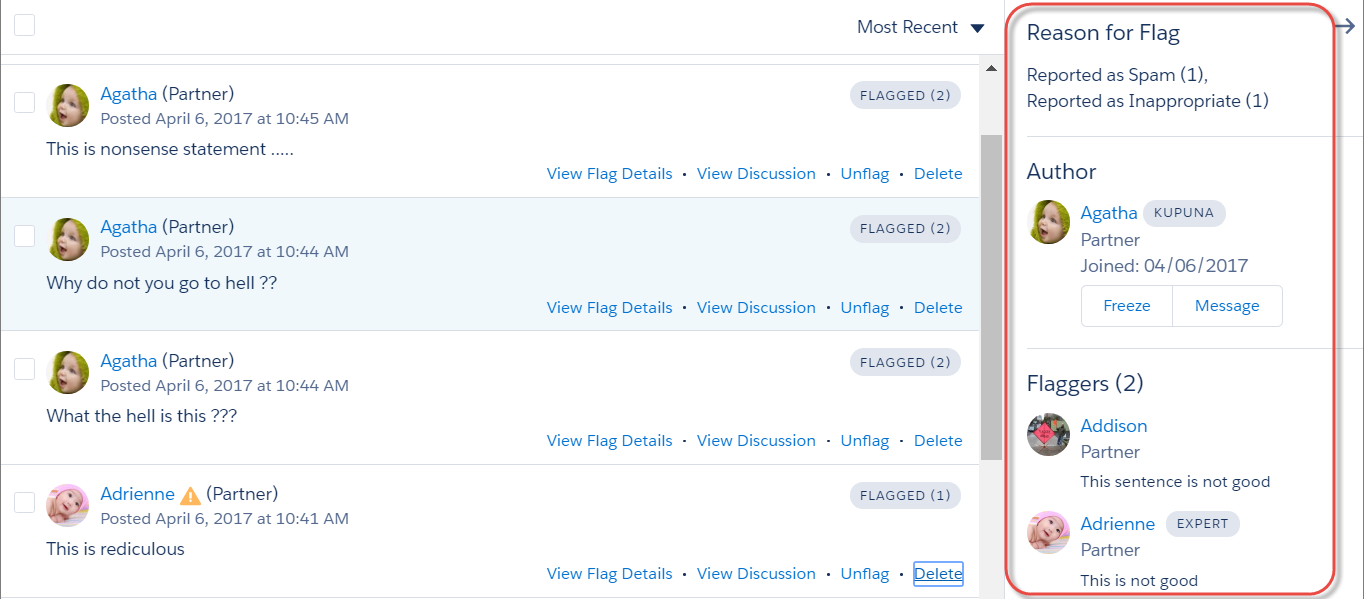
To see how a post or comment was flagged and who flagged it, click a post or comment or
select View Flag Details. You can remove the flag or delete the post
or comment.
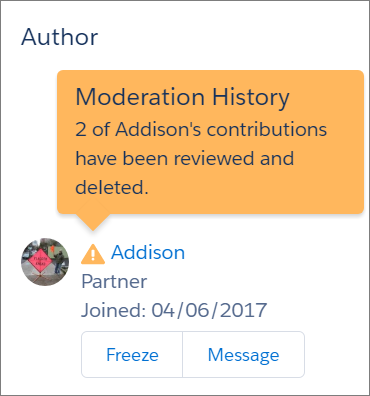
You can see which authors have a history of flagged posts and how many times a moderator
deleted their posts. You can also freeze the author and send them a message.