
Create a mission, choosing an action, threshold, and badge, to automatically give badges to your members.
Required Editions
| Available in: Enterprise, Professional, Unlimited, and Developer editions. |
| User Permissions Needed | |
|---|---|
| To create recognition badges: | Create Custom Badge Definitions |
| To manage your recognition badges: |
Create And Set Up Experiences AND Moderate Chatter OR Manage Experiences AND Moderate Chatter |
| To manage badges created by someone else: |
Modify All Data AND Moderate Chatter |

Note
- To use Missions, set up Recognition Badges.
- Members only receive a mission badge once. If a member received the badge before a mission was set up, they won’t receive it again.
- Missions count activities that occurred before the missions were set up. When you set up missions for the first time, click Reset Activity Count to restart the count for all activities. Be careful about resetting the counts after you have missions established, though, as the reset will erase all of your members’ progress toward earning badges.
- In Experience Workspaces, click the Gamification tile and go to the Missions section.
- Click New.
-
Give the mission a name and a description.
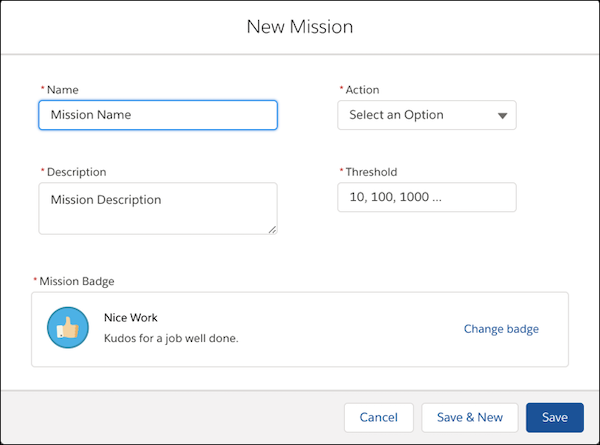
- Select the action that the member performs.
- Enter the threshold, which sets the total number of actions a member must repeat to earn the badge. The threshold doesn’t repeat and badges are earned once. For example, if you set the threshold to 10, the member will receive the badge after completing the 10th action, but not the 20th.
-
Choose your preferred badge and save your changes.
 Tip To make a badge available for missions, in the Recognition Badges section, create or edit a badge and select Mission Badge.
As a best practice, use the badge’s name and description to explain how the user can earn it.