
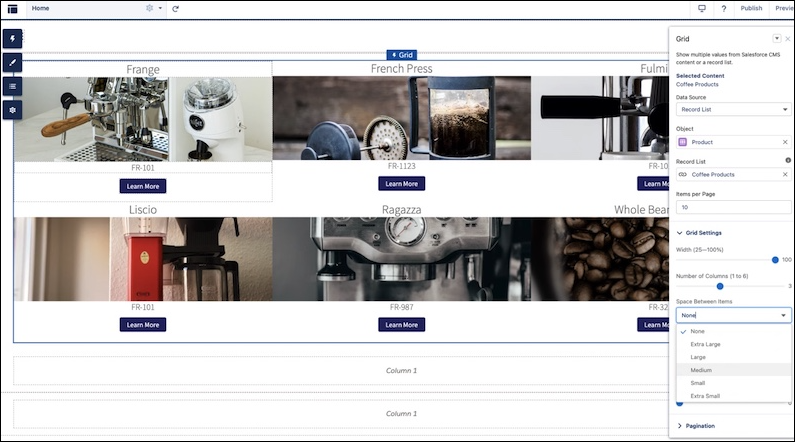
The Grid component dynamically populates with data that’s saved in enhanced CMS collections and record list views. After you pick a data source, you add a content component within the grid to show the content that you want. The component provides data binding and pagination logic.
Required Editions
| Available in: Enterprise, Performance, Unlimited, and Developer Editions |
| You must have at least one active community license in your org to use this feature. |
| User Permissions Needed | |
|---|---|
| To customize or publish an Experience Cloud site: |
|
Before you can add a collection from an enhanced CMS workspace to your site, add the site as a channel to the workspace. Then make sure that the collection is published in the CMS workspace.
- In Experience Builder, click Components.
- Drag the Grid component onto the page. You can add the component to any standard or object page.
- Select a data source: a CMS collection or record list view.
- Set the layout and design options for the content.
- From the components panel, drag in a content component to show the content. Commonly used components include Text Block, Tile, and Image.
- Map the fields for the content that you want to display. For example, you can map the Text Block in a Tile component to a blog title, image, or similar content.

Note
- Enhanced CMS collections can be added only to enhanced LWR sites.
- Grids backed by CRM record list views show a maximum of 2,000 records.
- When you use record list as your data source, the only fields you can bind to are fields that have been selected in the list view. For example, if you want to show the All Accounts list view, and the list view shows five fields in your internal org, only those five fields are shown as options for data binding.