Experience Pulse displays metrics at the top of Workspaces. Click a metric to open the
corresponding report or dashboard for more information or to take action. Customize the displayed
metrics or create ones to meet your needs.
Required Editions
| Available in: Enterprise, Professional, Unlimited, and
Developer editions.
|
To get started, map reports and dashboards to your Experience Workspaces. You can either map
manually or install the Winter ’18 or later version of the AppExchange package. After
installation, Experience Pulse displays automatically. If you have an Experience Cloud site with
Chatter, four tiles display after you install the package: Members, New Members, Unanswered
Questions, and Flagged Discussions.
To customize a metric tile, click Edit Metrics. From here, create a
metric or edit an existing one. You can have up to six metrics at a time.
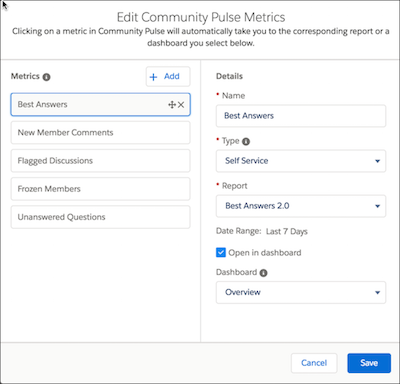
By design, clicking a metric opens the corresponding report. However, selecting Open
in dashboard lets you open a dashboard instead.
