Set Up Approvals for External Users in Your Experience Cloud
Site
An approval process automates how records are approved in Salesforce. An approval
process specifies each step of approval, including who to request approval from and what to do
at each point of the process. Customer Community Plus and Partner users in your Experience Cloud
site can be assigned as approvers on records or added directly to queues. They can see and take
action through the My Approvals and Approval History related lists on the record. Approvals can
also be triggered directly from the site’s feed.
Required Editions
| Available in: both Salesforce Classic
and Lightning Experience |
| Available in: Enterprise, Performance, Unlimited, and
Developer Editions
|
| User Permissions
Needed |
| To create, edit, delete, or clone approval processes: |
Customize Application |
| To create or change queues: |
Customize Application
AND
Manage Public List Views
|
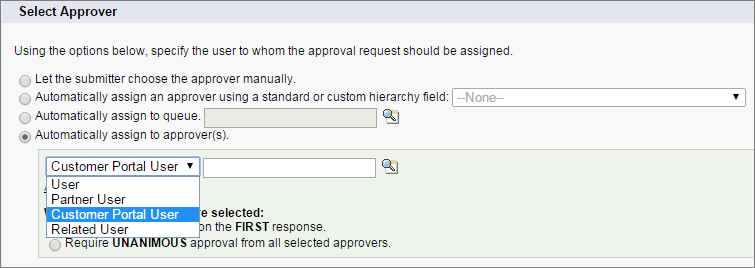
When setting up approvals or queues, use the lookup fields to find customer and partner
users.
For example, when setting up an approval, if you want to automatically assign a customer user
as an approver use the lookup list to find and specify the user.
If you set up email notifications for your approval workflows, emails are sent based on-site
membership. If the user is a member of multiple active sites, the email comes from the oldest
active one. Any links included in the email point users directly to the approval within the
site.
In the Salesforce mobile app, users can see and act from the Approval History related list,
but they can’t submit requests for approval. To submit requests for approvals, the user must
do so from the full Salesforce site.