
Each Experience Cloud template comes with its own set of pages for login, identity verification, password resets, and self-registration. You can use Experience Builder to customize your login experience to match your brand.Experience Builder pages are available after you publish your site.
When you brand your site from Experience Builder, the branding settings on the Login & Registration Page of the Administration workspace are ignored.
- From Setup, in the Quick Find box, enter All Sites, and then select All Sites.
- Next to your site, click Builder.
-
To get the Experience Builder pages that come with your Experience Cloud
site template, publish your site. In the top right, click
Publish.
If you see a notification to activate experiences, ignore it. You activate the site later on.
-
Return to the Administration workspace. In the top left, click
 , and then select
Administration.
, and then select
Administration.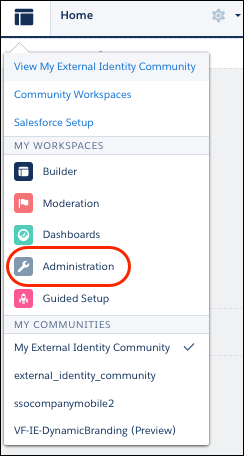
- Select Login & Registration.
-
For each page type, such as login, identity verification, password resets, and
self-registration, find the Experience Builder page that comes with your template.
For example, to select an Experience Builder page for login, select Experience Builder as the Login Page Type, and then select login from the page picker.
- Save your changes.
-
Return to Experience Builder. At the top of Workspaces, select
Administration, then select .
-
At the top of Builder, click the dropdown next to Setup, and then select your page
type.
For example, to select the login page, click the dropdown (1) and then select Login (2).
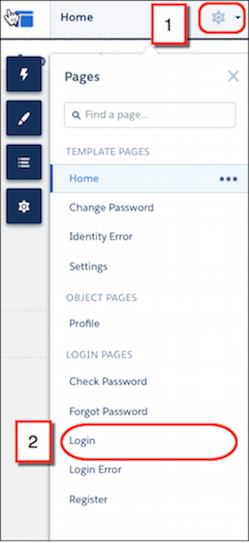 Your login page now appears in Experience Builder.
 - From here, you can further brand your page with Experience Builder. For more information, see Manage Your Site's Pages and Their Properties with Experience Builder.
For more information on the page types you can brand to customize your authentication experience, see these resources.