
Customize the branding of the Object Navigation panel, the No Results page, and Filters. You can customize the text, buttons, background, and images to fit your company’s brand.
-
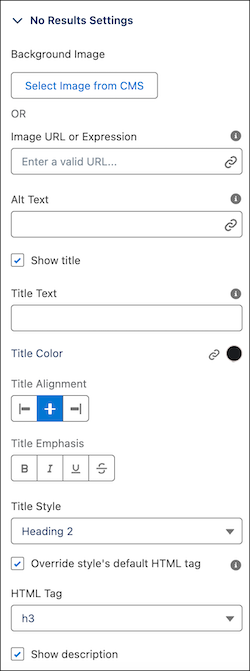
To format the page that appears when a visitor’s search doesn’t return any results, expand
the No results settings section. You can upload a branded image to
replace the default image and customize the page title and description.
-
To include the user’s search term and the selected object in the title text of the No
Results page, use dynamic field values.
- To include the search term, enter {1} in the title.
- To include the object that is selected, enter {0} in the title.
For example, if your title text is We couldn’t find any results for {1} in {0}, and the visitor entered Oranges while searching the Account object, then the No Results text is We couldn’t find any results for Oranges in Accounts.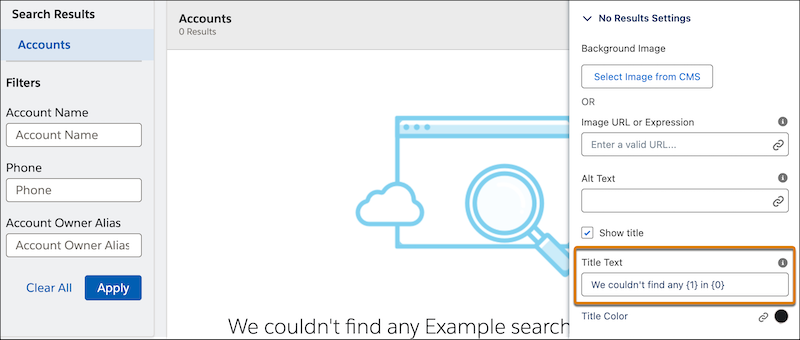
-
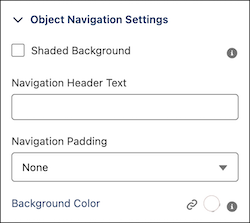
To customize the background, text, and padding of the Object Navigation panel, expand
Object Navigation Settings in the Results Layout properties
panel.
The Object Navigation Settings section is only available on desktop.
-
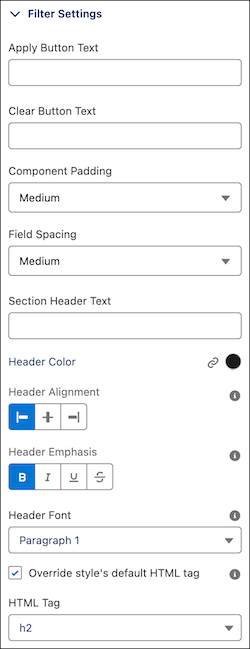
To customize Filter settings, buttons, texts, and branding, expand Filter
Settings in the Results Layout properties panel.
- Preview and publish your site.