
Organize ingested events into Data Graphs and activate the Timeline Wrapper to surface chronological customer activity on your site.
Required Editions
| Available in: Salesforce Classic and Lightning Experience |
| Available in: Enterprise, Performance, Unlimited, and Developer Editions |
| Available in: Aura Experience Cloud Sites |
To show a chronological list of customer interactions, group your Data Model Objects (DMOs) into a Data Graph. This graph enables the Timeline Wrapper to retrieve related web engagement and search events stored in Data Cloud.
-
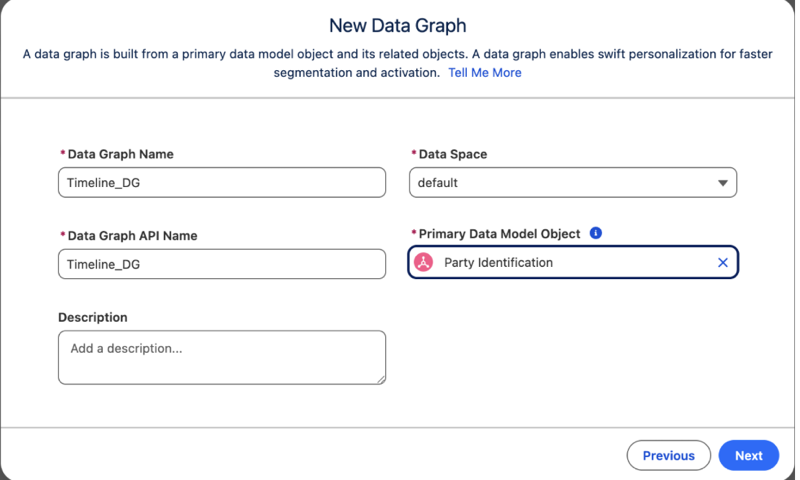
Create a Data Graph in the Data Cloud app using Party
Identification as the Primary DMO.
-
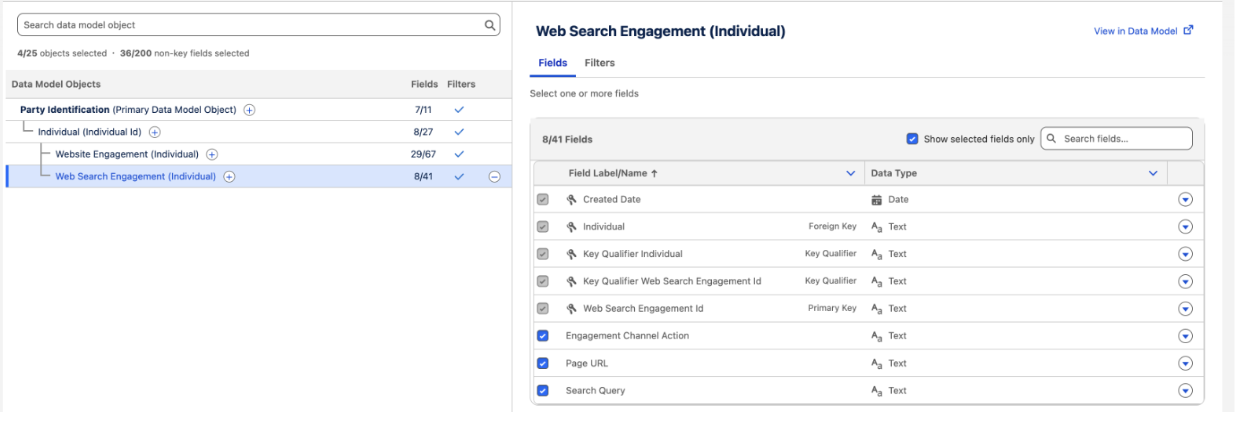
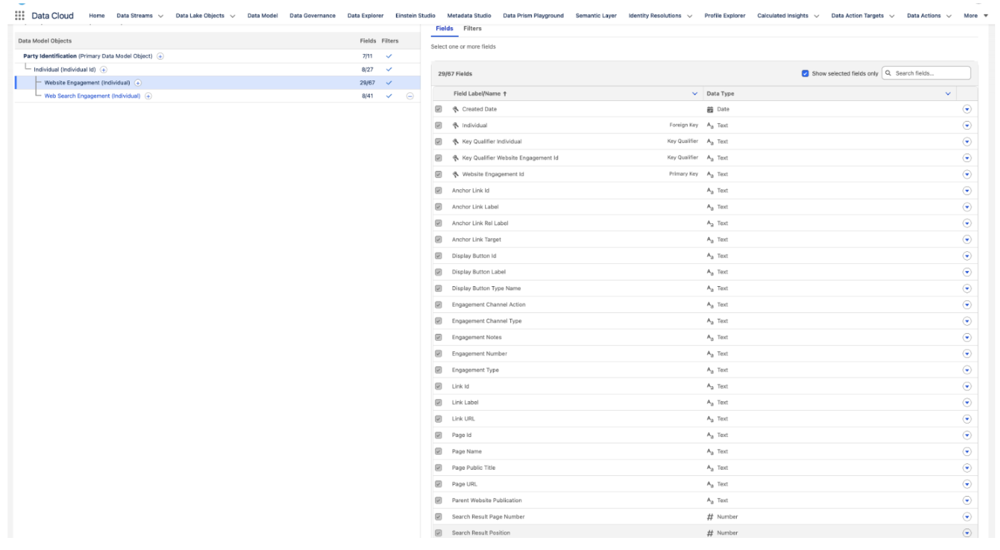
Under Party Identification, add Individual to the graph, and
then select WebSite Engagement and Web Search
Engagement as related objects.
- Save and select Activate.
- From Setup, in the Quick Find box, enter Timeline Settings, select Timeline Settings, and turn on Data Cloud Events.
-
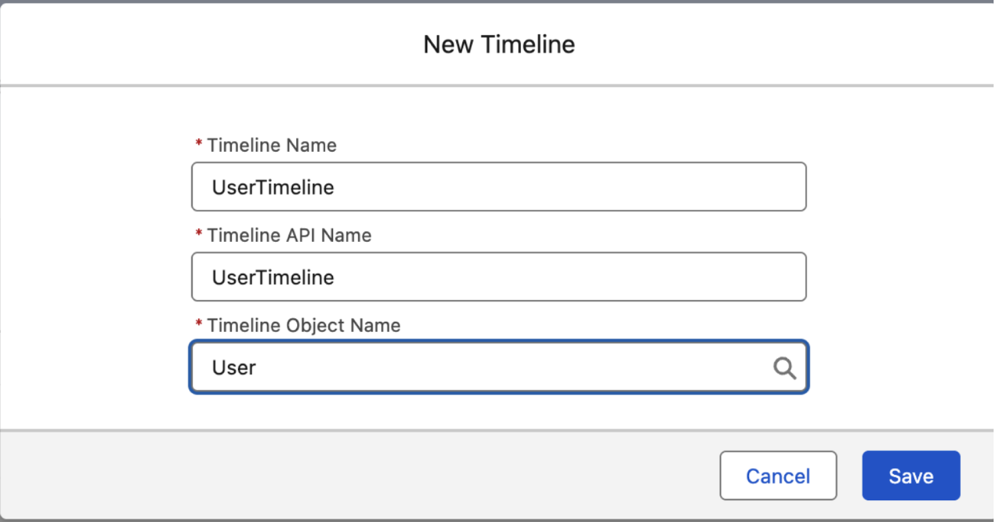
Set Up a Timeline in Salesforce using User as the
Timeline Object Name.
- Under Timeline Related Objects, Set Up a Timeline to Show Engagement Events from Data Cloud Data Graph.
- Map the Identification Number as the Data Model Object Field.
- From Setup, in the Quick Find box, enter Digital Experiences, select All Sites, and select Builder next to your site.
-
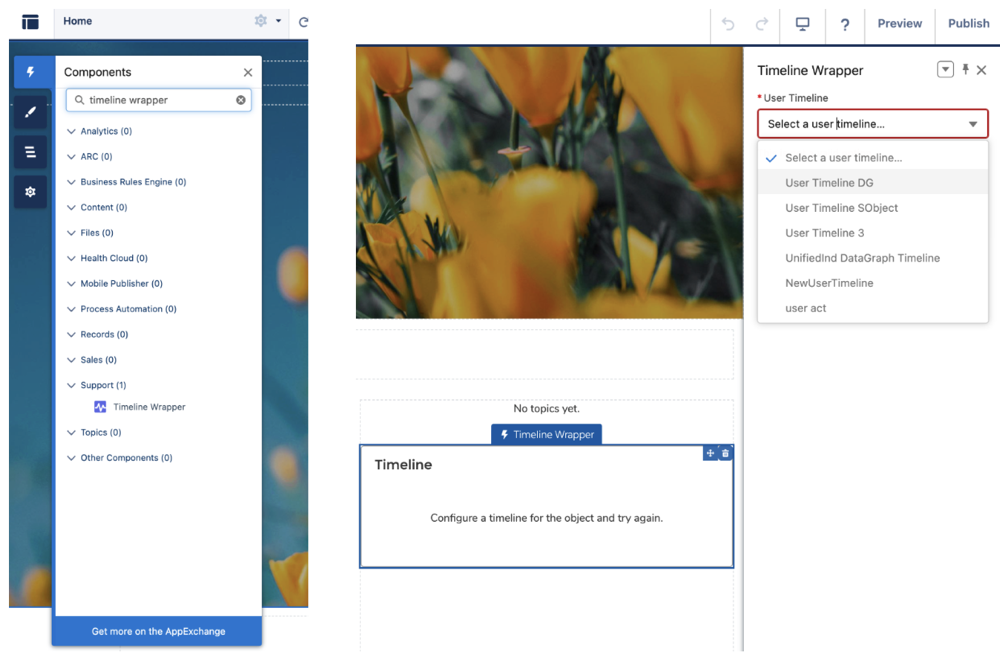
In Experience Builder, Add Timeline to Your Experience Cloud Site by
dragging the Timeline Wrapper component onto your page.
 Note The Timeline Wrapper is available only in Aura sites.
 - In the property editor, select the new timeline from the Timeline Name dropdown list and Publish the site.