
To display CRM object data on your site, create CRM collections. CRM collections are automatically updated based on the data in your Salesforce org. When you add a CRM collection to your Aura site, you can customize its layout and formatting.
Required Editions
| Available in: Salesforce Classic and Lightning Experience |
| Available in: Enterprise, Performance, Unlimited, and Developer Editions |
| Applies to: Aura sites |
| User Permissions Needed | |
|---|---|
| To access an Experience Builder site’s Content Management workspace: |
|
| To customize an Experience Builder site: |
|
Before you can create CRM collections, add CRM connections to your Aura site, and ensure that these CRM connections are approved for use.
As you add records in Salesforce, they’re automatically added to the CRM collection connected to that object. You can create a CRM collection for an object even if you don’t have any records for that object in your org. If you anticipate having records to show on your Aura site, create a CRM Collection.
- In your site’s Experience Workspaces, navigate to Content Management.
-
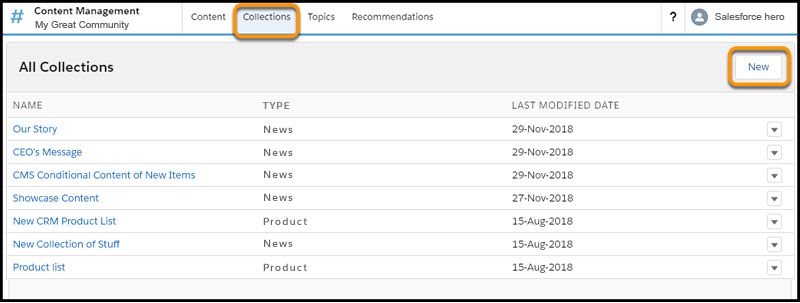
Go to Collections, and click New.
-
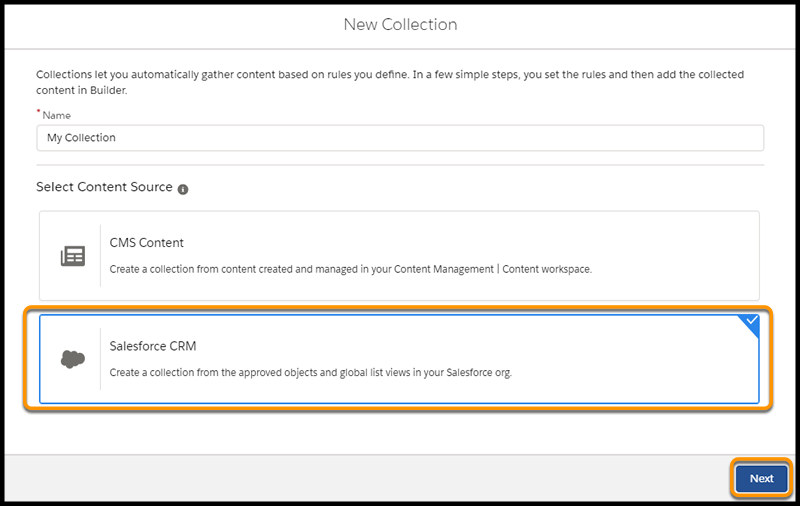
In the New Collection window, enter a descriptive name for your collection, select
Salesforce CRM, and click Next.
- From the dropdown menu, select the object that you want to include in your collection.
-
Select the best list view to display your CRM collection. You can have multiple
collections associated with an object, but each collection can only have one list view
associated with it at a time. Objects with only one list view available can only have one
collection at a time.
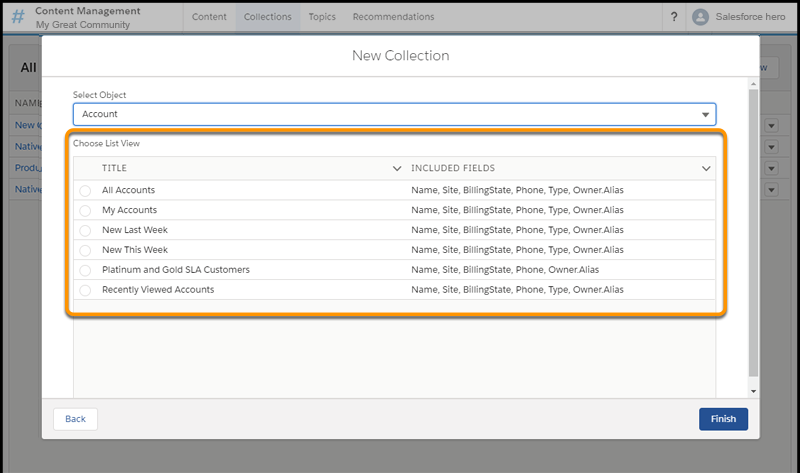
Only global list views are available for creating CRM collections. All fields in a list view are available for display when that view is added as a content source in Experience Builder.
- Click Finish.