Before going live, you can preview your Experience Builder site to see how it looks in a
desktop browser window or on a mobile device.
Required Editions
| Available in: both Salesforce Classic and Lightning Experience |
| Available in: Enterprise, Performance, Unlimited, and
Developer Editions
|
| User Permissions
Needed |
| To create an Experience Cloud site: |
Create and Set Up Experiences AND View Setup and Configuration |
| To customize or publish an Experience Cloud site: |
- Create and Set Up Experiences AND View Setup and Configuration AND be a member
of the site
OR
- View Setup and Configuration AND be a member of the site AND have appropriate
role-based site access
|
-
To preview the site in a browser window, click Preview on the
toolbar.
-
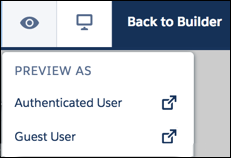
In Preview mode, to see the site in its own browser tab as:
- A logged-in customer would see it, click .
- An unauthenticated visitor would see it, click . As long as your site includes one public page (such as the Home page),
you can use the Guest User option.
-
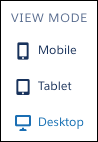
To preview the site on different devices, use the options in the
 menu.
menu.


 | Authenticated User.