
Theme layouts and theme layout components combine to give you granular control of the appearance and structure of each page in your site. Customize the layout’s header and footer to match your company’s style. Configure theme layout properties. Or use a custom search bar and user profile menu. Then use theme layouts to assign theme layout components to individual pages allowing you to quickly change layouts from one central location. Whether you’re a consulting partner or an ISV, or you simply want to revamp your own site, custom theme layouts make it easy to rebrand.
Required Editions
| Available in: both Salesforce Classic and Lightning Experience |
| Available in: Enterprise, Performance, Unlimited, and Developer Editions |
| User Permissions Needed | |
|---|---|
| To create an Experience Cloud site: | Create and Set Up Experiences AND View Setup and Configuration |
| To customize or publish an Experience Cloud site: |
|
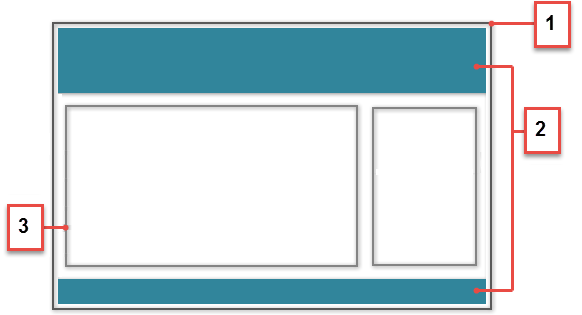
A theme layout component is the top-level layout (1) for the template pages in your site. Theme layout components are organized and applied to your pages through theme layouts. A theme layout component includes the common header and footer (2), and often includes navigation, search, and the user profile menu. In contrast, the content layout (3) defines the content regions of your pages. The next image shows a two-column content layout.
A theme layout categorizes site pages that share a theme layout component. You can assign a theme layout component to any theme layout. Apply the theme layout in the page’s properties.

forceCommunity:themeLayout
interface. All of our pre-built themes are developed on top of this interface and also use
several design property interfaces (color picker, image picker, slider) in Experience
Builder. Pre-built themes also take advantage of theme swapping. You can quickly change the
overall look and feel of the site without impacting any of the underlying pages, page
layouts, and components.
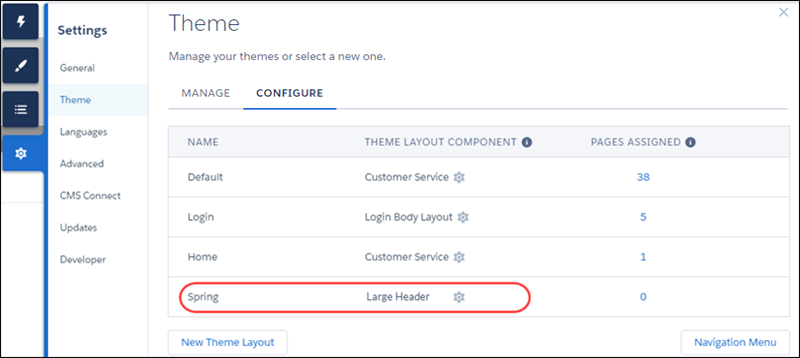
Let’s say you create three pages for your upcoming Spring campaign. You want them to use the Large Header theme layout component that your developer created. In the Settings | Theme area, you add a custom theme layout called Spring to categorize these pages and assign the Large Header layout component to it.
Next, apply the Spring theme layout in each page’s properties, which instantly applies the Large Header layout to each page.
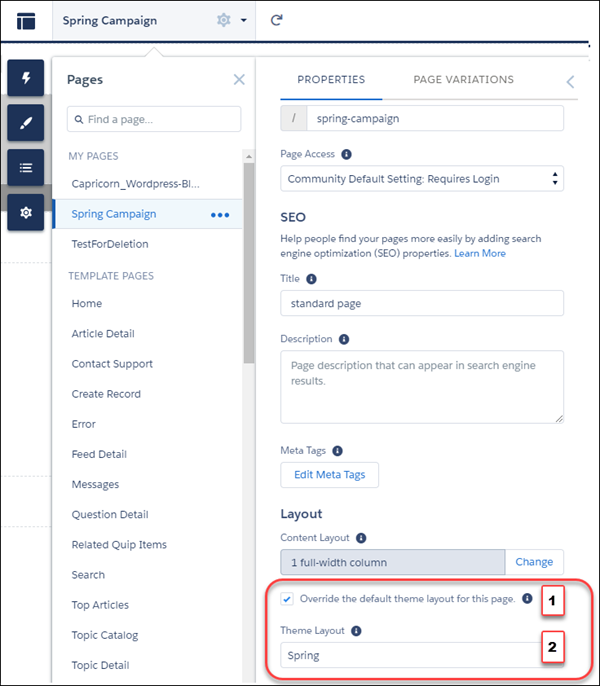
To apply the theme layout, select Override the default theme layout for this page (1). This selection shows the Theme Layout options. Then, choose the new layout (2) from the available choices.
Everything looks rosy until your VP of marketing decides that the header takes up too much room. That’s an easy fix because you don’t have to update the properties of each page to change the theme layout. Instead, with one click in the Theme panel, you can switch Spring to the Small Header layout component and instantly update all three pages!

Now let’s say that the Small Header layout includes two custom properties—Blue Background and Small Logo. You enabled and applied these properties to all your campaign pages. However, for one page, you want to apply only the Small Logo property.
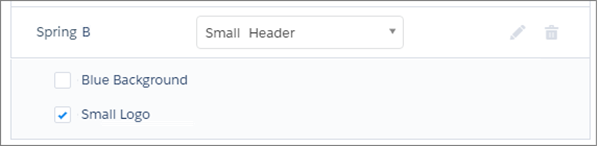
In this case, you could create a theme layout called Spring B, assign the Small Header layout component to it, and enable Small Logo. Then, you apply the Spring B theme to the page.
Not sure which pages are associated with any of your theme layouts?
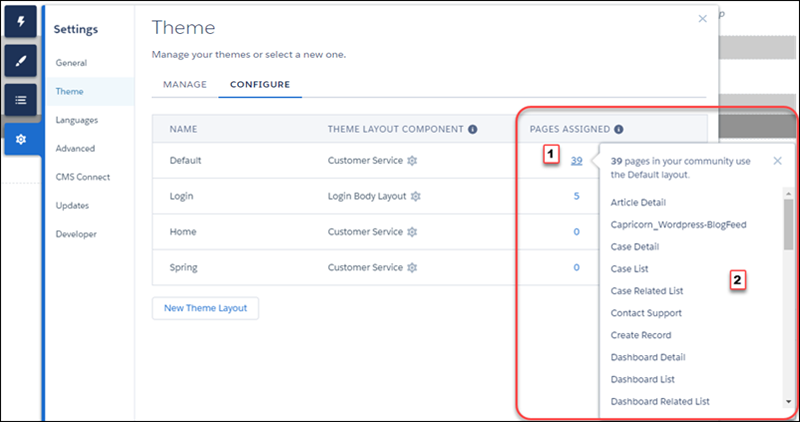
With a click and a glance, you can see how many and which pages are associated with any of your theme layouts. From Settings | Theme, click the Pages Assigned total for any theme layout row (1). Clicking this value opens a list of the pages associated with that theme layout (2).
Theme layouts make it easy to reuse the same theme layout component in different ways while maintaining as much granular control as you need.
See Also
- Developer Guide: Build a Condensed Theme Layout Component
- Trailhead: Create a Custom Theme Layout Component
- Change the Theme Layout of Your Experience Cloud Site’s Pages
- Experience Cloud Developer Guide: Create Custom Theme Layout Components for Experience Builder
- Experience Cloud Developer Guide: Configure Swappable Search and Profile Menu Components