
Quickly set the display order of components on your Experience Builder pages with Progressive Rendering. By carefully optimizing how your pages display, you can enhance the experience of your site and better engage your community.
Required Editions
| Available in: Enterprise, Performance, Unlimited, and Developer Editions |
| User Permissions Needed | |
|---|---|
| To enable Progressive Rendering and apply settings: | Create and Set Up Communities |
Before you activate this feature, read Component Prioritization Guidelines. Determine the need and value of using Progressive Rendering for your site.
Choose the components you want to load first and which can load later. Evaluating components is a combination of determining their computational load and their design and user impact. Good decisions require research, analysis, testing, and retesting. Consider working with other disciplines, such as usability experts, to ensure that you’re evaluating all potential impacts.
-
In the Experience Builder Advanced
settings, enable Progressive Rendering.
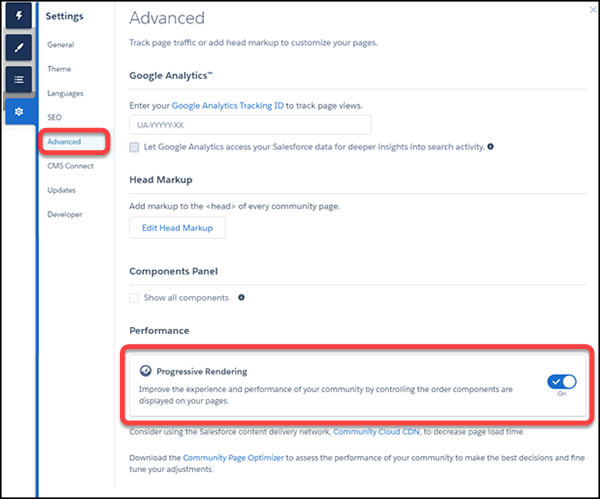
- Select a component on the page.
-
From the actions menu (1) in the Property Editor, select Assign Display
Priority (2).
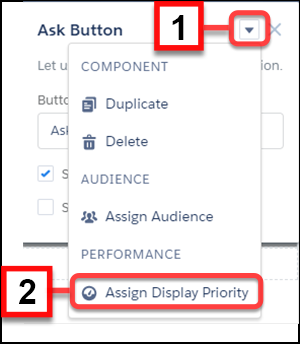
-
Choose the appropriate priority, and click Assign.
There are three priority choices.
Component Priority Levels Priority Description Highest Highest priority components are displayed first. This priority is recommended for key content that you want to display first or content that appears above the fold on longer pages. High High priority components are displayed after all components in the Highest group. Neutral Neutral priority components are displayed after all other components that have a higher priority. By default, all components begin with a Neutral priority. After you select a priority, a color border and icon around the component indicates the priority that is assigned. An icon also appears by the component in the Page Structure panel. In addition, a banner is added to the page to remind you that there are components with priorities set on the page.To change the priority later, select Edit Display Priority in the component menu, or click either of the priority icons displayed in the page structure menu or the component border.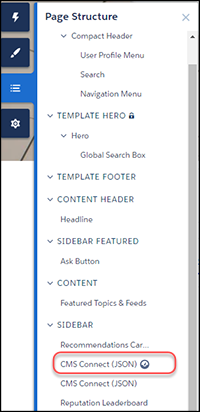
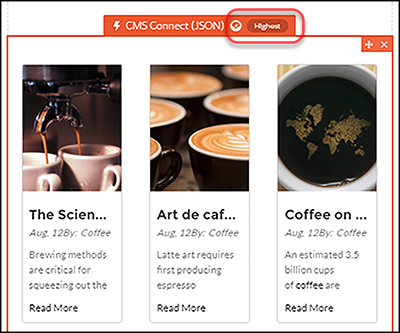 To remove the priority entirely, select Unassign Display Priority in the component menu.
 - Test your results, and ensure that the experience is what you expect.
If you add new components or change the priorities of existing components, re-examine the priority choices on your page to ensure that they’re still appropriate and working as intended.