
Keep your users engaged by offering personalized, relevant content that’s customized for a particular audience. To create an audience, you assemble a set of criteria that defines a user segment. You can then tailor a single site to meet the needs of multiple user segments. For example, you can present the same site with a different look and feel for each audience or show different pages, components, or data to different audiences.
Required Editions
| Available in: Salesforce Classic and Lightning Experience |
| Available in: Enterprise, Performance, Unlimited, and Developer Editions |
| Applies to: Aura sites |

To create an audience, you can choose from among several criteria types, such as user related or record related. You can assign audiences to page variations, branding sets, or components. For certain components, you also can assign an audience to a component variation to personalize the content that different audiences see within the component.
- Page variations—Apply audiences to show users different versions of the same page, such as the home page or a record detail page.
- Branding sets—Show the same content to everyone, with a different look and feel for each audience.
- Components—All users see the same page, but what’s on the page differs among user segments.
- Component variations—For the CMS Collection, Navigation Menu, and Tile Menu components, all users see the components, but the content in the components differs by user segment.
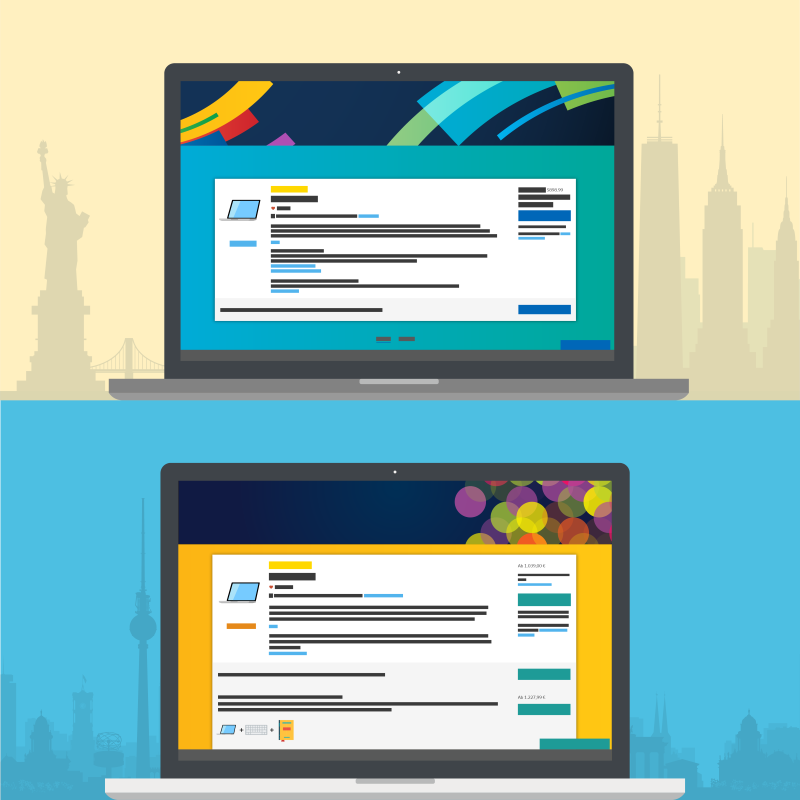
For example, your company offers products that differ between North America and Europe. Rather than create an individual site for each region, you can create region-specific versions of the same site. Then you can define audiences based on geolocation and apply each audience to a regional site version. Your audience in North America sees one version, and your audience in Europe sees the other version.
- Considerations for Audience Targeting in Aura Sites
Audiences are a great help when you want to target specific user segments with relevant site content. As you work with audiences, there are some things to consider. - Create an Audience for an Aura Site
You define an audience by selecting criteria and the conditions under which the criteria apply. After you create an audience, you can assign it to a page variation, branding set, or component. You also can assign an audience to a component variation to personalize the content that different user segments see in the CMS Collection, Navigation Menu, and Tile Menu components. - Assign an Audience to a Page Variation
You can show different pages to different audiences. - Assign an Audience to a Branding Set
You can tailor your branding to different audiences. For example, you can show one look and feel to your customers and another to your partners. - Assign an Audience to a Component
When you assign an audience to a page component, all users see the same page, but the components that are visible on the page differ among user segments. For example, you have a page that’s visible to site members and guest users, and you want your members to be able to post questions and comments. You can add the Feed Publisher component to the page and assign this component to an audience for site members only. Your members can see the component, and guest users can’t. - Assign an Audience to a Component Variation
Use audiences to vary the content that users see within the CMS Collection, Navigation Menu, or Tile Menu components. For example, show one navigation menu to your site members and a more abbreviated navigation menu to guest users. Or show different CMS content to internal employees and external partners. - Prioritize Audiences in Aura Sites
When site visitors meet the criteria for more than one audience, you can prioritize which page variation, branding set, navigation menu, or CMS collection they see. To prioritize audiences, at least two audiences must be assigned to the page variation, branding set, or component variation.