
Export and prepare Experience Builder site content as one or multiple .xml files. Prepare the files for translation by creating nodes for specific languages. Then send the file to your translation service.
Required Editions
| Available in: Experience Builder sites accessed through Lightning Experience, Salesforce Classic, and mobile devices, and is available in Essentials, Enterprise, Performance, Unlimited, and Developer editions. |
| User Permissions Needed | |
|---|---|
| To customize or publish an Experience Cloud site: |
|
Before you begin, let’s look at the structure of the .xml file that’s created when you export language content. The file consists of several elements, and these elements are the key ones to focus on.
componentelements represent the page components that make up your site. Many of these components contain text that must be translated.- The
fieldelement contains the component’s properties for a particular language. The language is defined by thelanguageattribute. propertyelements includeCDATAtags that contain the text strings for translation.As you can see in this sample XML for a component, several
CDATAtags don’t contain any content. So the onlyCDATAtags that you and your translators must focus on are the ones that contain text.
<component context="Contact Support Form (Aura)" documentId="2342fd59-55da-5bdd-b013-d0a3cb6ce523" id="1242fd59-76da-4cdd-b025-d0a3cb6ce496">
    <field name="AuraAttributes" language="en_US" exportcrc="811168867">
        <property name="requestSummaryText"><![CDATA[Case summary]]></property>
        <property name="callToActionText"><![CDATA[]]></property>
        <property name="headerSubtitle"><![CDATA[Tell us how we can help.]]></property>
        <property name="callToActionButtonText"><![CDATA[]]></property>
        <property name="confirmationText"><![CDATA[Your case was created.]]></property>
        <property name="confirmationSubtext"><![CDATA[We'll get back to you soon.]]></property>
        <property name="headerTitle"><![CDATA[Contact Customer Support]]></property>
    </field>
</component>
To export and prepare content for translation:
-
In Experience Builder, click
 | Languages.
- Click Export Content.
-
Select your default language.
You can select a language other than your default language, but we don’t recommend it unless you must export existing translations for that particular language. If you haven’t yet added translations for the language, the exported file is empty.
-
(Optional) Change the export file name.
The default name of this file is Languages.xml, but you can rename it. Consider exporting a file for each translation and renaming each file by its country code. For example, if you intend to get translations for French, German, and Spanish, you can rename the files language_fr.xml, language_de.xml, and language_es_mx.xml, respectively.
- Click Export.
- If you’re prompted to, choose where to save the file.
-
Prepare the .xml file for translation.
-
Copy the
fieldelement for the content to be translated, and paste the copy under the original.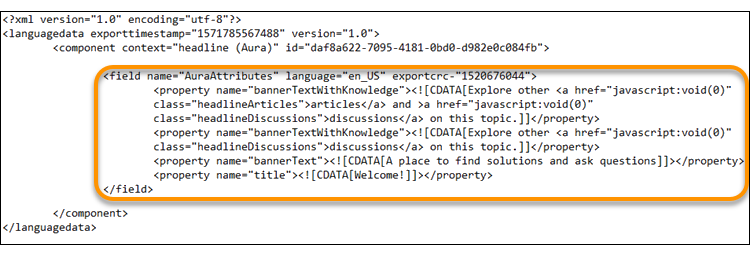 You can copy a
fieldelement multiple times for multiple translations in one file. However, to reduce the chance of overwriting existing translations when importing new ones, we recommend that you export a separate Languages.xml file for each translation. -
Update the
languageattribute in the pastedfieldelement to the new language.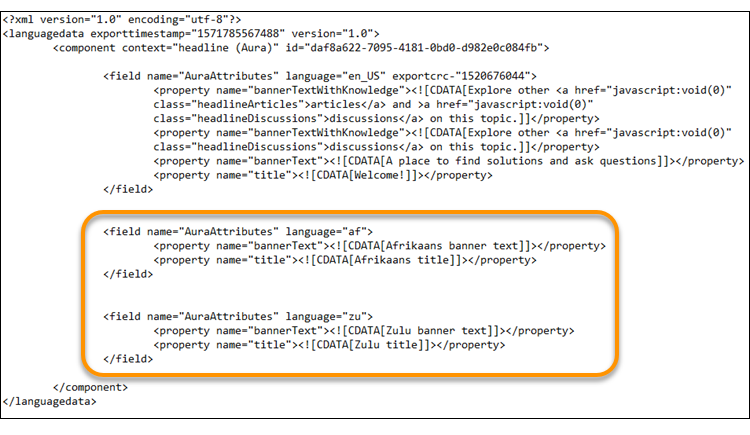
- Save your changes.
-
Copy the
After you export and prepare the .xml file, you can send it for translation. Ask your
translators to put translated content between the brackets that follow the CDATA tags.
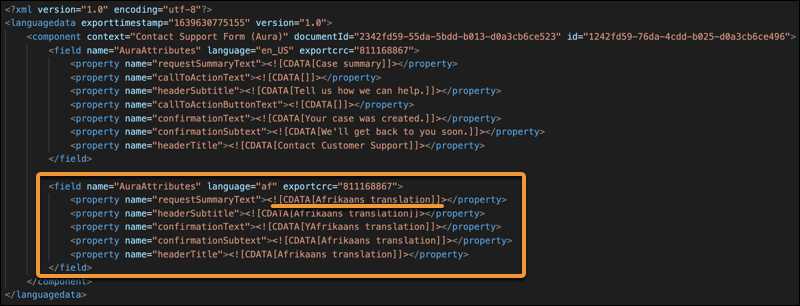
If possible, avoid updating the site’s default content until after you receive and import your translated content. Because the translated file contains the original default content and the translated content, when you import the file, you overwrite updates made in the interim.
When you receive the translated .xml file, import it back into the site.