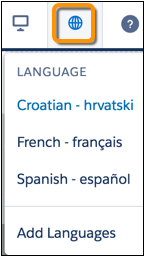
Experience Builder provides its
own language menu that you can use to switch between languages as you edit content on each page.
Switch languages and provide spot translations, like fixing a typo. You can also use this method
for full page translations instead of exporting and importing site content.
Required Editions
| Available in: Experience Builder sites accessed through Lightning Experience, Salesforce Classic, and mobile devices, and
is available in Essentials, Enterprise, Performance, Unlimited,
and Developer editions. |
| User Permissions
Needed |
| To customize or publish an Experience Cloud site: |
- Create and Set Up Experiences AND View Setup and Configuration AND be a member
of the site
OR
- View Setup and Configuration AND be a member of the site AND have appropriate
role-based site access
|
-
Open the page you want to translate, and select a language from the Experience Builder language menu.
-
To access component properties, select the component on the page.
By default, all component properties use the default site language, which is the
language that you see until you add translated content.
-
Enter the translated content in the property fields.