
When you want to add flows to a Lightning Bolt Solution, group them into a flow category. Then add one or more flow categories to your solution.
Required Editions
| Available in: both Salesforce Classic and Lightning Experience |
| Available in: Enterprise, Performance, Unlimited, and Developer Editions |
| User Permissions Needed | |
|---|---|
| To create a flow category: | Customize Application |
| To create a Lightning Bolt Solution without an Experience Builder template: | Customize Application AND View Setup and Configuration |
| To create a Lightning Bolt Solution with an Experience Builder template: | Customize Application AND Create and Set Up Experiences AND View Setup and Configuration |
You can use a Lightning Bolt Solution to publish a turnkey solution on AppExchange, implement a site with a complete solution or new look, or reuse automated processes that use flows.
You can only add active flows to a flow category.
- From Setup, enter Flow Category in the Quick Find box, and select Flow Category.
- Click New Flow Category.
- Enter your developer name and a description. For the name, only alphanumeric characters and underscores are valid.
-
Choose flows from the list of active flows.
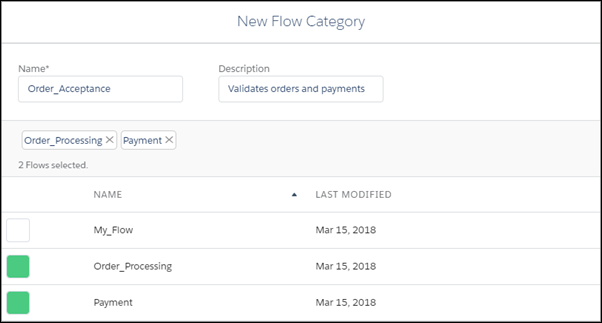
- Save the flow category.
- Add the flow category and any custom Lightning apps, Experience Builder templates, or other flow categories that you want to export to a Lightning Bolt Solution.
- Package the solution to distribute in your orgs or in AppExchange.