
Error Messages for Pages Without Data in Experience Builder
When you use Lightning components to build a template-based page in Experience Builder, sometimes the page doesn’t load correctly on your site. Find out why this error happens, and how you can fix it. Make sure that the component has underlying data.
Required Editions
| Available in: both Salesforce Classic and Lightning Experience |
| Available in: Enterprise, Performance, Unlimited, and Developer Editions |

An error occurs on site pages in one of the following three instances:
- The page has no components
- The page has one or more components, and one or more have no underlying data
- Your org has SEO-friendly URLs enabled, but there’s no URL slug specified for the object type
You see this error when components rely on dynamic data, and they don’t find any underlying data to draw upon. For example, a Group component that doesn’t find a group ID, or a record that can’t find a record ID would both give you an error.
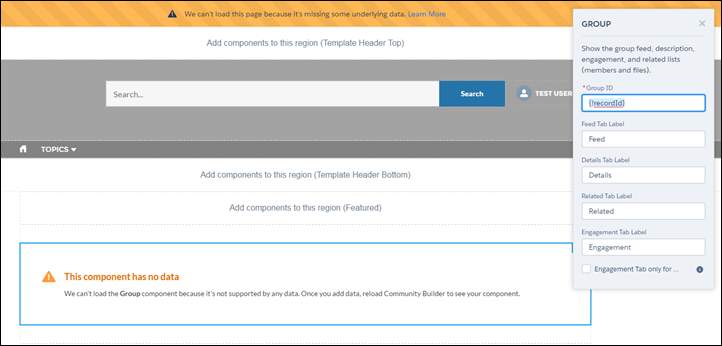
Why do I see this error?
In most situations, the page is trying to draw information when information doesn’t exist. Let’s say you make a record detail page for the Account object. If you don’t have any accounts set up in Salesforce, you see an error. Or let’s say you set up a group detail page, but your new site doesn’t have any groups. Once again, you see an error.
To fix the errors that involve SEO-friendly URLs, add a URL slug to the object that you’re
referencing in the component. That way, the component loads the correct data. You can add the
URL slug programmatically, such as using Apex, on the ObjectRelatedUrl object.
Any gotchas?
The Customer Service template uses topics to organize content in a site. To see topic detail pages, first set up Navigational Topics in Site Management.
The following default pages in the Customer Service template can show this error. Here are some tips on how to fix it.
- Article Detail: Create at least one Salesforce Knowledge article in your org.
- Topic Detail: Create a Navigational Topic.
- Question Detail: Create a Navigational Topic. Use the Ask a Question button to create a question.
- Feed Detail: Use the Post Publisher or Ask a Question button to create a post or question.
- Group Detail: Create a group in the site.