
Follow topics so you can see updates in your Chatter feed.
Required Editions
| Available in: Salesforce Classic and Lightning Experience |
| Available in: Group, Essentials, Professional, Enterprise, Performance, Unlimited, Developer, and Contact Manager Editions |
To follow a topic, click Follow in one of these locations:
-
Topic detail page
If the Follow button on the topic detail page has a
 in front of it (Lightning Experience), you have more
options. To see options for following the topic and for adding it to a new or existing
stream, click the button. To follow the topic from the menu, click What I
Follow.
in front of it (Lightning Experience), you have more
options. To see options for following the topic and for adding it to a new or existing
stream, click the button. To follow the topic from the menu, click What I
Follow.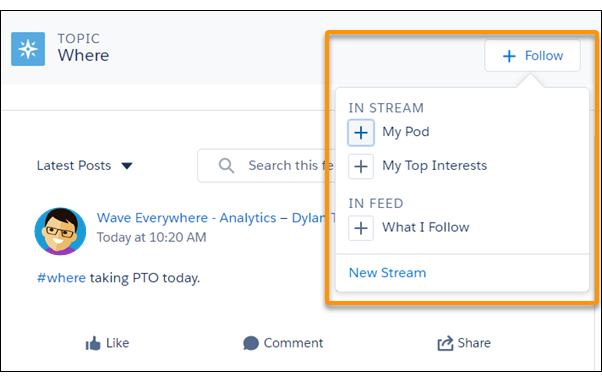
 Note You can find streams in Lightning Experience on the Chatter home page.
 - Topics list (Salesforce Classic only)
You can follow a maximum combined total of 500 people, topics, and records. To see how many items you’re following, view the Following list on your profile.
To stop following a topic, click Following
(Lightning Experience) or click  next to Following (Salesforce Classic). After you
stop following a topic, you don’t see future updates to the topic in your Chatter
feed.
next to Following (Salesforce Classic). After you
stop following a topic, you don’t see future updates to the topic in your Chatter
feed.
If your administrator disables feed tracking for topics, you can’t follow new topics. However, you continue to follow the ones that you followed when feed tracking was enabled. These topics count toward the maximum number of people, topics, and records that you can follow. To stop following a topic after your administrator disables feed tracking, you must use Connect REST API.