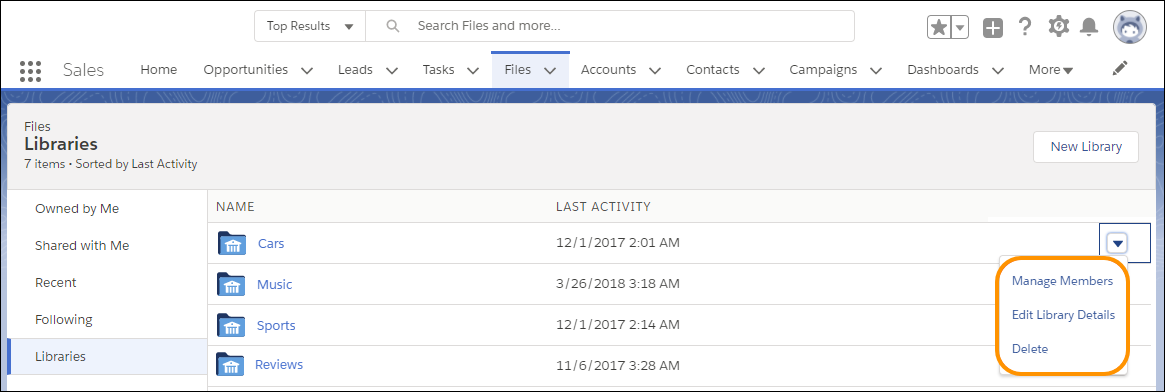
Working in libraries is simpler now that admins can change libraries in Lightning Experience and manage libraries from Files Home.
Required Editions
| Available in: Lightning Experience |
| Available in: Professional, Enterprise, Performance, and Unlimited Editions |
| User Permissions Needed | |
|---|---|
| To manage a library using Lightning Experience: | Manage Library checked in your library permission definition |
| To manage a library using Salesforce Classic: | Manage Salesforce CRM Content |
Every library that you create is automatically structured in a folder. Library creators have administrator permissions so that they can keep libraries current and relevant.
Start in Files Home. You can sort the order of libraries to work more efficiently. Library users can switch between tile view and list view, and edit libraries in the view that they prefer.
- To create a library and brand your library with a library image, click New Library.
- To edit a library, click the dropdown menu next to a library and choose Edit Library Details.
- To delete a library, click Delete.
 Note Only empty libraries can be deleted. Delete files first, and then delete the library. If you delete the files and still have trouble deleting the library, permanently delete the files from your Recycle Bin.