
Use the File Privacy on Records setting to control who can see a file when it’s attached to a record. The setting is available when you edit a file’s details.
| Available in: Lightning Experience |
| Available in: Group, Essentials, Enterprise, Professional, Performance, Unlimited, Contact Manager, and Developer Editions |
The File Privacy on Records option lets you control the visibility of a file when it’s attached to a record. If you don’t see the File Privacy on Records option when you edit a file’s details, ask your admin to add it. Only admins and file owners can change the value of File Privacy on Records.

Important On private files, file metadata isn’t also private. A user without
permission to access a private file can nonetheless access the file’s metadata. So, for
example, through a private file’s metadata, an unpermitted user can see who’s following the
private file.

Note The File Privacy on Records option also appears in Salesforce
Classic on the content detail page and content edit dialog. A file marked as private in
Lightning Experience is also private in Salesforce Classic. This feature is also available
in Experience Builder sites.
- On the Files home page, open the actions menu of the file you want to change and select Edit File Details.
-
From the File Privacy on Records list, select an option for controlling the file’s
visibility when it’s attached to a record.
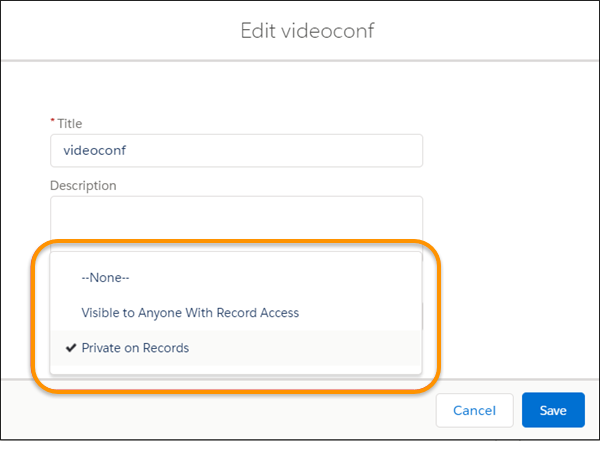
- Visible to Anyone With Record Access lets anyone who can see the record also see this file attachment under Files on the record’s Related tab.
- Private on Records lets only the file owner see the file under Files on the record’s Related tab.
- Click Save.
According to your selection, whenever people view record details, they either see or don’t see this file when it’s attached to the record. The file owner sees the attachment, no matter the privacy setting.