
Organize library files into folders to find what you need quickly.
Required Editions
| Available in: Lightning Experience |
| Available in: Essentials, Group, Enterprise, Professional, Performance, Unlimited, Contact Manager, and Developer Editions |
| User Permissions Needed | |
|---|---|
| To add folders to a library: |
Manage Salesforce CRM Content OR Manage Library checked in your library permission definition OR Organize File and Content Folder checked in your library permission definition |
Library managers can create, rename, and delete folders in libraries in Lightning Experience. Folders are visible to all users who have access to the library. The New Folder button adds a folder to the library or creates a subfolder within a folder. You can create multiple levels of subfolders. The row-level Move action lets you move a file among folders and subfolders within a library.
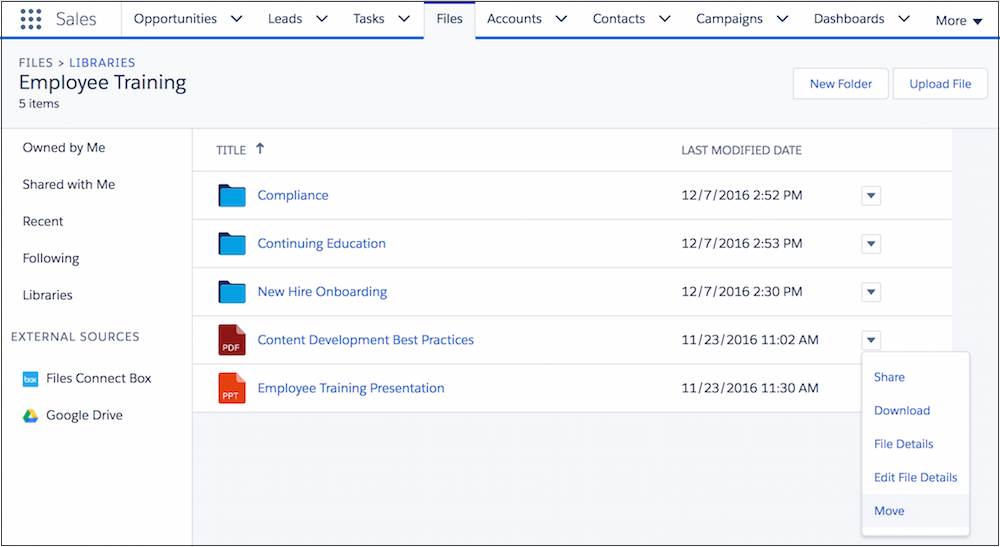
Create folders in Lightning Experience to organize files that are already in libraries. Upload files to a library by selecting the library and then clicking Add Files. Library folders can also be created, renamed, and deleted using SOAP API.

Get Started with Library Folders
- Folders are enabled by default in any new libraries that you create. Folders are not
enabled by default in existing libraries. To enable folders in a library, click the
New Folder button. Depending on the size of the library, enabling
folders can take a few minutes.Note To enable folders in a library, you need the “Manage Salesforce CRM Content” permission. Verify that you’re both a member of the library and have Library Administrator permission. You can also use SOAP API to enable folders in libraries.
- In libraries with more than 5,000 files, you can’t enable folders.
Anyone with the “Organize File and Content Folder” permission can create, rename, and delete folders. You can view all folders in a library that you have access to, and move files and folders within a library.
You may be able to sort content of some libraries or folders, but not others, in ascending or descending alphabetical order. Sometimes when you sort folders by the NAME or LAST ACTIVITY columns, the Asset folder remains at the top of the list. In some cases column headers do not sort the column content. It's not possible to sort contents in every library or folder by clicking either the TITLE or LAST MODIFIED DATE columns.
| Lightning Experience | Salesforce Classic | |
|---|---|---|
| Create, rename, and delete library folders |

|
|
| Move files in a library into folders |
|
|
| View folders |
|
|
| View libraries |
|
|
| Add files to a library |
|
|
| Create, edit, and delete libraries |
|
|
| Manage library membership |
|
|
Sort Library Folders
When you sort Folders by the NAME or LAST ACTIVITY columns, the Asset folder remains at the top of the list.
Although users can click them, the list can remain unchanged per design.