After a little administrative setup, you can link to a recently viewed record from a
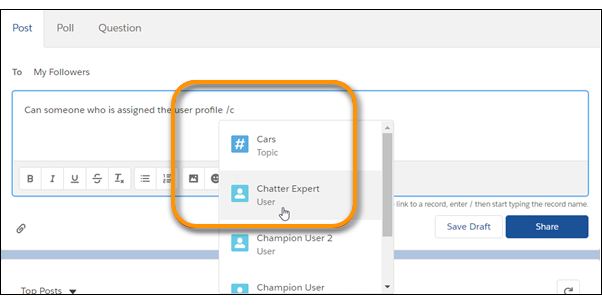
Chatter post or comment. In the Chatter publisher, enter a forward slash (/) and start typing
the record name. You can link to any record type that’s enabled for your org, such as work
records, accounts, opportunities, and cases. Link to up to 25 records in each post or
comment.
Required Editions
| Available in: Lightning Experience |
| Available in: Essentials, Group, Professional,
Enterprise, Performance, Unlimited, Developer, and
Contact Manager Editions
|
Before you can link to records from a post or comment, your Administrator must contact
Salesforce Support. Ask Salesforce to enable and set up the Quill editor for composing Rich
Text content in Chatter.
You can link to records from a post, comment, and a question detail, but not the question
itself. You can link to up to 25 records in a post, comment, or question detail.
In a report, linking to records isn’t available on the feed that opens when you click the
Collaborate button  .
.
-
When you want to link to a record, enter a forward slash (/).
-
Start entering the record name.
-
Select a record from the list.
Records on the list are returned as the result of a search, and search returns only
the records that you’ve looked at recently. So, if you’ve never viewed or interacted with
a particular record, it doesn’t appear on the list.
-
Finish writing your post or comment, and click Share.
The people who can access the record see the record name as a link.
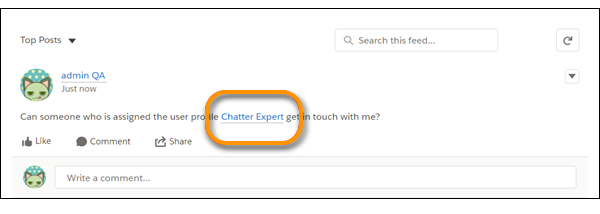
The people who can’t access the record see a
Record Not Available message.
Salesforce supports hyperlinks and entity links, but only hyperlinks are searchable. An
entity link is a user at-mention or a record slash-mention. An easy way to tell if a link is
a hyperlink or entity link is to hover over the link in a post. If a hover card pops up with
details about the user or record, then it’s an entity link. If there’s no hover card but
instead a tooltip with the link url, then it’s a hyperlink.