
Use the Chatter publisher to post, comment, ask questions, and create polls.
Required Editions
| Available in: Salesforce Classic and Lightning Experience |
| Available in: Group, Essentials, Professional, Enterprise, Performance, Unlimited, Developer, and Contact Manager Editions |
The publisher appears on your Home tab, Chatter tab, user profile page, and group and record detail pages. Use the publisher to write a post, comment on a post, attach a file or link to your post, add a poll, or ask a question. Posts and comments can be up to 10,000 characters long. Questions can be up to 255 characters, though question details can be much longer. Use the rich text editor to format your posts. Publisher actions include styling text and removing text styles, adding lists, adding inline images, hyperlinks, and emojis, @mentioning someone, and attaching a file.

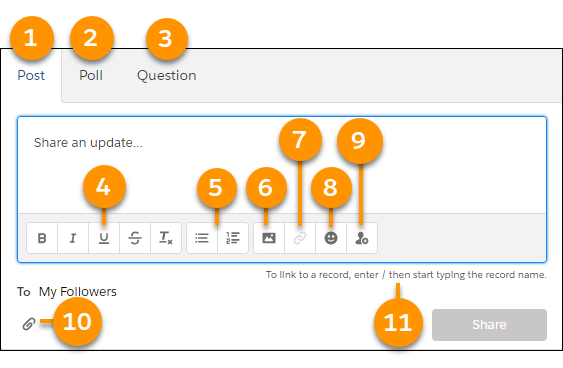
- Post tab (1)
- Poll tab (2)
- Question tab (3)
- Font styles, including remove styles action (4)
- List styles (5)
- Inline image (6)
- Inline Hyperlink (7)
Hyperlinking inline images is not supported. Highlight link text before you click the hyperlink icon. If your hyperlink URL gets an error, check its syntax to ensure that:
- The URL starts with https://.
- The hostname and file name are correct.
- The URL doesn't point to a localhost domain.
Note In a Lightning console app, a link that you paste or add here can open differently than a link that appears in the same post if aHYPERLINK()formula produces it in the post text (for example, when automation builds the post body). See HYPERLINK and Tips for Working with Hyperlink Formula Fields. - Emoji selector (8)
- @Mention action (9)
- Add file action (10)
- Link-to-record prompt (11)
The link-to-record feature brings up records that you have recently viewed. If the record you want to link to isn’t on the selection list, visit the record and try again.

In questions, shortcut keys work with question details, but not on the question itself. So if you ask a question but don’t include details, the shortcuts don’t work. When you include details with the question, then shortcuts work.
By default, the publisher displays the Post, Poll, and Question actions. Your Salesforce administrator can change the order of the actions and add more actions. Therefore, the actions you see depend on how your administrator configured the publisher.
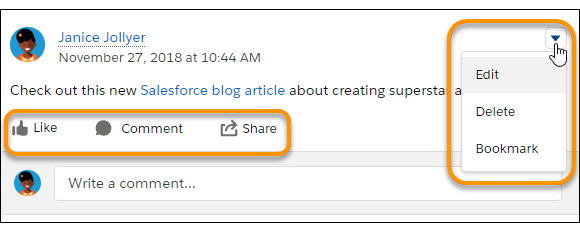
When you post to a feed, everyone with access to the feed can comment on, like, upvote (if enabled), or share the post. Other actions can appear on the actions menu.
In Lightning Experience, comments are live and don’t require a page refresh to update.
- When new comments are made on a feed post that you’re engaged in, you receive notifications only in Lightning Experience. Notifications appear when you’re actively typing comments or you’ve clicked in the comments box.
- The number of participants supported for live comments depends on your org’s subscription limits. If you’re not getting live comments, then click in a comment field. If comments still aren’t live, then it looks like your org has hit its limit! You can still get updates the old-fashioned way by refreshing the page.
Click Edit to modify your own posts and comments. If you’re a group owner or manager, then you can also edit other people’s posts on the group feed. Click Delete to remove your post from the feed. However, you can’t delete other people’s posts or posts about feed tracked changes.