
Here’s a quick look at all the information that surrounds a typical Chatter post in Lightning Experience.
| Available in: Lightning Experience |
| Available in: Essentials, Group, Enterprise, Professional, Performance, Unlimited, Contact Manager, and Developer Editions |
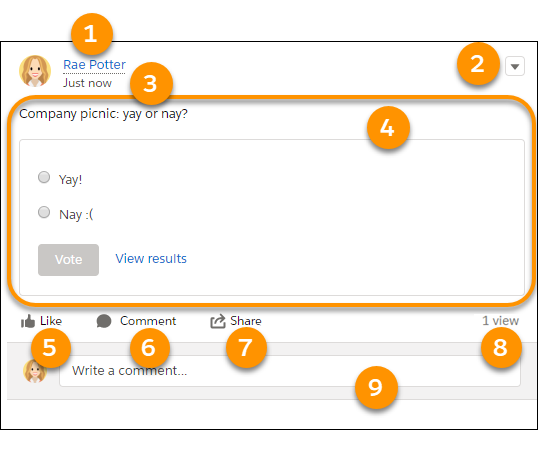
Rae Potter created and posted a poll.
| 1 |
At the top of the post, the name of the person who posted appears. Click the name to navigate to that person’s profile. If you’re seeing a post in a combined feed, like Company Highlights or What I Follow, the top can also show where the post originates. For example, it can show the name of the group where the post appears. You can click the group name to navigate to that group. |
| 2 | The actions menu. The options that appear on the actions menu depend on a few things. Are you viewing the post’s detail view? Has your administrator added actions to the Chatter publisher? Standard items on this menu include Bookmark and Delete—provided you’re the person who posted or you have permission to delete users’ posts. The Mute option appears on a post’s actions menu in the What I Follow feed and in the post’s detail view. |
| 3 |
The post’s date and timestamp. The date and timestamp shows when the item was posted. Click the date and timestamp to navigate to the post’s detail view. If the post is less than two days old, the date and timestamp is relative, such as “Just now.” Otherwise, the date and timestamp is absolute, such as “October 5, 2017 at 4:06 PM.” |
| 4 | The post. In this example, we see a poll question and its selection of answers. |
| 5 | The Like button. Click the Like button to show appreciation, agreement, affection, or some other positive response to the post. Some people like posts to show that saw the post. |
| 6 | The Comment button. Click the Comment button to shift your mouse focus to the Comment field. You can also click in the Comment field to start entering a comment on the post. |
| 7 | The Share menu. Use the Share menu to share this post with your followers or a group that you choose. Share with anyone who has access to the post, using the Copy Link option on the Share menu. |
| 8 |
The view count. The view count shows how many times this post has been viewed. The count goes up whenever someone likes, comments on, or navigates to the detail view of the post. Posts in private and unlisted Chatter groups can use a seen-by count in lieu of the view count. Seen by shows the count of people who have seen a post. Click the count to see the names of the people who have seen the post. What is considered as being seen? Liking, commenting, editing, and viewing in detail. An item is also considered seen when a user has it in view on the screen or when they scroll past it. For both seen by and view, the actions you take in Salesforce Classic are tracked and counted. But only Lightning Experience shows the seen-by count and list.  Note Users with Modify All Data or View All Data
permission see a seen-by count in all feeds, and not just private and unlisted
feeds.
One difference between the seen-by and view counts is that one person can be counted many times with view count. With seen by, a person is counted only one time, no matter how many times they perform a counted action. |
| 9 | The comment field. Comment on a post to build the discussion thread. |