
Mute a Chatter post to stop receiving notifications about it.
Required Editions
| Available in: both Salesforce Classic and Lightning Experience |
| Available in: Essentials, Group, Enterprise, Professional, Performance, Unlimited, Contact Manager, and Developer Editions |
You can mute a feed post from the full feed on the Home and Chatter tabs. In a group, profile, or record feed, you can mute a post from its detail view. To navigate to a post’s detail view, click its date-and-time stamp.


If your admin enabled email replies, you can also mute posts by replying to notification emails with the single word mute.
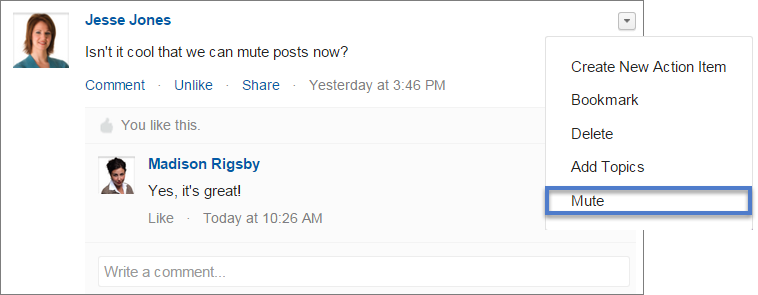
To mute a post in a feed, select Mute from the post’s actions menu.
To mute a post from its detail view:
- Go to detail view in the feed by clicking the post’s date-and-time stamp, or, in an email notification, by clicking the View/Comment button.
- From the post’s actions menu, select Mute.
- In Salesforce Classic:
- The post no longer appears in your feed on the Home and Chatter tabs.
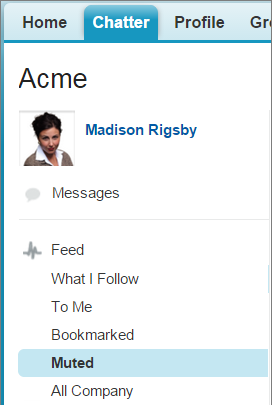
- You can use the Muted filter to view your muted posts.
- In Lightning Experience and in Experience Builder sites that are based on the Customer
Service (Napili) template:
- The post stays in place. If you’re in the What I Follow Feed, however, the muted item disappears from the feed—though it continues to appear in its source feed. If you plan to refer to that item again, copy its detail-view URL. Save the URL some place safe to ensure you can get back to the item later.
- In all of these environments:
- You no longer get notifications for updates to that post.
- If someone mentions you on a muted post, the post is automatically unmuted. It reappears in your feed and if you have email notifications enabled, you get a notification about the update.
- If the post was originally posted to a group, profile, or record feed, it still appears on that feed. For example, someone posts to a group that you’re a member of. The post appears on the group feed and your news feed on the Home and Chatter tab. You can mute the post in your news feed, but the post remains visible in the group feed.

Here’s how you mute a post from a post’s actions menu.
In Salesforce Classic, to view all posts you muted, select the Muted filter.
To see a muted post in Lightning Experience and in sites (Napili), go to the post’s original feed.