
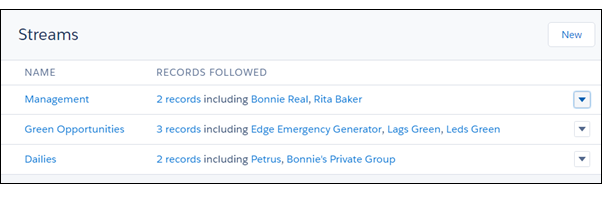
The streams home page lists all the streams you created. Each stream has its own list row that provides actions that you can perform on that stream, including the Edit action.
Required Editions
| Available in:Essentials, Group, Professional, Enterprise, Performance, Unlimited, Contact Manager, and Developer Editions |
-
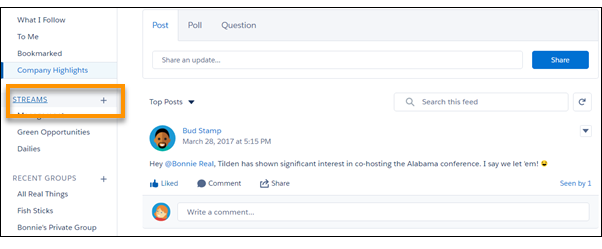
Go to the Chatter home page, and click the Streams heading to open the streams home
page.
-
On the row that lists the stream you want to edit, click the
 menu icon, and select Edit to open the Edit Stream dialog.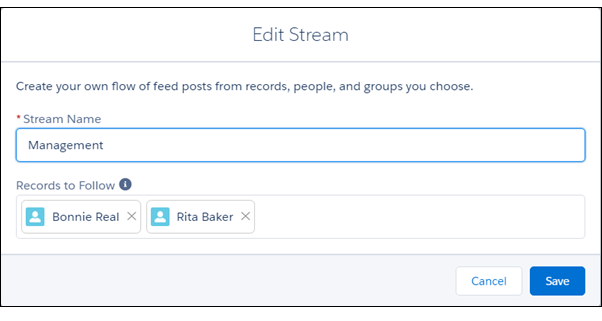
-
Edit the stream.
- Edit the stream name.
- To add more feeds to the stream, click in the Records to Follow field to select a feed type. And follow the steps in Create a Stream from the Streams Home Page.
- To remove a feed from the stream, click its
 icon.
icon.
 Note Knowledge articles (KAs) aren’t fully supported in streams. You can add them when you create and edit a stream by searching for the article’s ID number rather than its title. But you can’t add a KA to a stream from its Follow button like you can with other record types. Articles added to Streams using the article’s ID don’t appear in Records to Follow on the Stream's edit page. KAs also don’t appear when viewing the Follow button details on the article's detail page.
 - To save your changes, click Save.
- To save your stream, click Save again.