
If a file preview is of poor quality, you can try to regenerate the preview. Available for Salesforce Files and CRM content documents that can be previewed.
Required Editions
| Available in: Salesforce Classic and Lightning Experience |
| Available in: Essentials, Group, Professional, Enterprise, Performance, Unlimited, Contact Manager, and Developer |
| User Permissions Needed | |
|---|---|
| To regenerate a preview: | Customize Application |
When you regenerate a preview, the new preview request is added to a queue and the existing preview is deleted. During this time, users won’t see a file preview.
With very large files, only the first 500 pages will render in the preview.
File previews aren’t available for files larger than 25 MB, unknown file types, password-protected files, and copy-protected PDFs. For files that you can’t preview, the Preview option isn’t available on feeds or list views, and files appear as generic file type icons in the feed.
- From Setup, enter Regenerate Previews in the Quick Find box, then select Regenerate Previews.
-
Specify either the Content Document ID or the Content Version ID. When you specify a Content
Document ID but don’t specify a the Version Number, the latest version is used.
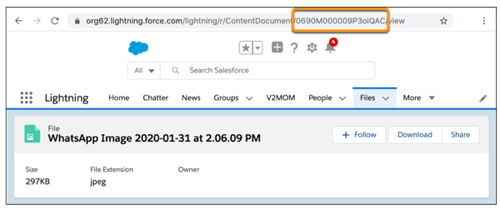
To find the Content Document ID, click View File Details from the file menu on Files Home or from the file preview. From the file detail page, the Content Document ID displays in the file URL following the ContentDocument/ section.
To see whether the preview regenerated successfully, navigate to the file detail page.