When you enable the site case feed for Aura and Salesforce Tabs + Visualforce, external
users with access to a case see case emails in their feed. Emails in the site case feed include
the email’s author, recipients, text, and time sent.
By default, if the case contact sends or receives a case email, that email appears in the
feed of all users—both internal and external—with access to the case. For an external user to
view the case, their profile must include access to cases in the site.
For example, suppose Rita, an external user, posts a question. The question remains
unresolved, and a moderator creates a case from it using the Question-to-Case action. If the
support agent assigned to the case emails Rita from the email publisher, Rita and all other
users with access to the case see the email in their case feed. Users with access to a case
typically include the assigned support agent and the case contact.
Using Apex to Show or Hide Emails in the Case Feed
The
IsExternallyVisible field of the EmailMessage object controls the
visibility of email messages in the site case feed. When the field is set to
true, emails sent or received by the case contact are visible to external
users with access to the case.
If the site case feed is enabled, you can write an Apex trigger or process to hide or expose all
case emails in the feeds of external site users. First, create an Apex class with a Future
method to update the IsExternallyVisible field. Then, create a trigger
on EmailMessage and pass the EmailMessage objects into the method on insert/update in the
After context.
Expose or Hide a Published Post or Email in the Site Case Feed
When necessary, support agents can expose or hide individual case emails and published
Chatter posts in the case feed of Aura and Salesforce Tabs + Visualforce site users.
Required Editions
| User Permissions
Needed |
| To edit the external visibility of a published Chatter post or email on a case: |
- Edit My Own Posts
- Edit Posts on Records I Own
- Compact case feed enabled in your org
- Site case feed enabled in your org
|
To change the external visibility of a published Chatter post or email on a
case:
-
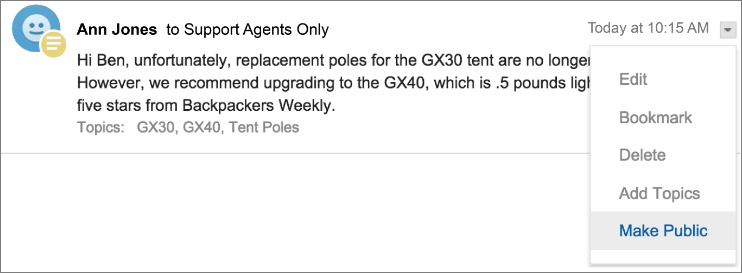
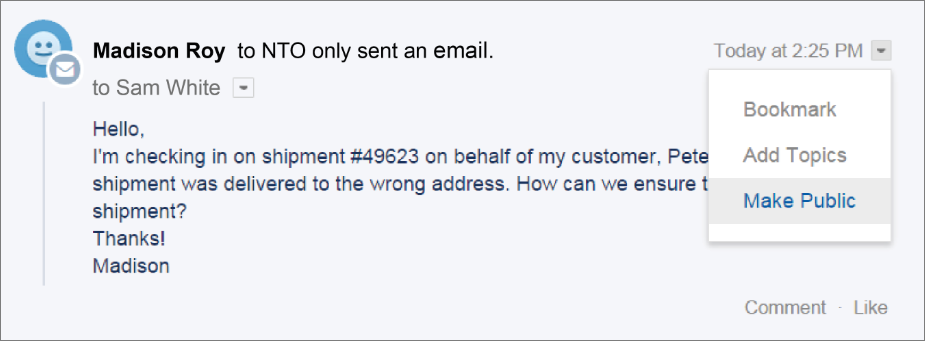
Navigate to the post or email in the compact case feed.
-
In the post or email’s dropdown menu:
- Select Make Public to expose an internal Chatter post or
email in the case feed of external users with access to the case
The case contact and
any other external users with access to the case now see the post or email in their
case feed. An agent might choose to make an email or post in the site case feed public
in order to keep the case contact updated about internal progress on the
case.
- Select Make Private to remove a Chatter post or email from
the case feed of external users with access to the case
The case contact and any other
external users with access to the case no longer see the post or email in their case
feed. (It still appears in the feeds of internal users with access to the case.) An
agent can choose to make an email or post in the site case feed private if they want
to hide their correspondence with the case contact from the case feed of other
external users with access to the case. Keep in mind that when you make an email
private, the email recipients already received the email. Similarly, when you make a
Chatter post private, external users with access to the case may have been notified by
email when it was first posted.