
In Data Explorer, you can view Data 360 data from your data lake objects (DLOs), data model objects (DMOs), calculated insight objects (CIOs), or data graphs. You can personalize your view by editing the columns and use filters to show only the most relevant data for the selected object.
Required Editions
| Available in: All Editions supported by Data 360. See Data 360 edition availability. |
View Object Data
To view your data in Data Explorer:
- Select a data space, an object type (DLO, DMO, CIO, or Data Graph), and then the specific object you want to view.
- (Optional) Select any data column to sort the data based on that selection.
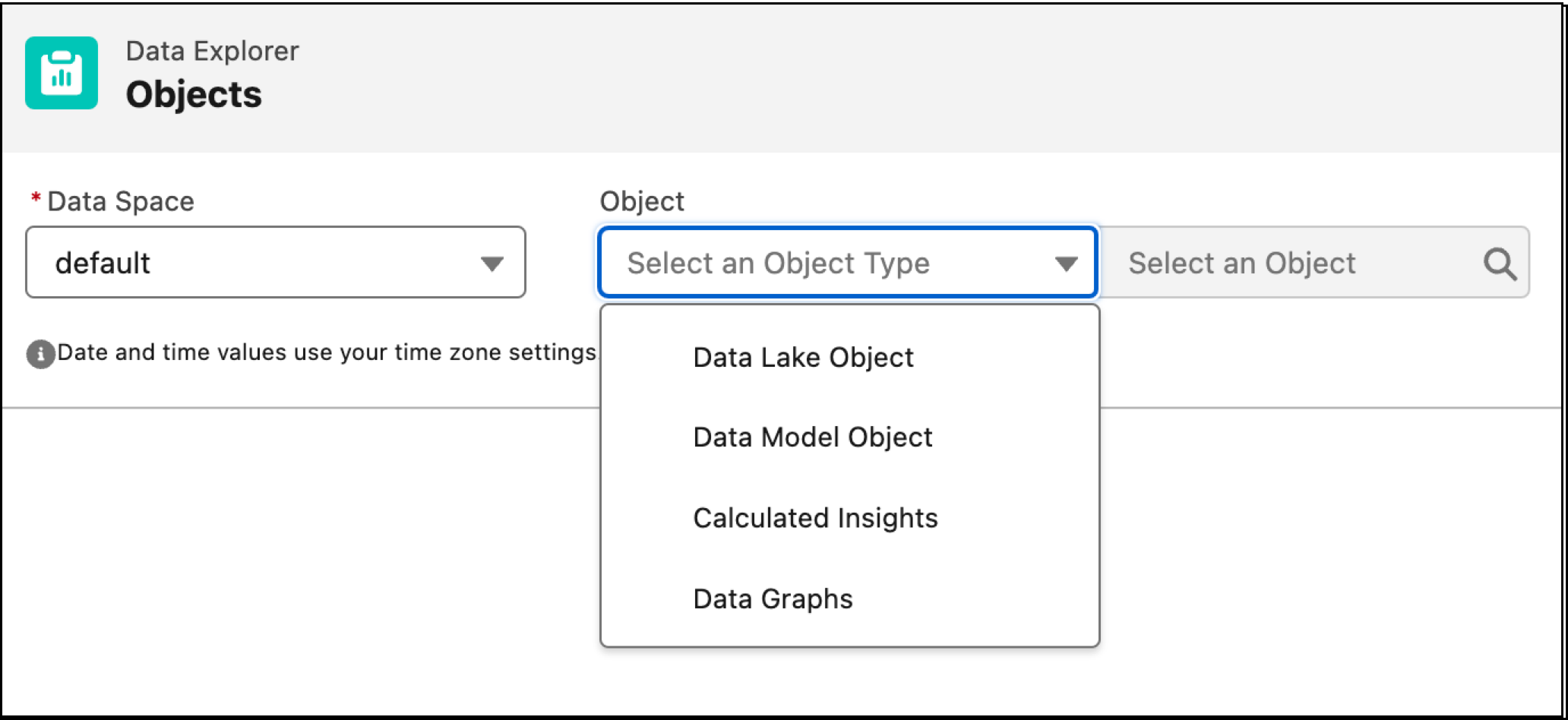
Some notes on Data Explorer limitations:
- Boolean fields store two possible values, ‘true’ or ‘false’. If a selected boolean field has null or empty values, it always defaults to ‘false’.
- The dates and times displayed in Data Explorer are based on the time zone configured in your Salesforce org. When an ingested date value in a column is 01/01/0001, it's rendered as 01/01/1901.
- For numbers, the digits are truncated to two places to the right of the decimal point.
- The maximum display is 100 rows per view.
Copy SOQL Queries
Use the **Copy SOQL** button to copy the SOQL query that populates the current table. If a table has more than 10 columns, Data 360 copies only the SOQL for the 10 visible columns.

To run the query:
- Select Copy SOQL.
- Go to the Data 360 Query Editor.
- Use the SOQL you copied to create a new query.
- (Optional) Remove the '
LIMIT 100' condition from the query. - Run the modified query.
For more information, see Query Editor.
View a Calculated Insights Chart
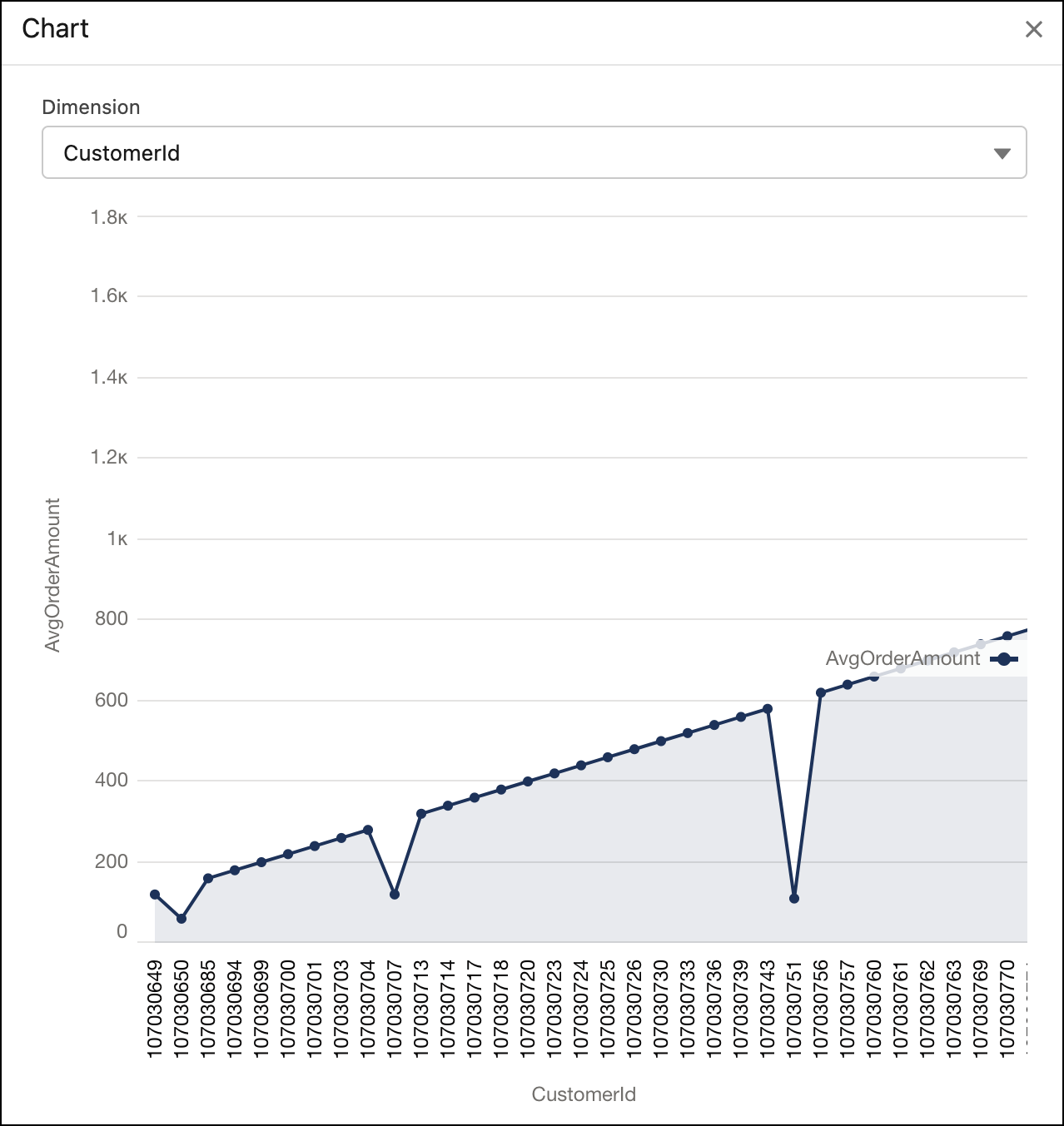
After choosing a CIO, you can view your calculated insight objects in Chart view by selecting the pie icon.
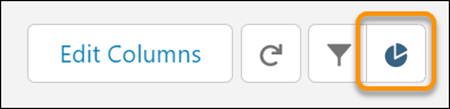
With this view you can visualize and further analyze your CIOs in a graph.
View Data Graph Records
To view a data graph's records, select Data Graphs as the object type, then select the data graph. With Data Explorer, you can view and copy the Data Graph data in JSON block format from cached or real-time data. To view real-time data, select Real-time View: On in the JSON preview. For more information, see Data Graphs.