Create a platform-triggered flow for data transform event actions.

- In Data Cloud, select Setup.
- In the Quick Find box, enter Flows, and select Flows.
- Click New Flow.
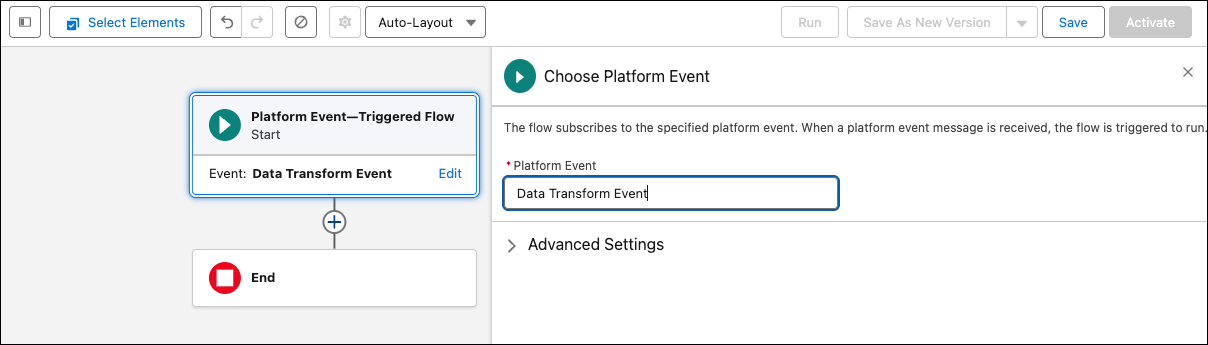
- Select View All, then click Platform Event—Triggered Flow.
- In the right pane, from the Choose Platform Event drop-down, select Data Transform Event.
- Under Advance Setting, choose the workflow user.
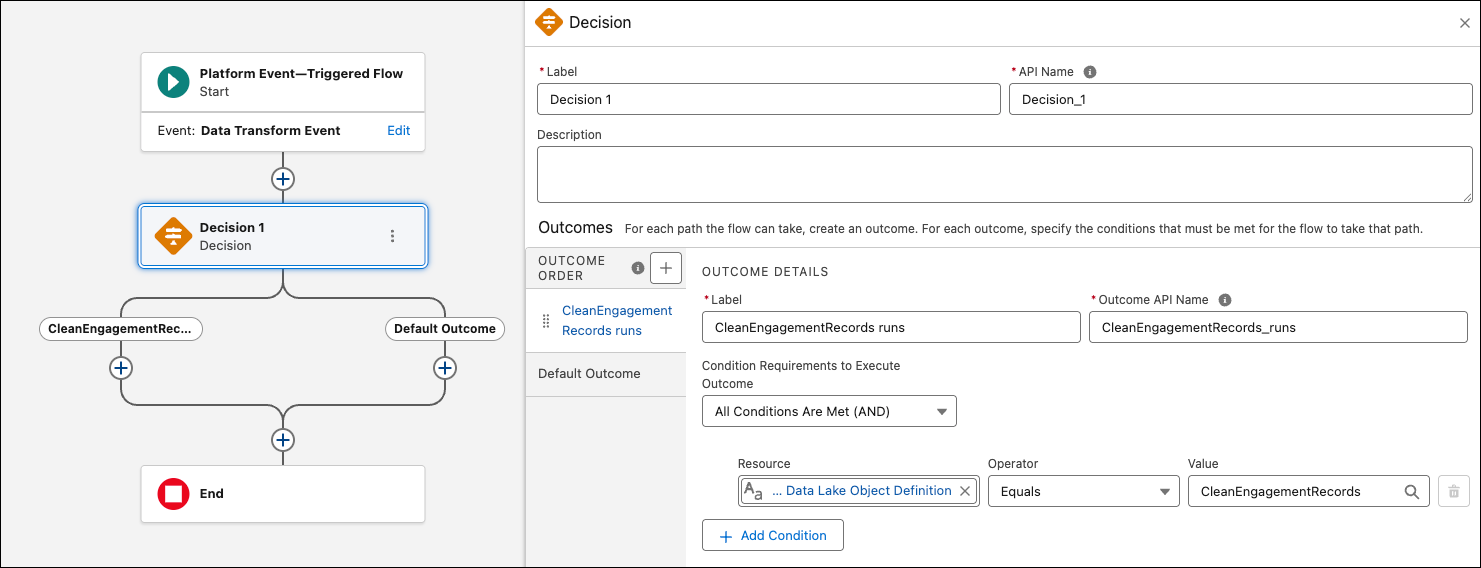
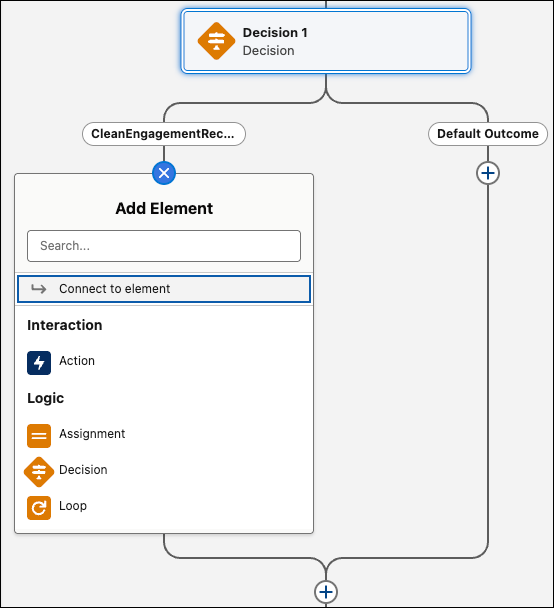
- From the left pane, click to add an element. For example, add a decision action.
- In the right pane, enter a label for the action.
- Define the outcome details and condition requirements. You can add more conditions as needed.
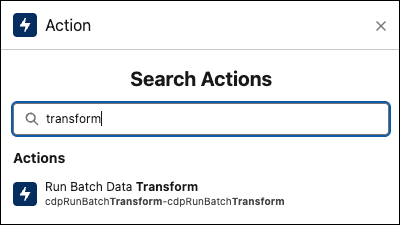
- From the left pane, add an element to trigger the flow action based on the conditions. For example, you can select Run Batch Data Transform if the conditions are met and send an email if the conditions are not met.
- Enter the details for the action.
- Click Save.
- Enter the flow label, click Save, and then click Activate.