
With the data extension located and content reviewed, Cumulus can now build the Push campaign.
You can build this campaign in Journey Builder.
- In Marketing Cloud Engagement, go to Journey Builder.
- Click Create New Journey.
- Select Multi-Step Journey and then click Create.
- For the entry source, drag a Data Extension activity to the canvas.
- To select the Gold Status data extension, click data extension activity and then Select Data Extension.
- Drag the Push Notification activity to the canvas.
- Click Push Notification activity and add the activity name, Gold Status, and the description, Gift Card Offer.
- Click New Message.
- Add the title Congrats, %%=v(@First_Name)=%%!! and the subtitle Receive a $100 Gift Card.
- Add the message with SSJS scripting.
<script runat="server"> Platform.Load("core","1"); //Get First Name from Data Extension var First_Name = Platform.Recipient.GetAttributeValue("FirstName"); Variable.SetValue("@First_Name", First_Name); //Get and Parse JSON Block from Data Extension var JSONblock = Platform.Recipient.GetAttributeValue("Loyalty_Program_Member"); var JSONObj = Platform.Function.ParseJSON(JSONblock); //Read JSON Block variables Variable.SetValue("@program_name", JSONObj[0]["program_name"]); Variable.SetValue("@loyalty_tier", JSONObj[0]["Loyalty_Member_Tier"][0]["loyalty_tier"]); </script> Congrats, %%=v(@First_Name)=%%!! You have recently reached %%=v(@loyalty_tier)=%% status for %%=v(@program_name)=%%. To thank you for being such a loyal member with us, we're giving you a $100 gift card for your favorite delivery service! - For Open Behavior, select Open the App so that the customer can view
the gift card within the Cumulus app.
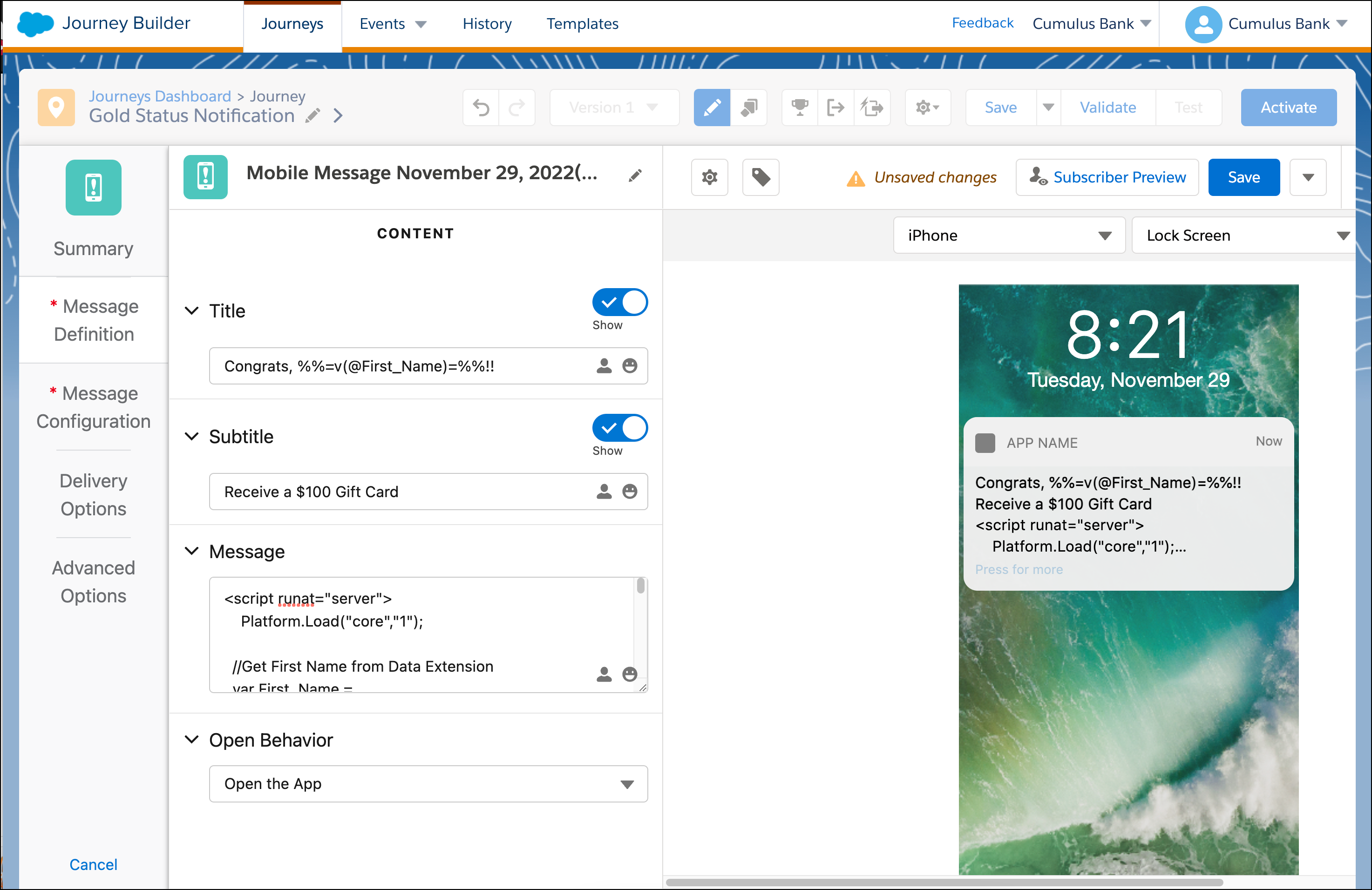
- Preview the message and then click Save.
- On the Message Configuration tab, select the Cumulus app from the dropdown.
- Click Summary to review the information, and click
Done.
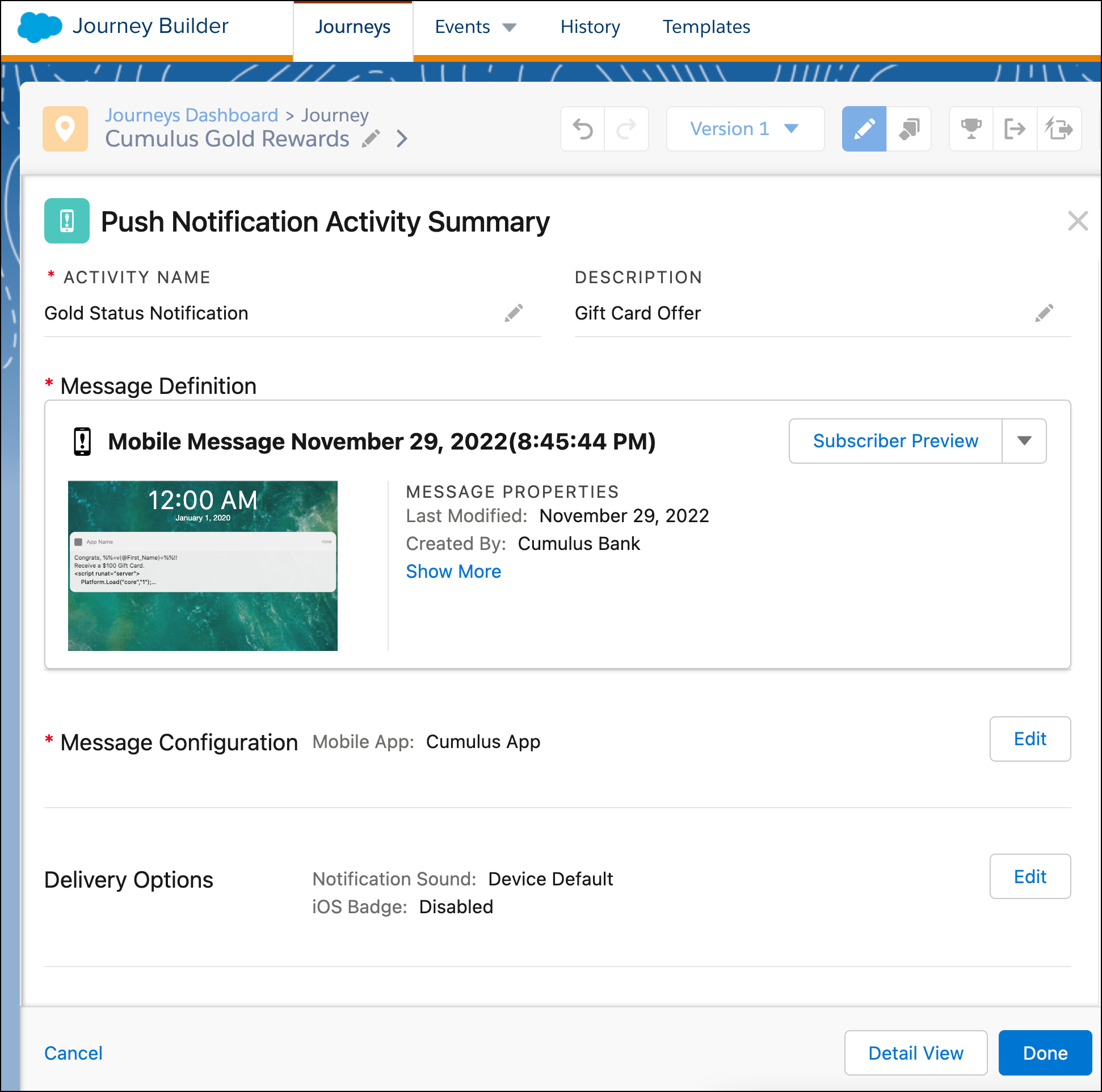
- Review the wait steps, and click Save.
- To ensure that all information has been completed, click Validate.
- Test the journey and the check Activate when ready.
The campaign is ready for customers.