
After you create and activate segments/DMOs to file storage platforms, view them in their respective storage locations.
Required Editions
| Available in: All Editions supported by Data 360. See Data 360 edition availability. |

<ActivationName>, irrespective of the
activation target’s predetermined file name selection.Find Activated Files in Amazon S3
After you create and activate segments to Amazon S3, a subfolder called Salesforce-c360-Segments is automatically created when the first segment is activated to Amazon S3.
- For activations with S3 (Legacy) as the target, a subfolder called
Salesforce-c360-Segments is automatically created when the first segment/DMO is activated. Go
to the path /{bucket}/{parentFolder}/Salesforce_c360_Segments.
- For segment activations, activated files are created in the format {yyyy}/{MM}/{dd}/{HH}/{segmentName}_{activationName}_{yyyyMMddHHmmssSS}/
- For batch DMO activations, activated files are created in the format {yyyy}/{MM}/{dd}/{HH}/{activationName}_{yyyyMMddHHmmssSS}/
- For activations with Amazon S3 as the target, activated files are placed in the parent
or child directory based on your configuration. Go to the path
/{bucket}/{parentFolder}/{childFolder}/{automaticFolder} based on your configuration.
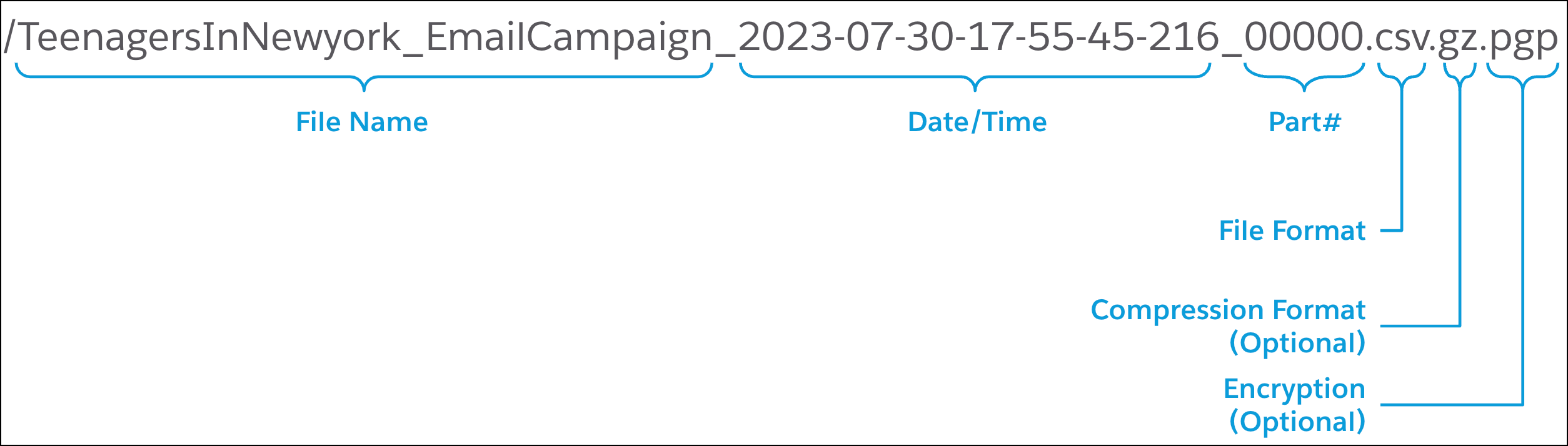
- For segment activations, activated files are created in the format {segmentName}_{activationName}_DateTimeSuffix_Part#.FileFormat.CompressionFormat.PGPEncryption
- For batch DMO activations, activated files are created in the format {activationName}_DateTimeSuffix_Part#.FileFormat.CompressionFormat.PGPEncryption.
Find Activated Files in SFTP Server
After you create and activate segments/DMOs to the SFTP server, activated files are placed accordingly in the parent or child directory based on your configuration.
- Access the SFTP server.
- Go to the server you configured in SFTP target.
- Go to the path /Parent directory/Child directory/Automatic folder based on your configuration.
Find Activated Files in Google Cloud Storage
After you create and activate segments/DMOs to Google Cloud Storage bucket, activated files are placed accordingly in the parent or child directory based on your configuration.
- Access the Google Cloud Storage bucket.
- Go to the bucket you configured in Google Cloud Storage.
-
Go to the path /Parent directory/Child directory/Automatic folder based on your
configuration.
Activated files are created in the format: /FileName_DateTimeSuffix_Part#.FileFormat.CompressionFormat
CompressionFormat is optional.
 Note The datetime suffix in the file name is provided in UTC time.
Example file name: /TeenagersInNewyork_EmailCampaign_2023-07-30-17-55-45-216_00000.csv.gz
Important A system-generated folder named aws-datasync is created in the folder where the files are activated. Do not take any action on this folder as it will be removed automatically when there are no activations running.
Find Activated Files in Microsoft Azure Blob Storage
After you create and activate segments/DMOs to the Microsoft Azure Blob Storage container, activated files are placed accordingly in the parent or child directory based on your configuration.
- Access the Microsoft Azure Blob Storage container.
- Go to the container you configured in Microsoft Azure Blob Storage.
-
Go to the path /Container path/Child directory/Automatic folder based on your
configuration.
Activated files are created in the format: /FileName_DateTimeSuffix_Part#.FileFormat.CompressionFormat
CompressionFormat is optional.
Note The datetime suffix in the file name is provided in UTC time.Example file name: /TeenagersInNewyork_EmailCampaign_2023-07-30-17-55-45-216_00000.csv.gz
Important A system-generated folder named aws-datasync is created in the folder where the files are activated. Do not take any action on this folder as it will be removed automatically when there are no activations running.