Use data spaces to segregate your data, metadata, and processes into categories, such as
brand, region, or department. Set up permissions so that users can see and work on data only in
the context of their brand or region.
Required Editions
| Available in: Tableau Desktop, Tableau Prep, and Tableau Cloud |
To access data spaces requires:
- The Salesforce Data Cloud connector to connect Tableau and Data 360
- Tableau version 2023.2 or Tableau Cloud
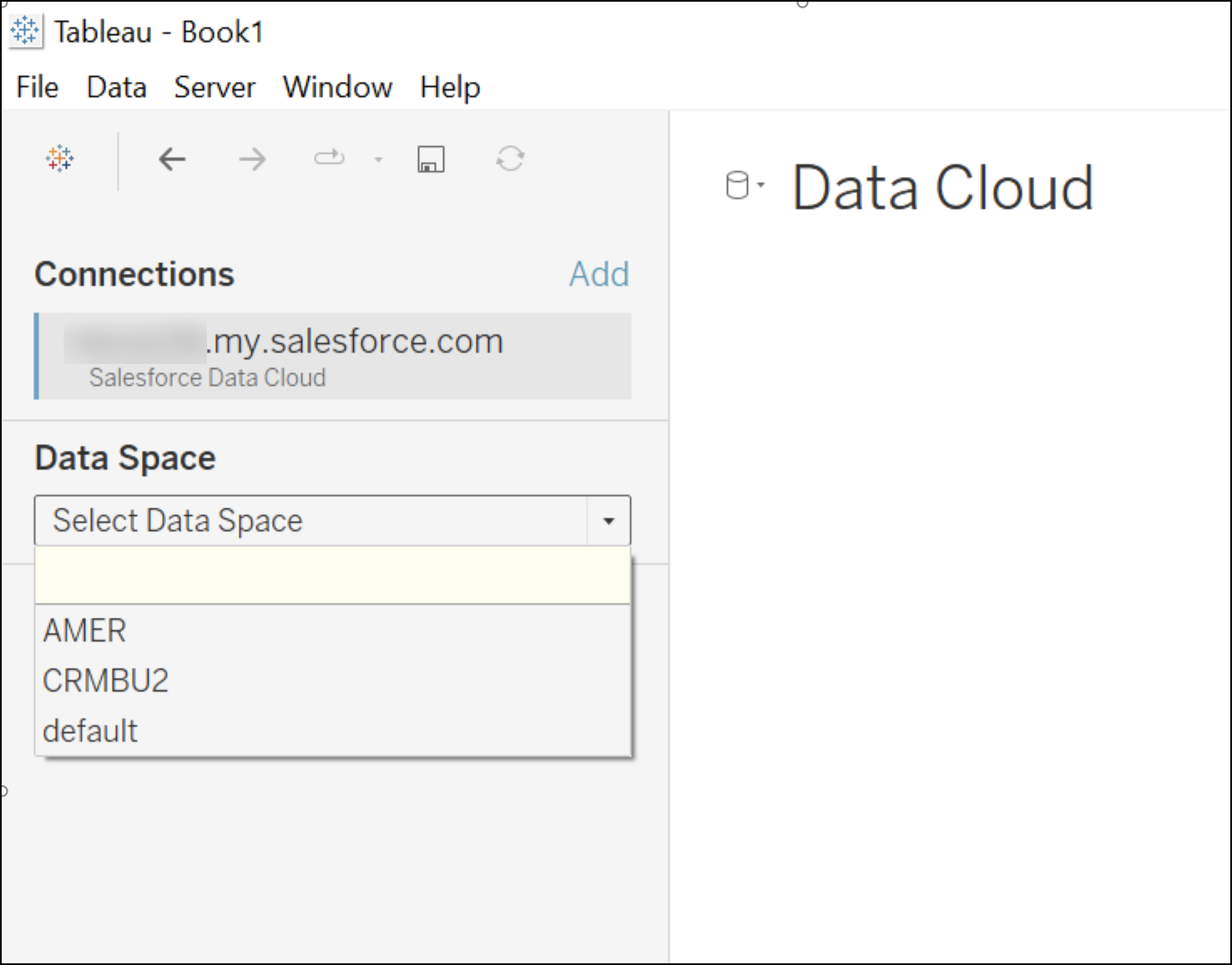
The Data Spaces available in Tableau are based on the OAuth login that is used to
connect to the Data 360. For example, if a user John Doe is assigned to data
space AMER in Data 360, then John Doe would see only Data Space AMER in the
dropdown in Tableau UI. If you're using the Customer Data Platform connector to connect Tableau
and Data 360 you see a default data space. A default data space includes all
the data lake objects, data model objects, and calculated insights available in Data 360.
- Log in to Tableau.
- Select the Salesforce Data Cloud connector.
- Authenticate with Data 360.
- If you’re already logged in to Data 360, you’re automatically
authenticated using the browser mode.
- From the Data Space dropdown, select the applicable data space or choose the default data
space.
A list of tables that use the selected data space appears.