You can view your Data 360 data model objects in either list or graph view.
Required Editions
| Available in: All Editions supported by Data 360. See Data 360 edition availability. |
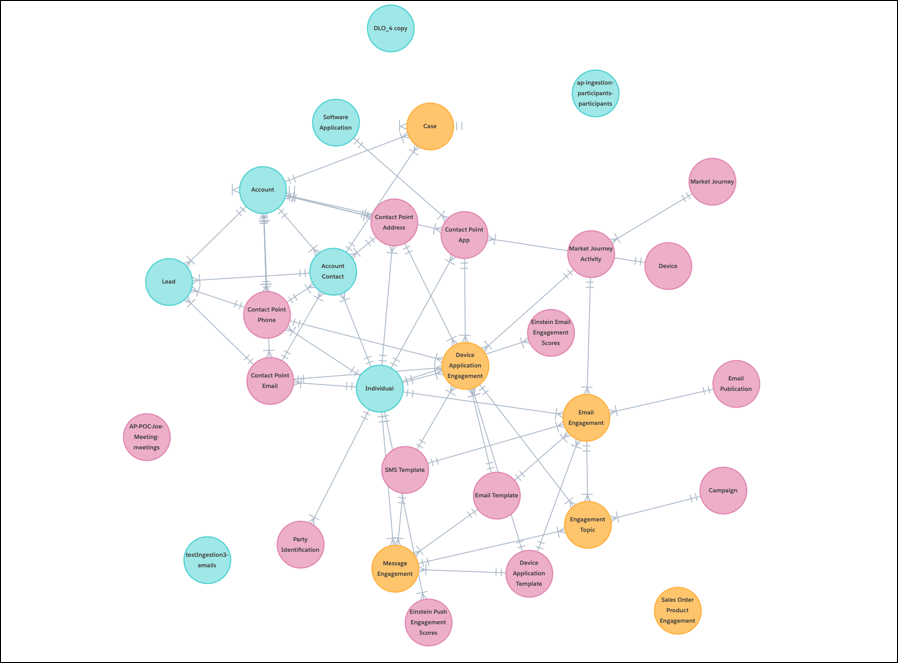
You can alternate between a list view and a graph view in the Data Model tab. The graph view shows an Entity Relationship Diagram of the mapped data model objects within Data 360 and their relationships.
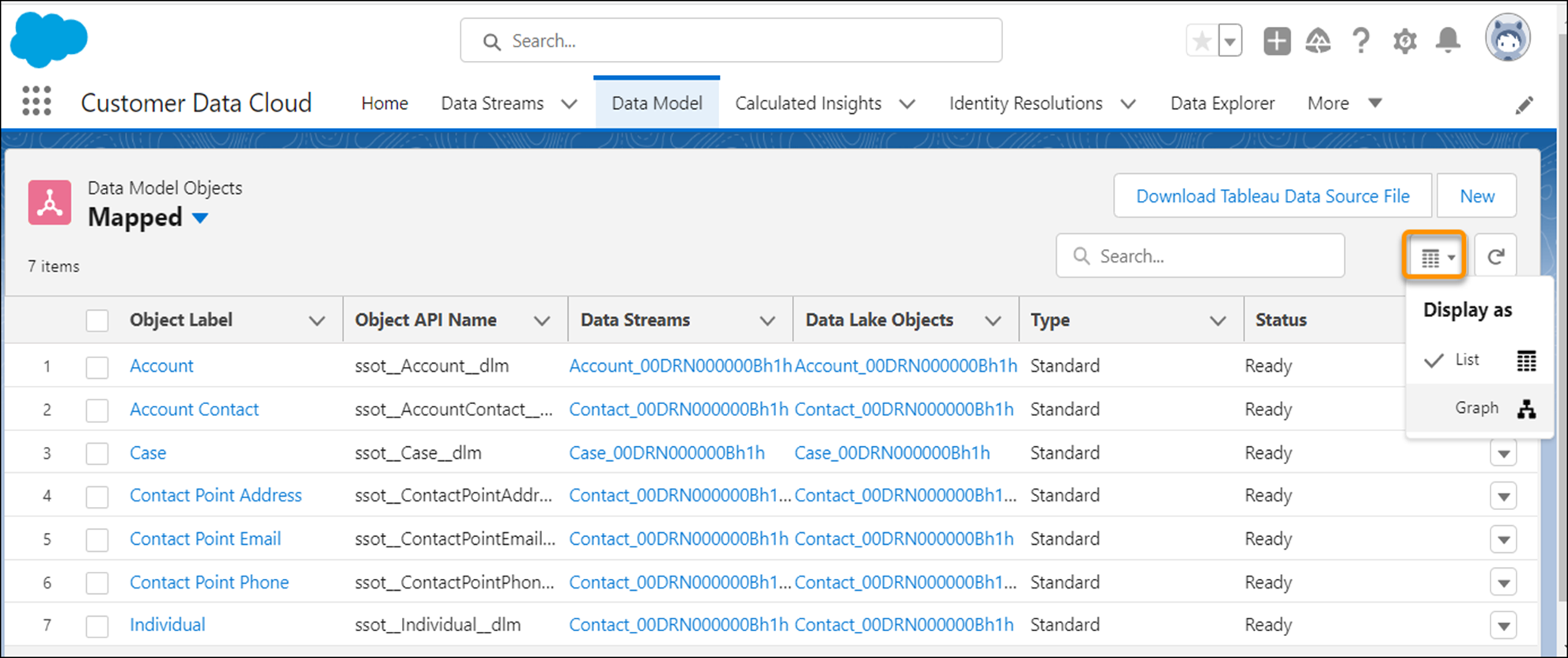
List view allows you to view your data model objects (DMOs) and any related details in a list. You can see object label, object API name, which data streams that object is mapped to, the type, and status all in one view. There are two list views: All and Mapped. All shows all DMOs, and Mapped shows only the DMOs that have mappings.
Graph view lets you view your data in image form to easily visualize how all data in your instance is connected. The color of each data model object node represents the category Profile, Engagement, or Other. You can click each node to view details and make edits, just like in the list view. You can drag and zoom in and out using either the canvas or mini-map. Only mapped DMOs show in this view.
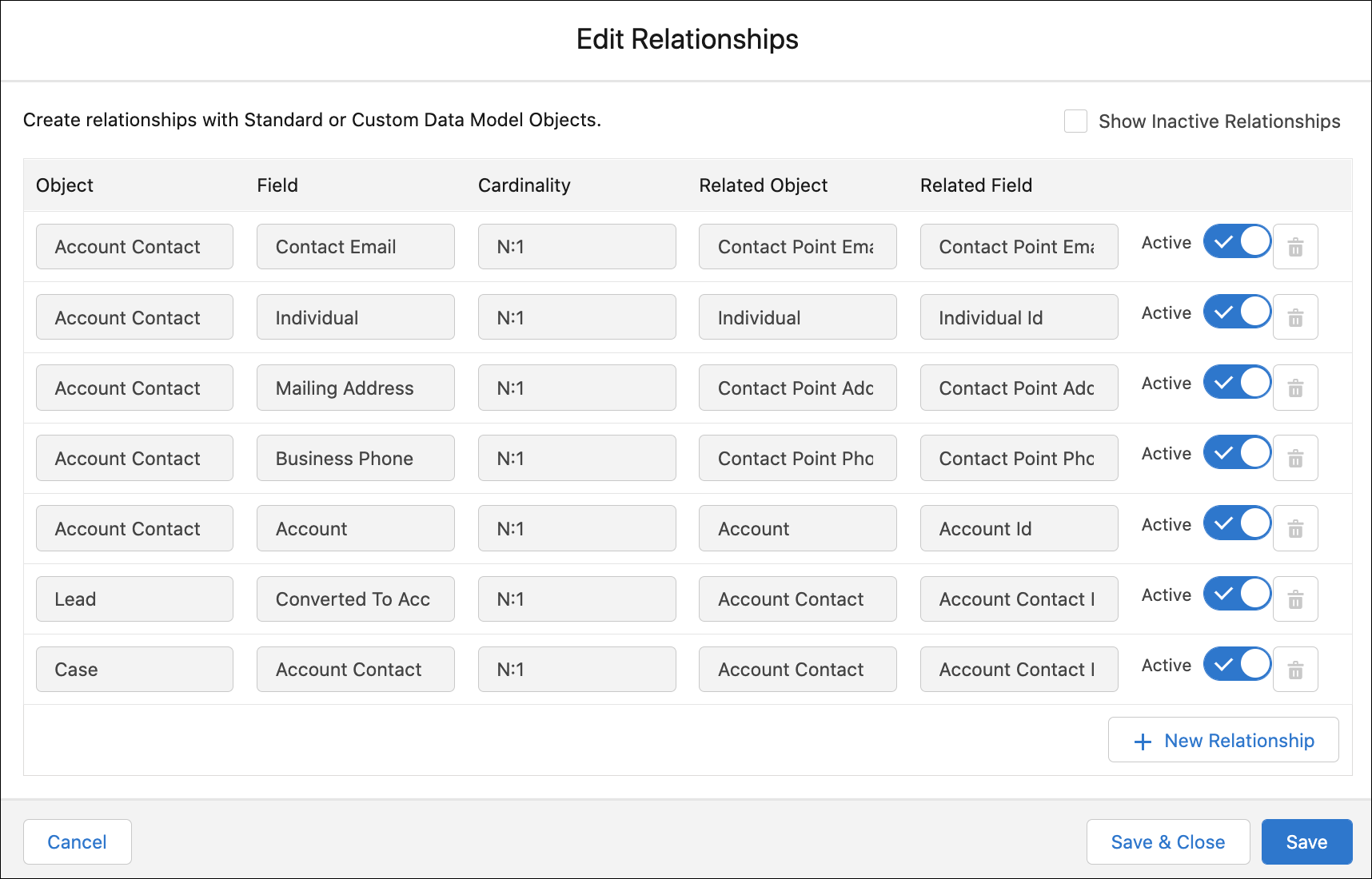
To view, edit, or deactivate relationships, select a DMO from either the list view or graph view. Navigate to Relationships and click Edit or New. Create relationships between objects and fields.