
Select table or visual view when mapping your data in Data 360.
Required Editions
| Available in: Lightning Experience in all editions except Starter |
To switch between table view and visual view, use the view dropdown menu on the data mapping page. Save your changes before changing views.
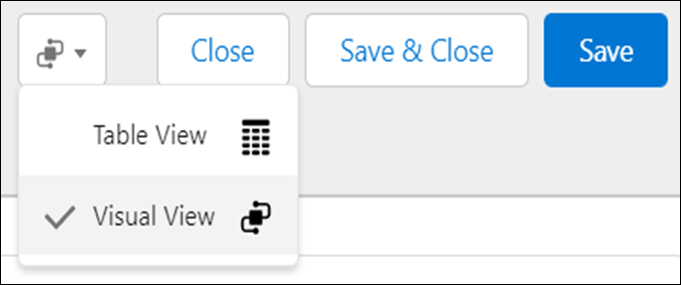
Table View
In table view, you can select data source objects (DSOs) or data model objects (DMOs) in a column format. You can map without using a pointer device or visual feedback. The mapping is managed one data model at a time. You can perform these actions by using your keyboard:
- Search a data model object for a specific field.
- Create a mapping between a data stream source field and a data model object field.
- Remove an existing mapping between a data stream source field and a data model object field.
- Create a custom field in a data model object.
To select a new data model object to add to your field mapping or add a custom model object, use visual view.
Visual View
In visual view, you can drag to create connections between your DSOs and DMOs.