
You can make Data 360 changes in a sandbox and then deploy them to a production org or another sandbox org. Additionally, you can deploy changes from one production org to another production by using a sandbox. Use a DevOps data kit and a change set to deploy the changes to a production org.
Required Editions
| Available in: All Editions supported by Data 360. See Data 360 edition availability. |
| User Permission Set Needed | |
|---|---|
| To deploy Data 360 changes: |
Permission set:
|
This process details how to deploy changes from a sandbox to a production org. Use
the same steps to deploy changes from your production org back to a sandbox. The process
involves multiple steps within both Data 360 and the Salesforce Platform. Bookmark ( ) this page or keep it open in a separate window to refer to this topic. For more
information, see Change Sets.
) this page or keep it open in a separate window to refer to this topic. For more
information, see Change Sets.
To deploy Data 360 changes from a sandbox org to another org by using the Salesforce command-line interface, see Use CLI to Deploy Changes from a Sandbox to Data Cloud.

Step 1: Create a Deployment Connection
Step 2: Create a DevOps Data Kit
- In the sandbox org, from Data Cloud Setup, create a DevOps data kit. See Create a Data Kit.
- For Data Kit Type, select DevOps.
-
Select a data space.
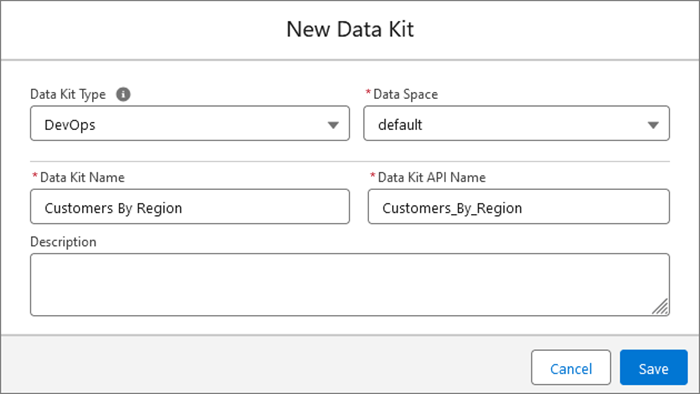 Make sure that the data space with the same prefix name exists in both the sandbox org and the production org.
 -
Add the Data 360 components that you want to deploy to the DevOps data kit.
When you add a source DMO to a DevOps data kit, the kit automatically detects and packages the associated DMO-to-sObject relationships.
-
To review the auto-publishing sequence of the data kit components in target org,
click Publishing Sequence.
If you edit the publishing sequence, Data 360 doesn't auto-update the sequence when you add or modify data kit components. After editing, update the publishing sequence manually for each data kit change.
The system publishes components based on their creation dates. Review the publishing sequence for these components.
- Click Save.
If you create a data space in a sandbox that doesn’t exist in the production org, and you want to deploy components from that data space, you must first manually create the data space in production. The data space isn’t created when you deploy the data kit.
Step 3: Create and Upload an Outbound Change Set
- In the sandbox org, from Setup, create an outbound change set. See Create an Outbound Change Set.
- Add the DevOps data kit to the outbound change set.
- In the Component Type field, select Data Package Kit Definition and select the DevOps data kit that you want to add. See Select Components for an Outbound Change Set.
-
In the outbound change set, add the data kit dependencies. See View and Add Dependent Components to a Change
Set.
When you add dependencies, there can be multiple pages of components, so be sure to scroll through all the pages.If your data kit includes any key qualifier files related to DMOs or relationships, make sure to delete them.
-
If you add a data kit that contains a custom DMO to the outbound change set, you must
add the DMO relationships to the change set. However, don't add relationships for
derived objects, like unified individuals, to the change set. These relationships are
automatically handled through their source objects. In the Change Set Components
section, click Add. Then from the Component Type field, select
Field Source Target Relationship, and add the relevant
relationships to the change set.
If a field source-target relationship exists between a DMO and a custom field on a standard Salesforce object, create the same custom field in the target org before deploying the change set. If the custom field doesn't exist in the target org, the deployment fails.
- Upload the outbound change set. See Upload an Outbound Change Set.
Step 4: Deploy the Inbound Change Set and the Data Kit
-
In the production org, from Setup, deploy the inbound change set. See Deploy a Change Set.
This step deploys the data kit and all the features in the data kit.
-
Verify the deployment status of the data kit components.
- From Data Cloud Setup, in the Quick Find box, enter Data Kits.
- Select Data Kits and select the DevOps data kit.
-
On the Deployment History tab, verify the progress of the deployment.
If a component in the deployment fails, the components after it in the sequence aren’t deployed.
When you deploy a data kit using a change set, the system automatically deploys the data kit and its components. If you deploy the same data kit by using another change set, the data kit installs but doesn't deploy the components. To complete the deployment, open your data kit, and click Deploy Data Kit.