
Develop, test, and train on Data 360 without affecting your production org. Data 360 supports all sandbox types—Developer, Developer Pro, Partial Copy, and Full Copy—but provisions only metadata. Even when you create Partial Copy or Full Copy sandboxes, your production data stays protected. No data is replicated to Data 360 sandboxes.
Required Editions
| Available in: All Editions supported by Data 360. See Data 360 edition availability. |
| User Permission Set Needed | |
|---|---|
| To create a Data 360 sandbox: |
Permission set:
|
This process includes multiple steps in Data 360 and Salesforce Platform. Bookmark ( ) this page or keep it open in a separate window to refer to this topic.
Before you begin, complete these prerequisites.
- Using Data Cloud One? Before creating sandboxes and connecting them with Data Cloud One, make sure that your production orgs don't have companion connections yet. If you create companion connections between your production org and Data 360 home org before creating a sandbox, the metadata in that sandbox has to be cleaned up. This clean-up can take several weeks. Contact Salesforce Customer Support for details. For other Data Cloud One sandbox limitations, see Using Data Cloud One with a Sandbox.
- Provision Data 360 in your production org.
Step 2: Enable Data 360 in an Existing Sandbox
Use the license match feature to set up Data 360 in a sandbox created before Data 360 was provisioned in your production org. This feature inherits Data 360 licenses from the production org without you refreshing the sandbox. However, there are a few important considerations to keep in mind:
- Make sure that the production org has Data 360 provisioned for the license match to work.
- The license match process copies only Data 360 licenses. The license match doesn't copy organization preferences, values, metadata, or permissions. You can set up custom configurations, integrations, and other metadata manually in the sandbox.
- Complete Data 360 provisioning in your sandbox first. Confirm that provisioning is active before you activate Agentforce or Einstein features.
- Enable Data 360 in your production org. See Turn on Data 360.
- In the sandbox org, go to Setup, enter Company Information in the Quick Find box, and then select it.
-
Click Match Production Licenses.
Allow up to 24 hours for the license synchronization to complete. If you attempt to access Data Cloud Setup before the license sync completes, the Data Cloud Setup menu is unavailable.
Step 3: Turn On Data 360 in the Sandbox
- Log in to your sandbox.
-
From Data Cloud Setup, click Get Started.
Setup can take a few minutes. If you created a sandbox before Data 360 sandbox was generally available, you must refresh the sandbox before you can successfully provision Data 360 in the sandbox.Wait until sandbox copy creation completes before changing your production org. Modifying production during this process can misconfigure your metadata.
When you create a sandbox, it displays the production org ID. After you activate the sandbox, the ID updates to the sandbox org ID.
Step 4: Configure the Connections
When you create a Data 360 sandbox, connections are replicated, but the authorization data isn't, so the connections in the sandbox org have a status of Inactive. Activate each sandbox connection, and provide the authorization information to bring data into the sandbox.
After you turn on Data 360, wait about 1 hour before performing this step so that the background processing can complete.
- In your sandbox org, select Data Cloud Setup.
-
In the Quick Find box, enter the connector type you want to activate.
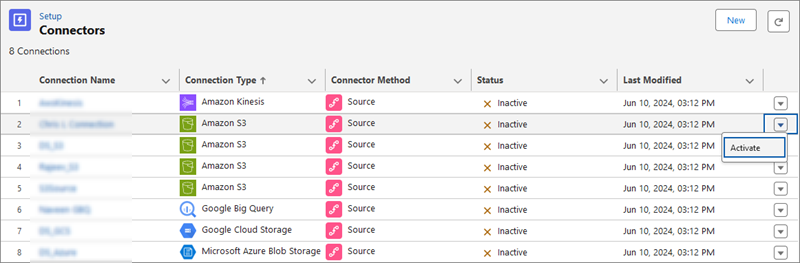
For non-CRM connectors, enter Other Connectors. Select the connectors from the list. From the dropdown list, select Activate.
For Salesforce CRM home org connector, enter Salesforce CRM. Select the connector from the list. From the dropdown menu, select Activate. The CRM connection changes from your production org ID to your sandbox org ID.
For other Salesforce CRM connectors, follow the steps for the CRM home org connection. You can activate the connection to any production or sandbox org. Enter the org credentials for the connection, and click Log In. Confirm the connection by entering the Data 360 org identifier. You can find this ID on the modal under Data 360 Org Details. This identifier specifies which Data 360 org retrieves data from your source org.
- Check the checkbox to agree to create the connection and click Activate.
After you activate a connection, the data streams or other components that use the connection become active.
Step 5: Activate Data Actions and Data Action Targets
If you have data actions or data action targets in your production org, they’re replicated in a sandbox, but you must explicitly activate them.
- In your sandbox, in the Data 360 app, click Data Actions, or Data Action Targets.
- From the dropdown list, select Enable.
Step 6: Activate Data Share Targets
If you have data share targets in your production org, they’re replicated in a sandbox, but they’ll be in an inactive state and you must explicitly activate them.
- In your sandbox, in the Data 360 app, click Data Share Targets.
- Open an inactive data share target and click Edit.
- Add the connection configuration details and click Save. The data share target turns active.