
Use permission sets to make sure users only have access to specific activation target data. Since Marketing Managers, Marketing Specialists and Data Aware Specialists, can view all activation targets by default, use permission sets to manage their access. To manage access, clone an existing permission set and share access to specific activation targets with users assigned to that permission set only. For example, restrict access to specific activation targets for users in specific departments or geographies.
- In Salesforce Setup, in the Quick Find box, enter Permission Sets.
- To view the permission set you want to clone, select it.
- Click Clone, make desired changes, and click
Save.
 Tip Name your cloned permission set so you can easily distinguish between the different permission sets.
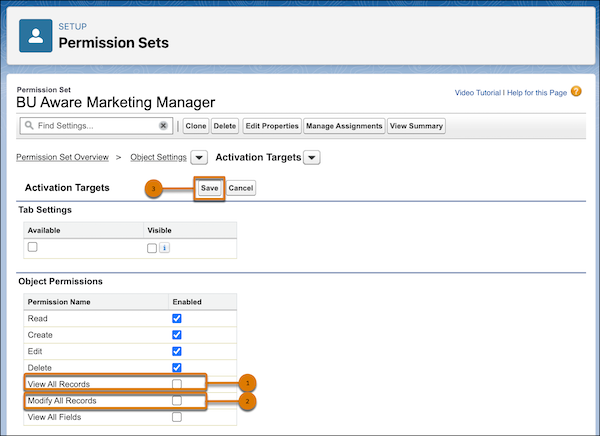
 - Click Object Settings, select the Activation Targets object, and click Edit.
- Deselect View All Records(1) and Modify All
Records(2), and click Save(3).
- In the Quick Find box, enter Sharing Settings.
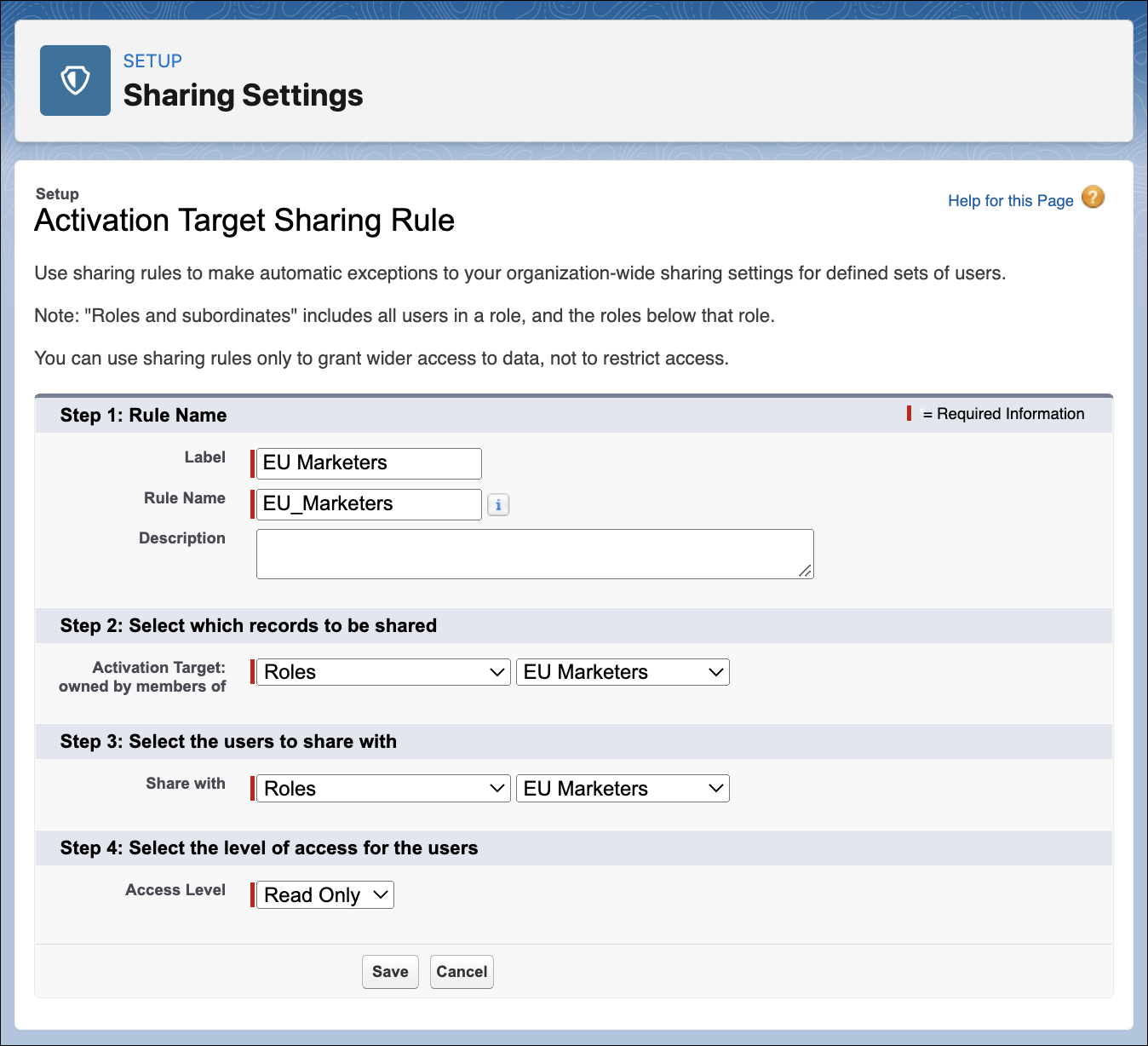
- In the Manage sharing settings for dropdown, select Activation Targets.
- Under Activation Targets Sharing Rules, click New.
- Name the rule, specify who to share the rule with, which records to share, the access
level, and click Save.
Tip Use roles or groups to restrict activation target access to specific users.
Users assigned to your new permission set can only see and create activations for specific activation targets in Data 360.