
To group and filter by a numeric column, use the Number To Text transformation. You can group and filter by text columns only.
- In the Transform node, select the number column that you want to convert to the Text column type.
- In the Transform toolbar, select .
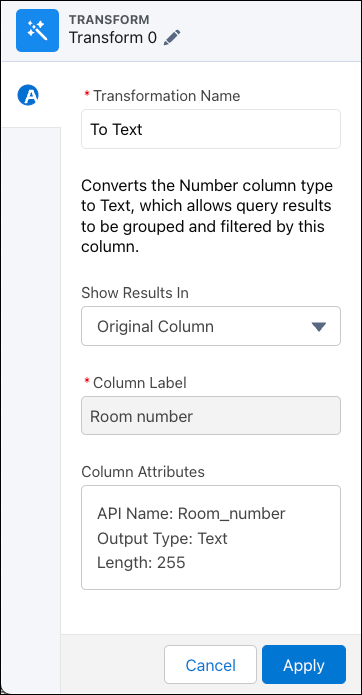
- Under Show Results In, select whether the new values appear in a new column and whether to keep the original column.
- If you elect to create a column, set the label under Column Label.
- To change more column attributes, click the Column Attributes box,
change them, and click Apply.
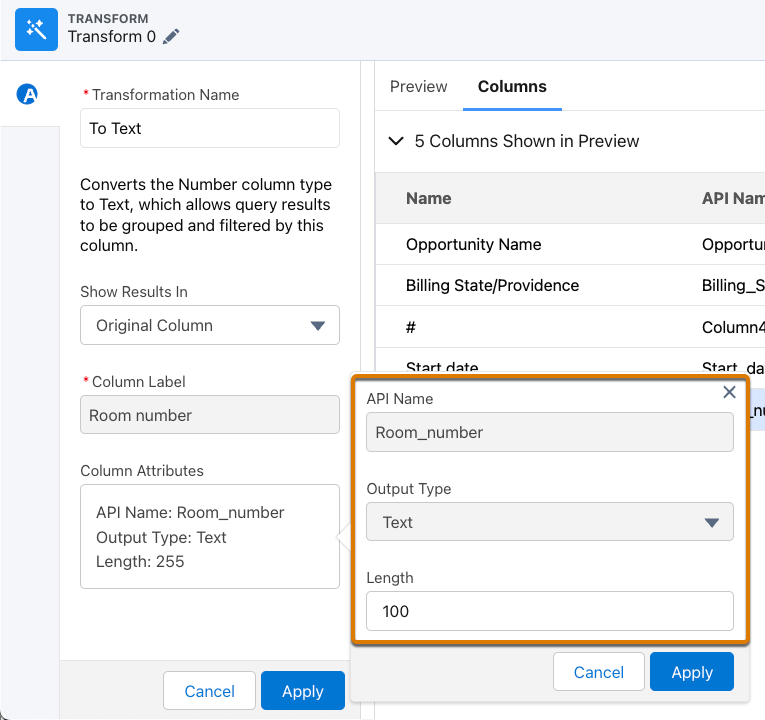
- Based on the output column’s datatype, you can set these attributes.
For more guidelines, see Field Name Restrictions in Analytics External Data Format Developer Guide: External Data Metadata Format Reference.Attribute Description API Name The API name of the column. The column API name can each be up to 255 characters. The API name must also be unique within the batch data transform. Precision The maximum number of digits in a numeric column. Includes all numbers to the left and to the right of the decimal point (but excludes the decimal point character). Enter an integer between 1 and 18, inclusive.
If a numeric value exceeds the specified precision, the value is set to 0 or null. For example, if precision is set to 5, the numeric value is replaced with null.
Scale The number of digits to the right of the decimal point in a numeric column. Enter an integer between 0 and 17, inclusive. The scale must be less than the precision. For example, if the numeric value is 123456.789 and you set the scale to 2, the number appears as 123456.78. Length The maximum number of characters in a text column. Enter an integer between 1 and 32000, inclusive. The default length is 255 characters. Date Format The date format of a date column. - To add the transformation to the Transform node, click Apply. The Preview tab shows the text column.
- To view the canvas area, click the Collapse button (
 ).
).
Run the batch data transform to convert the column type to Text.