
Return the column date with the specified days or months added or removed.
- In a Transform node, select one date column in the Preview tab.
- Select the Formula button (
 ) in
the Transform toolbar.
) in
the Transform toolbar. - Select Add or Subtract Days or Months.
- Configure the transformation.
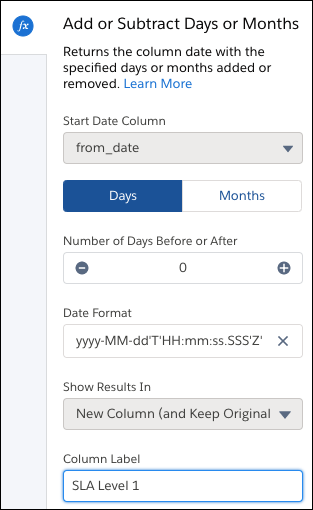
- The Start Date Column is automatically filled with the date column you previously chose. To choose a different start date, cancel and restart.
- To add or subtract, choose Days or Months.
- Select the number to add or subtract with the plus and minus buttons.
- Choose the date format of the output column.
- Optionally, change the label of the column that stores the result data in the Column Label field.
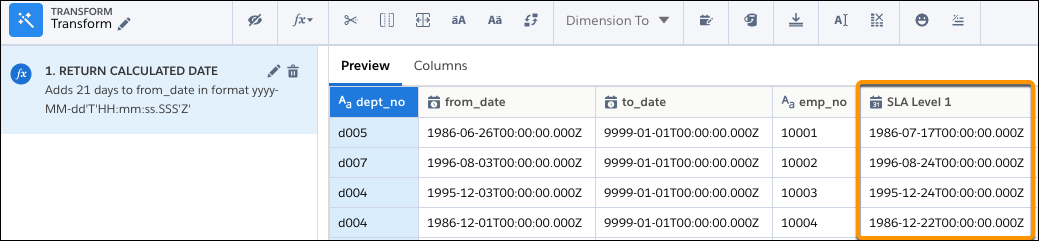
- To add the transformation to the Transform node, click Apply. The
Preview tab shows the new calculated date column.
- To view the canvas area, click the Collapse button (
 ).
).