Create a screen flow to get records from Salesforce objects and add a prediction to a
Lightning page. For example, you can add a lead conversion prediction score to a lead
record.
Required Editions
| USER PERMISSIONS
NEEDED |
| Allow users to manage models in AI Models |
Enables you to create, update, and delete models in AI Models. |
| PERMISSION SETS |
| Data Cloud Architect |
Admin-level access to all AI Models features, including the ability to create,
update, delete, and activate models. |
| Data Cloud User |
Restricted access to use a model, including getting predictions and
improvements derived from a model. |
Before you create a flow, ensure that your predictive model is activated in AI Models (formerly Einstein Studio).
- From Setup, in the Quick Find box, enter Flows, and then select
it.
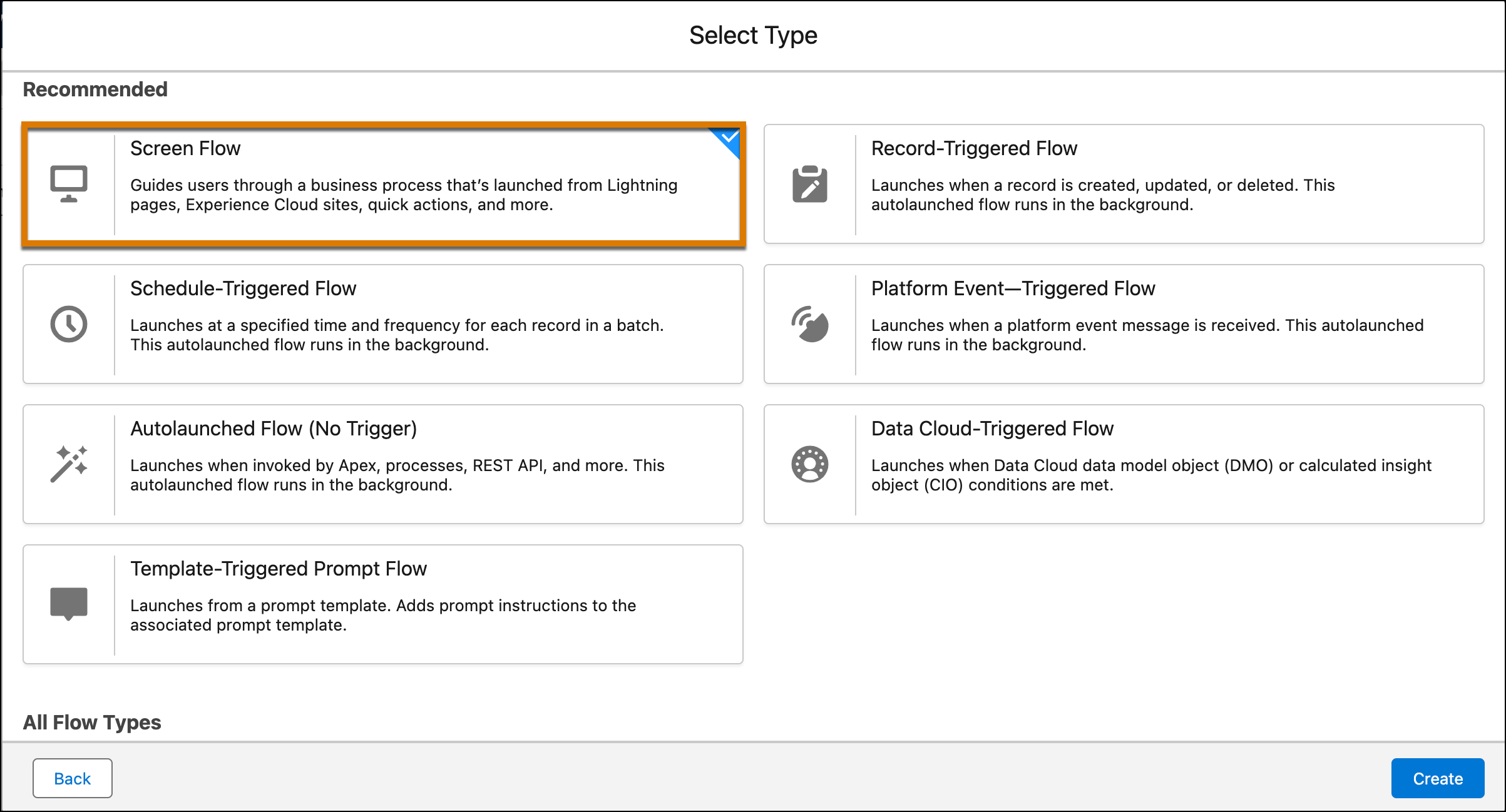
- Create a flow from scratch. Flow Builder launches.
- Create a screen
flow.
- To get the inputs required to run the model, add the Get Records
element.
For example, to get leads records.
- For the data source, add a Salesforce or Data 360 object. Enter a label, API name.
In this case, select the Lead object.
- (Optional) Filter records based on a condition, field, operator, and
value.
For example, to predict leads by record ID, filter your data by selecting All
Conditions Are Met (AND), Field=Id, Operator=Equals, and Value=Resource (a variable named
recordid).
- To use data that resides elsewhere, add another Get Records
element, and enter the information.
- Add the Action element, and choose the predictive model that you
want to use.
For example, "Predicted Lead Conversion."You can search for your model by its name or
location in the Data Cloud action category.
- Because your model needs inputs to generate predictions, map the relevant
fields.
For example, use the fields from the lead object that match your model inputs.
- After you configure an action, a resource
{ActionName.Prediction} is available to use in the flow.
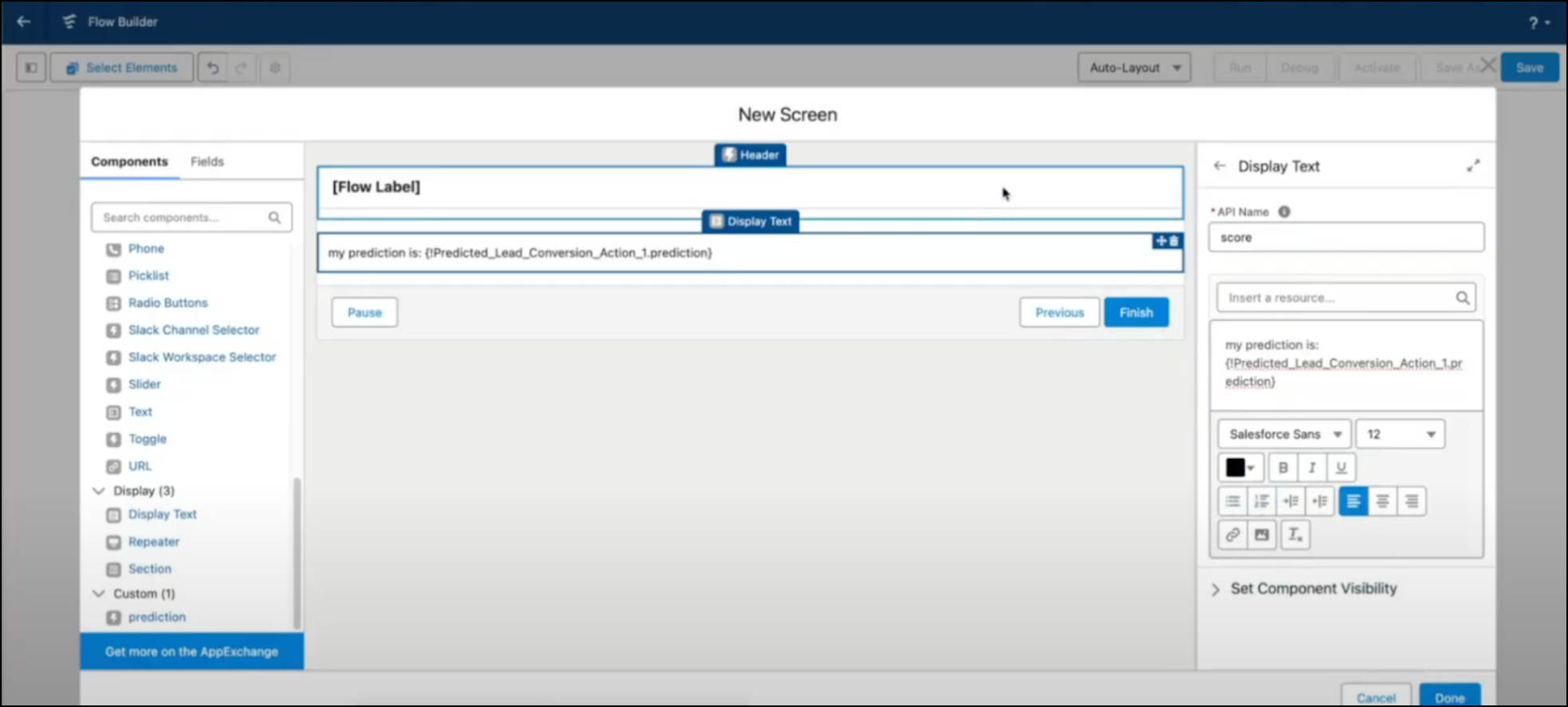
- To append a prediction score to your record page, add a screen interaction to the flow,
and enter a label, API name, and resource.
For example,
{!Predicted_Lead_Conversion_Action_1.Prediction}.
- Save the flow.
- Test the flow, and then activate it.
- To view leads in your org, go to the App Launcher and enter Marketing CRM
Classic.
- Add the screen flow to a record page to show prediction scores on all leads records.
- Go to Setup, and edit the object in Object Manager.
- Use the Lightning Record pages to create a record page.
- On the Components tab, search for Flow, and drag the
component to your preferred location on the object.
- Add the flow that you want to use on your object, and save to display the output
from your flow.

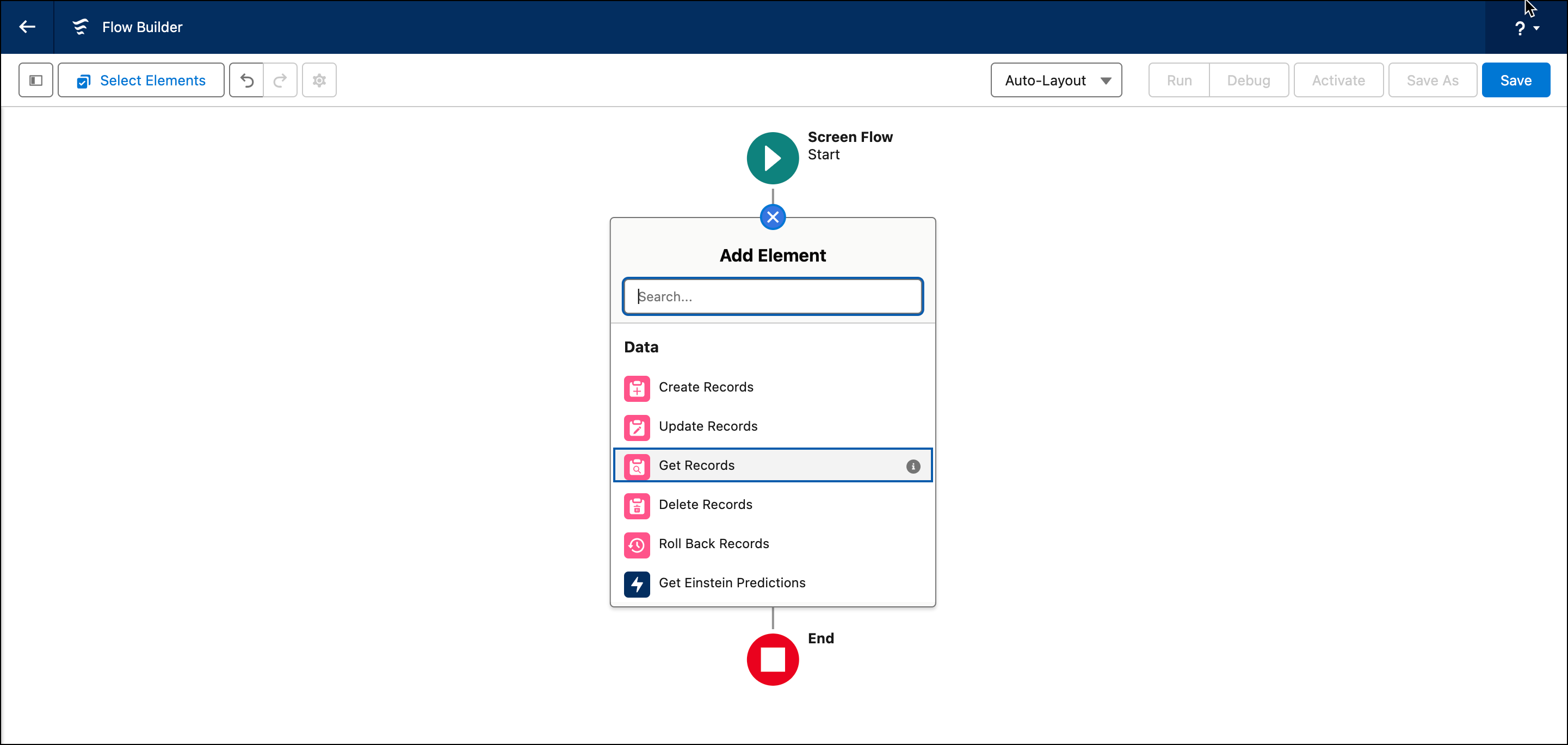 For example, to get leads records.
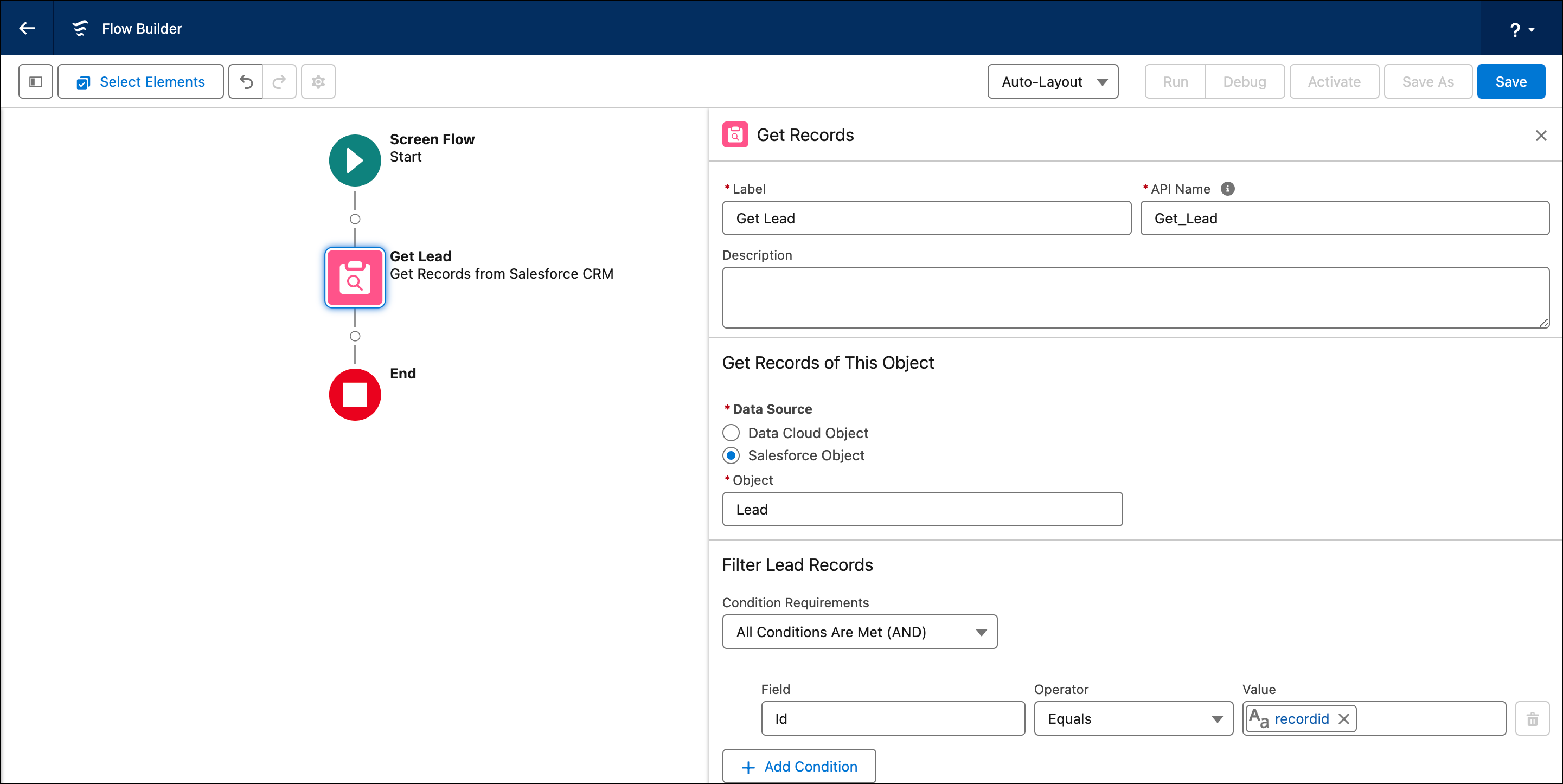 For example, to predict leads by record ID, filter your data by selecting All Conditions Are Met (AND), Field=Id, Operator=Equals, and Value=Resource (a variable named recordid).
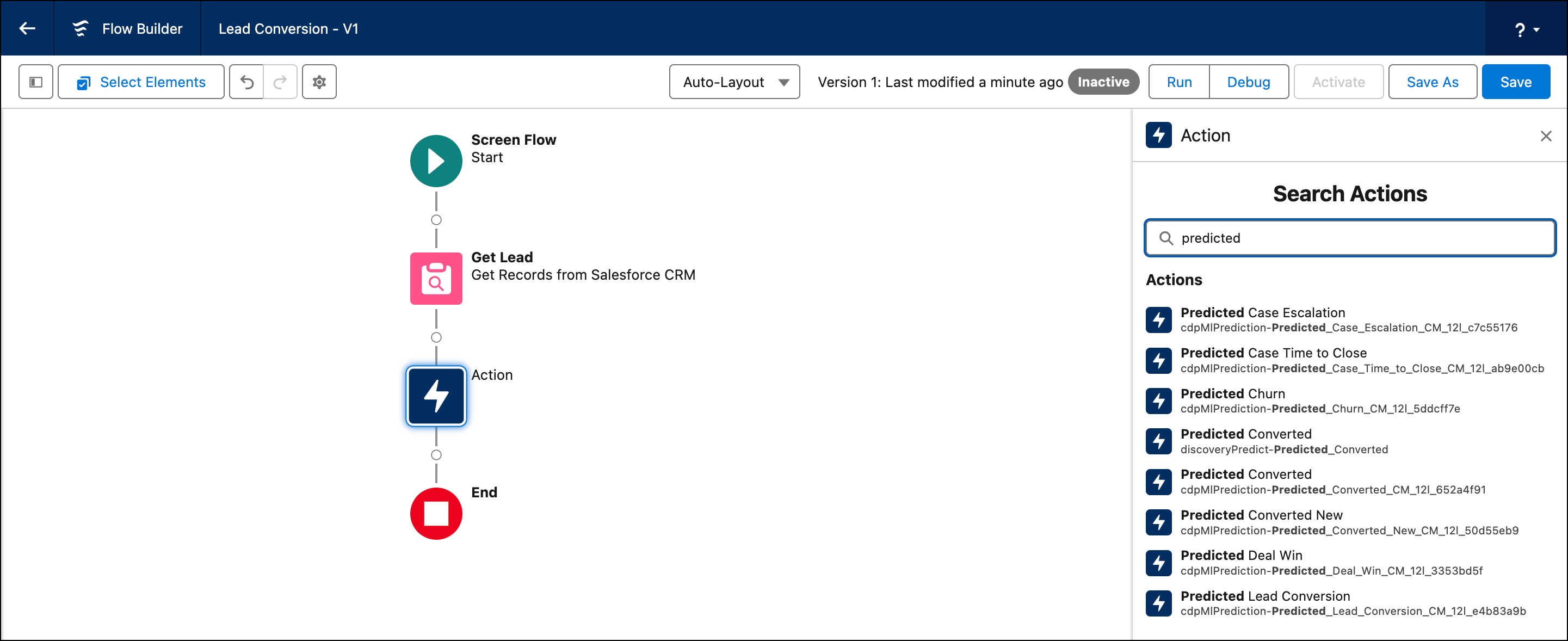 For example, "Predicted Lead Conversion."You can search for your model by its name or location in the Data Cloud action category.
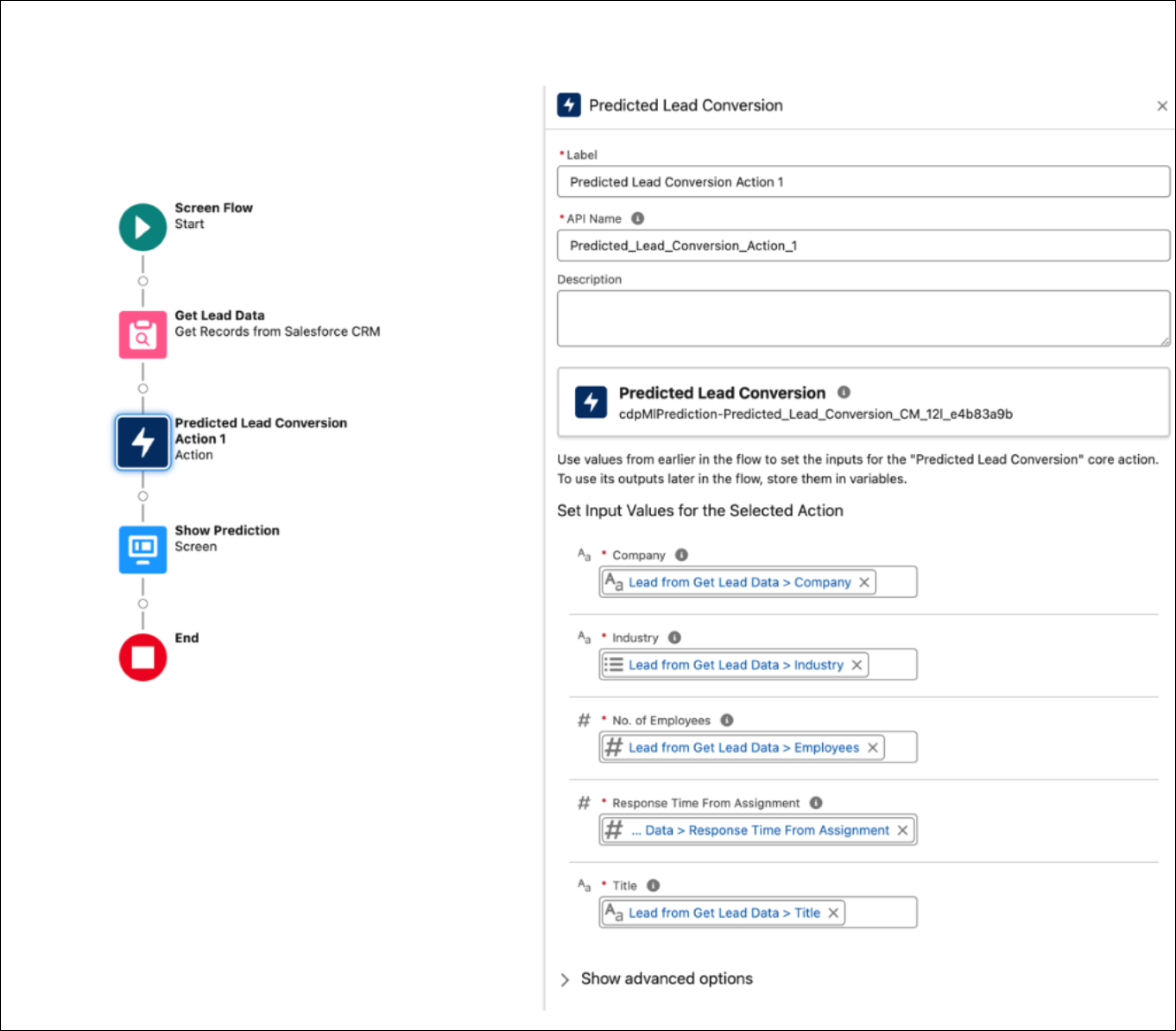 For example, use the fields from the lead object that match your model inputs.