
Test a retriever configuration to ensure accurate responses from your AI agents. Save retriever configurations as new versions of the retriever in AI Models (formerly Einstein Studio). Activate them for use in agents with prompt templates, Flow, and apps.
Required Editions
| Available in: All Editions supported by Data 360. See Data 360 edition availability. |
| User Permissions Needed | |
|---|---|
| To manage retrievers or versions in AI Models (create, edit, test, and delete) |
Allow users to manage models in AI Models AND Access to Field Relationship Path object OR Data Cloud Architect permission set |
| To access data with retrievers |
For the Knowledge object, make sure that the user has read access to the object and has the app permission: Allow View Knowledge For all other standard objects, make sure that the user has read access to the object and appropriate sharing rules. For more information see, Set Your Internal Organization-Wide Sharing Defaults. |
Configure Retriever
Customize your retriever configuration with filter conditions, expected source data, and expected results.
-
In AI Models on the Retrieve tab, select Test Retriever.
Alternatively, select Test Retriever for an individual retriever
from the drop-down action menu.
You can't test default retrievers that were automatically created.
- Select a mode for testing the retriever. In the basic mode, the retriever playground returns a source recall score and a response time. In the advanced mode, the playground returns an AI-generated context recall score and a context precision score based on an expected answer to a test question. For more information on metrics and costs, see, Retriever Metrics and Results and Billing Considerations for Testing Retrievers.
-
Select a retriever that you want to test and validate.
The retriever configuration panel shows the search index and retriever details for review.
-
Include all records or filter records that meet the conditions to customize retriever
configuration. Configure up to ten filter conditions for retrieval of records based on
filter conditions.
For example, define simple filter conditions such as "document published date is after 2022" or " Company name is equal to Salesforce."To select field values at run time, define dynamic filter conditions. For example, to select a car make and model at run time for questions about car mileage, define filter conditions such as, 1. Make Equal to {!$Make} and 2. Model Equal To {!$Model}.Select the conditional logic to use filters when all conditions are met, any condition is met, or custom conditional logic is met. For example, with the test question about car mileage, add a third condition, 3. ModelYear greater than 2000. You can configure a custom condition where conditions 1 AND (2 OR 3) are met.
-
Modify the number of results that you want the retriever to return.
If the results to a question don’t include the expected response, increase the number of results returned.
- Customize the fields returned by the retriever by adding or removing existing fields.
-
(Optional) Preview and validate citations for a retriever by configuring
citations.
- To automatically generate citations that include the source URL, and a heading text, select Standard Citations.
- To customize the citation, select Custom Citations. Optionally, enter a base URL, source DMO field that contains the full link or a URL path that can be combined with the base URL, and the source DMO field to use for the citation heading. For example, if the source DMO contains a citation to a specific help page such as Retrieve Data. Enter a base URL of https://help.salesforce.com/s/articleView?id=&language=en_US and the URL path would be the source DMO field that contains the document ID, data.c360_a_ai_retriever.htm. If the source DMO has a field with the entire URL path, then don’t enter a base URL path. Set the URL path to the source DMO field that contains the entire URL path.
- Click Save.

Test Your Retriever
Enter a natural language query and set expected source data to evaluate how accurately your retriever returns content. Expected source data is the content you expect for a correct response.
- In the Test Retriever panel, ask a test question. In the advanced mode, you can also test your retriever responses based on an expected answer to the test question.
- Optionally, define dynamic filter values.
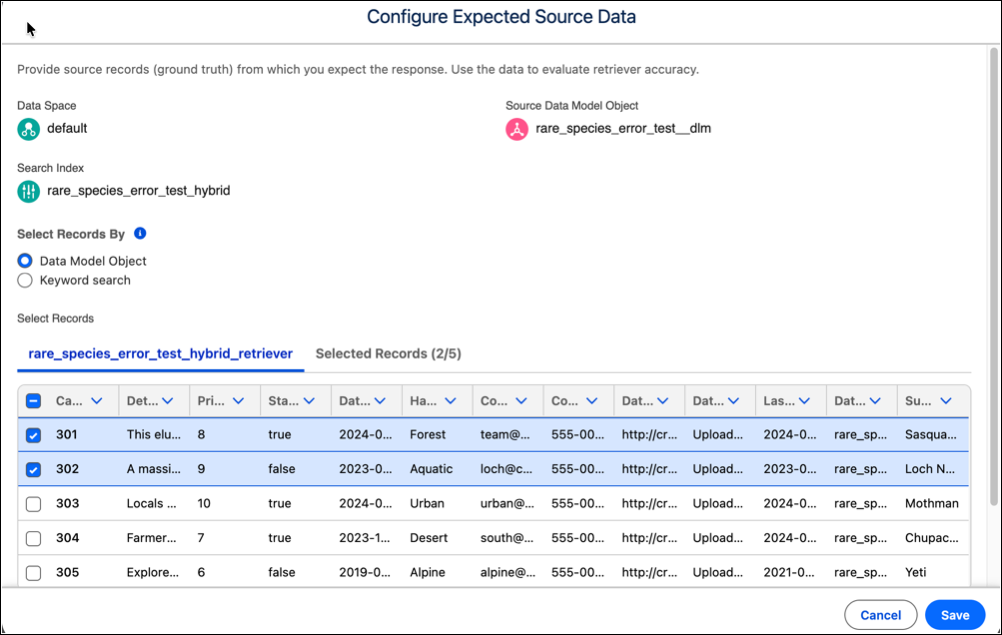
- To test your retriever responses from expected sources, select Configure Expected Source Data.
-
Select data model object records if you know which records contain the response or
select keyword search.
For hybrid search retrievers with keyword matches, select expected source data by keyword search or data model object records. Otherwise, you can only select by data model object records. Select data model object records if you know which records contain the response to your test question. Select records based on a keyword search if you know what your response should include, such as, for a question related to paid time-off, you can enter “PTO or Time-off”.
Configure Expected Source Data
After you run your test, the Test Retriever panel shows the number of documents retrieved by the retriever. In the Review Results panel, review the overlap between the top chunks returned by the retriever and the expected source data chunks. Verify validity of sources with links to citations for the retrieved chunks. Optionally, customize retriever configuration to get an optimal response. Save tested configurations as new versions.