
Predict future values based on historical patterns in a single variable by using the Holt-Winters algorithm. For example, use a data transform to forecast sales by account based on opportunity data.
Required Editions
| Available in: All Editions supported by Data 360. See Data 360 edition availability. |
| USER PERMISSIONS NEEDED | |
|---|---|
| Allow users to manage models in AI Models | Enables you to create, update, and delete models in AI Models. |
| PERMISSION SETS | |
|---|---|
| Data Cloud Architect | Admin-level access to all AI Models features, including the ability to create, update, delete, and activate models. |
| Data Cloud User | Restricted access to use a model, including getting predictions and improvements derived from a model. |
Run a Forecast Model with a Batch Data Transform
Use a batch data transform to apply forecasting across large datasets.
- From Data 360, go to Data Transforms, and click go to Data Transforms, and click New.
- Select Batch Data Transform.
- Select Data Model Objects and the data space.
-
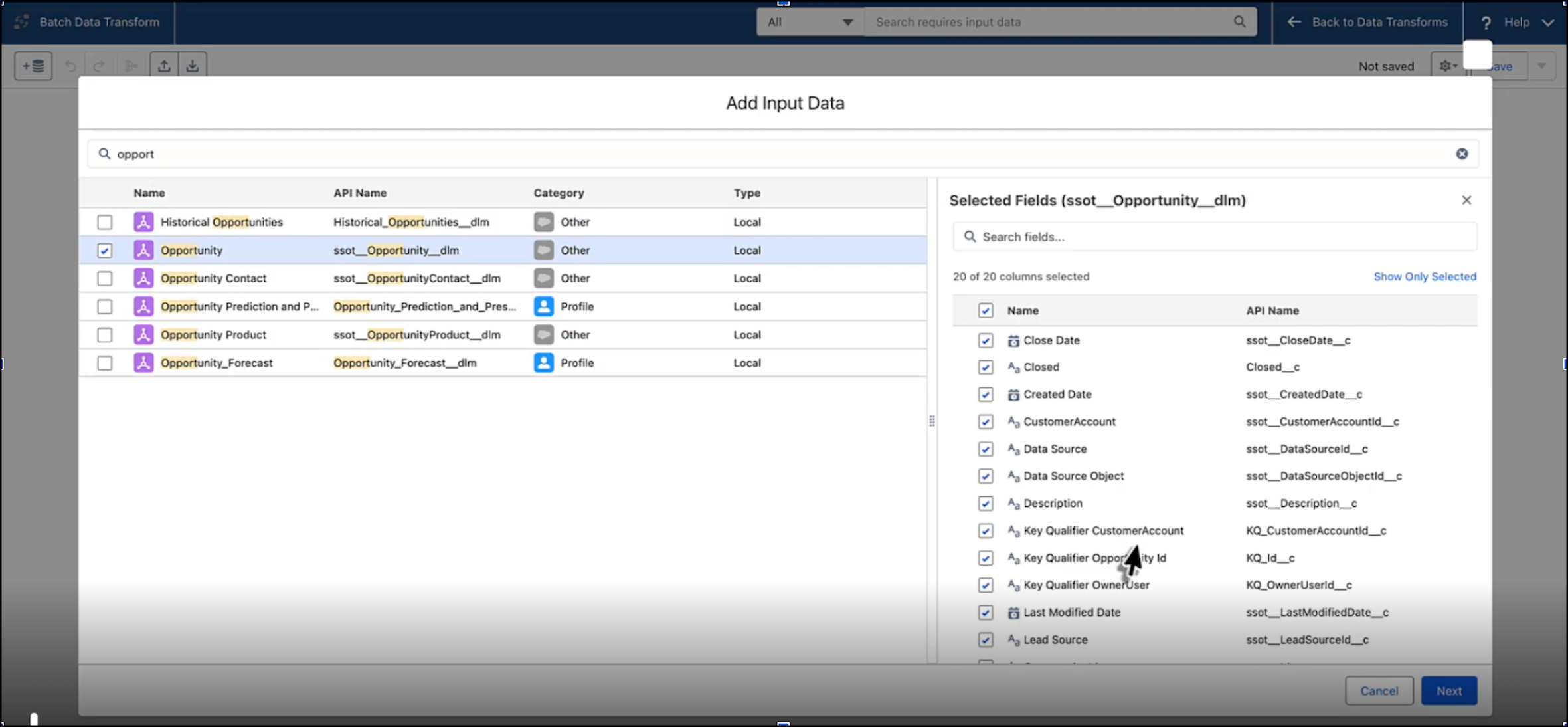
To add your input data, select a data model object. For this example, use
Opportunity.
-
Add a node to select an AI function.
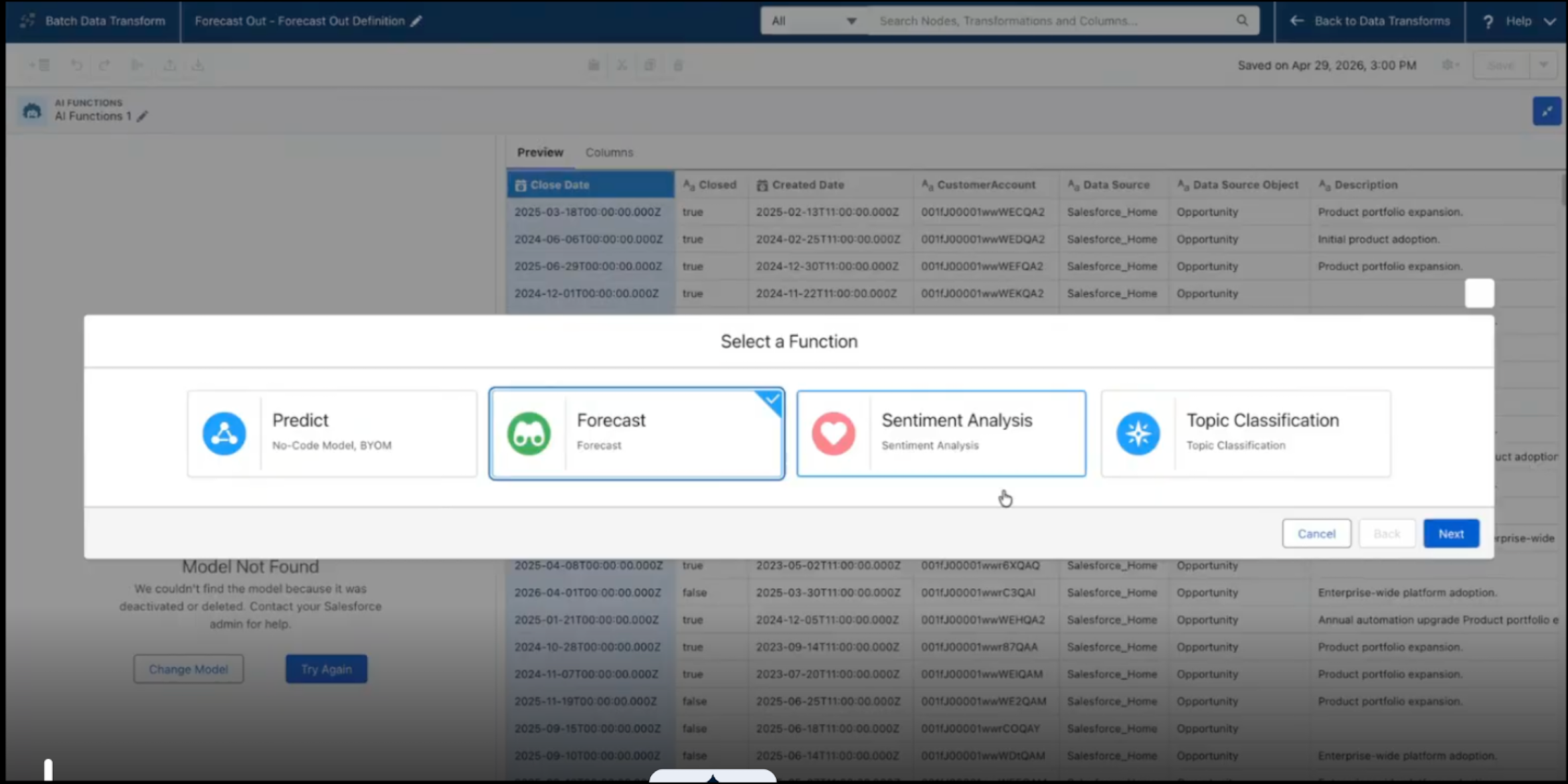
- Select Forecast.
- Select the Holt-Winters forecasting model.
-
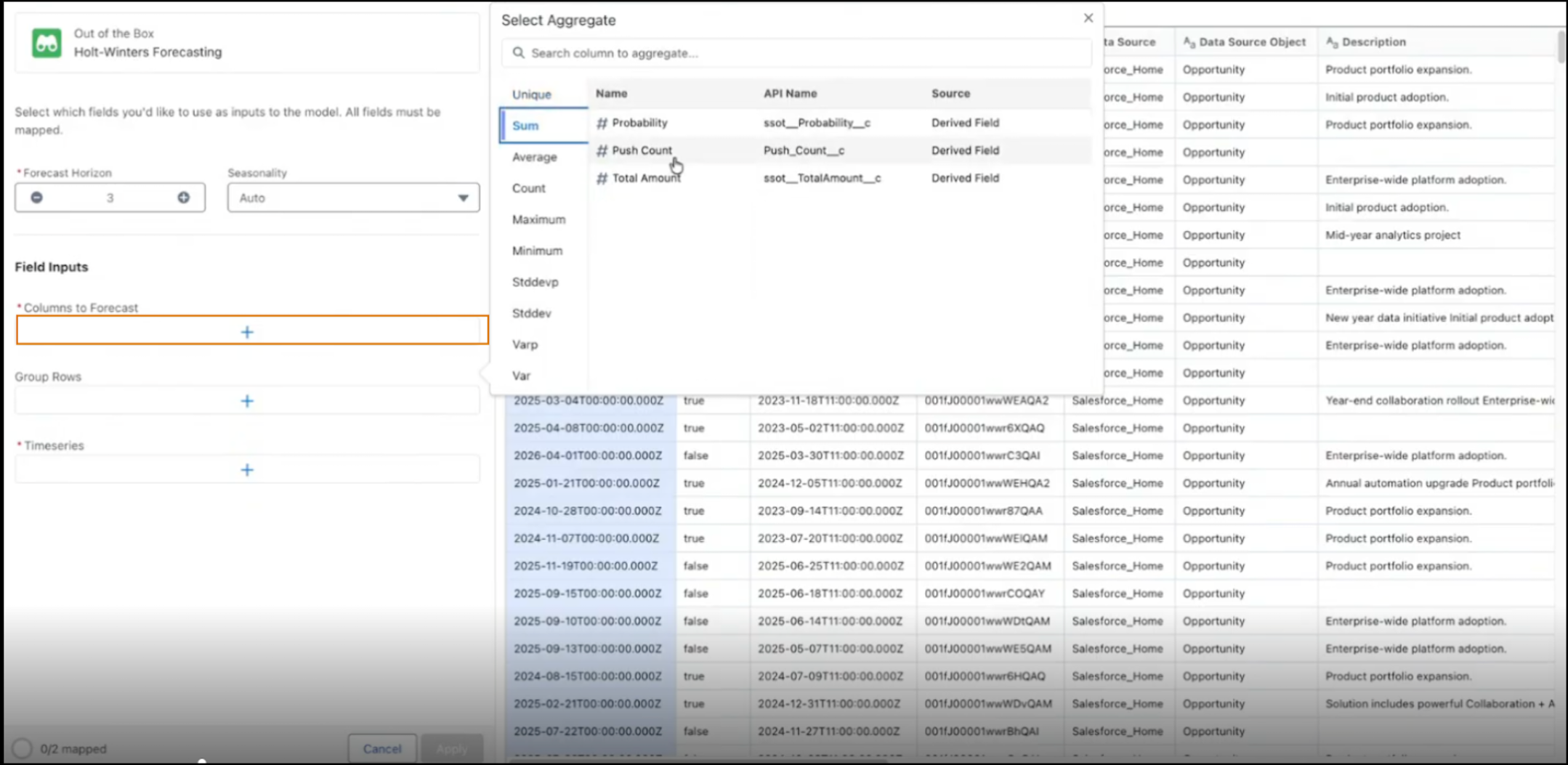
Configure these details and input fields.
- Specify a forecast horizon, such as 3 (months).
- Keep the auto seasonality selected.
-
Select the Sum of Total Amount as the aggregate metric to
forecast.
-
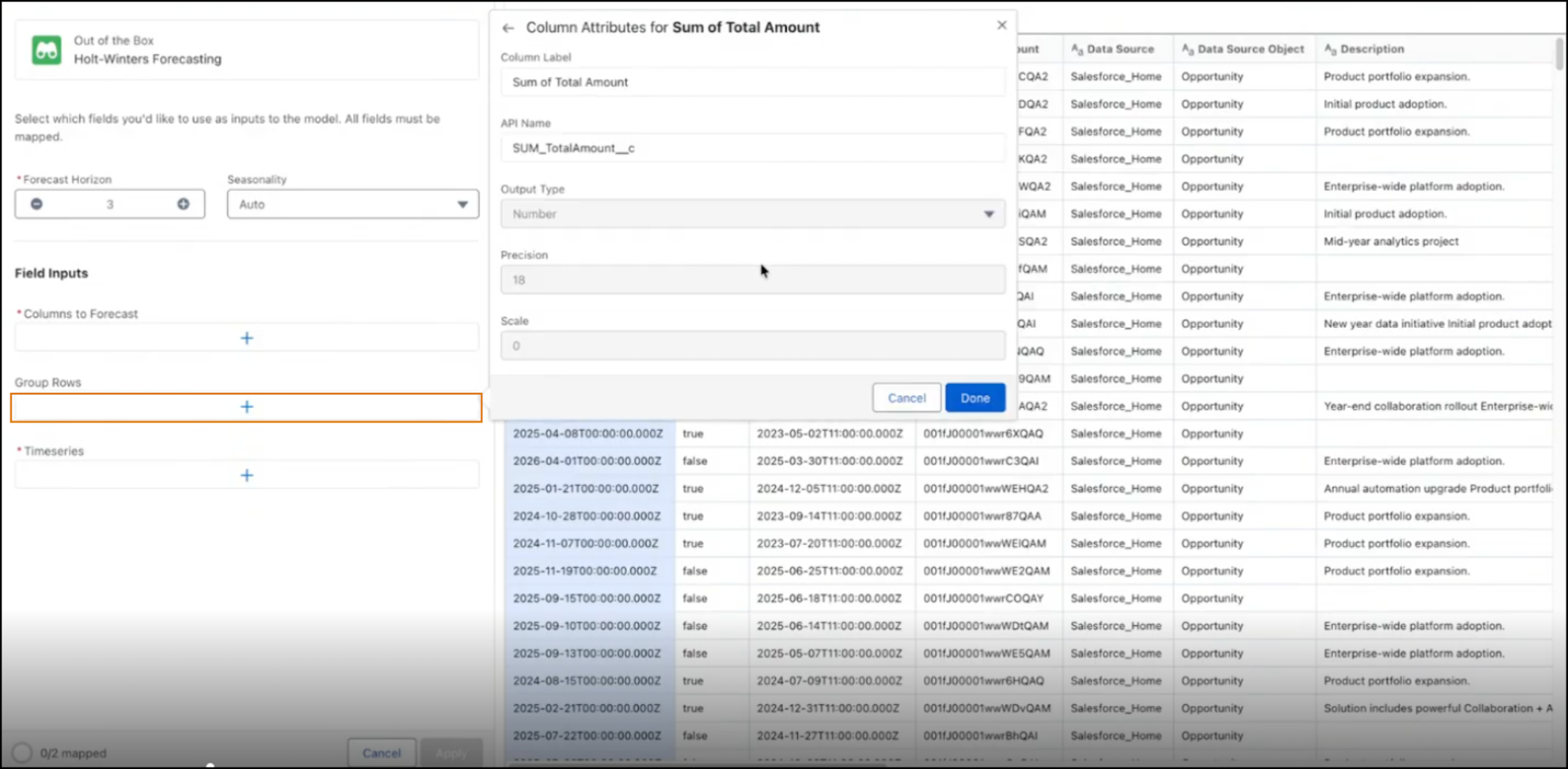
Group data by customer account ID, and configure the close date field by year/month to
ensure monthly granularity.
- Specify the time series, such as the Close Date field, and select Year-Month to forecast out by month.
- Map the output field (forecasted value, upper bound, and lower bound). This action saves the transformed data to a new DMO.
-
Save your settings. A preview shows data in three forecasted fields based on your
horizon of 3.
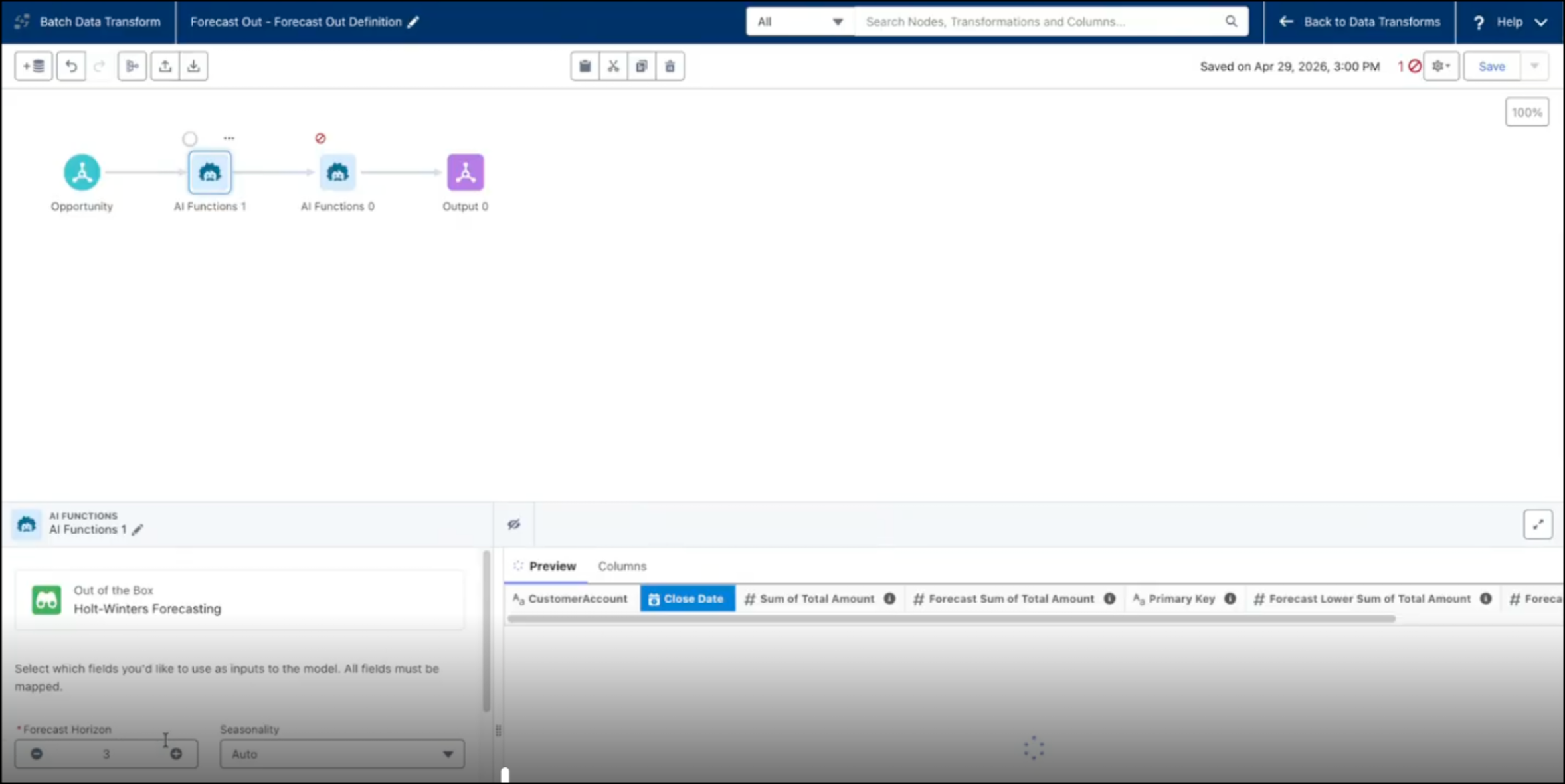
- Run the transform to incorporate historical data with the future forecasted rows in the output DMO.
-
To append the transformed data back to the Account DMO, use the Join node.
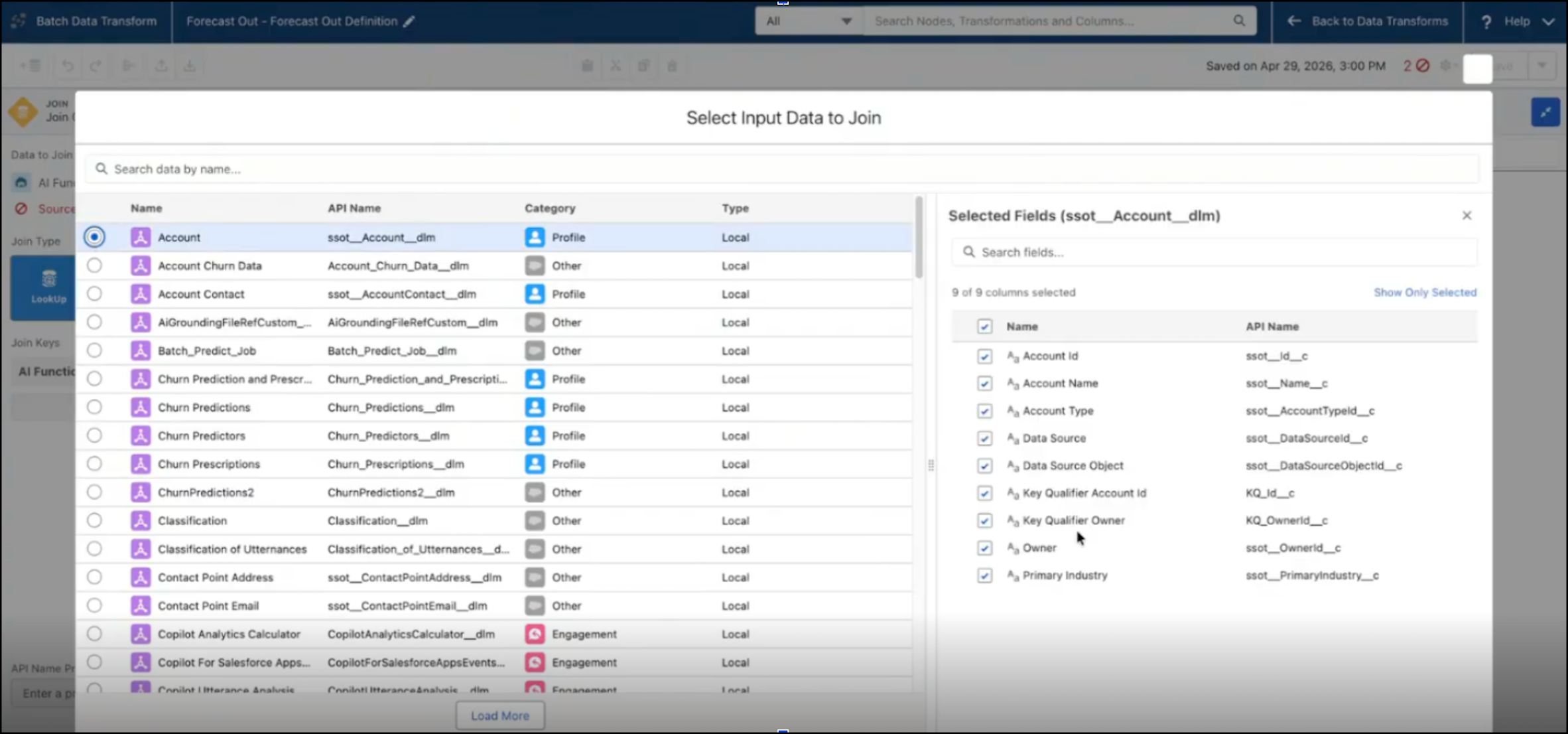
- Select the forecast fields to add to the Join.
- In the data transform, connect the Join node to Output to append forecasted values to the output object.