Predictive models in AI Models (formerly Einstein Studio) can generate real-time predictions to inform
personalized recommendations in Salesforce Personalization. The integration enables the delivery
of customized experiences, which can boost engagement. Predict the customer lifetime value annual
spend, or likeliood to purchase and use your model's predictions in a Personalization Decision
targeting rule to serve up different content recommendation strategies.
Required Editions
For editions and permissions needed to use Salesforce Personalization targeting rules,
see Create a Targeting Rules
| USER PERMISSIONS NEEDED |
| Allow users to manage models in AI Models |
Enables you to create, update, and delete models in AI Models. |
| PERMISSION SETS |
| Data Cloud Architect |
Admin-level access to all AI Models features, including the ability to create, update,
delete, and activate models. |
| Data Cloud User |
Restricted access to use a model, including getting predictions and improvements
derived from a model. |
When using a predictive model in AI Models in Salesforce Personalization, consider the
following:
- Personalization maps are only supported for models created from scratch. Connected models
aren’t supported.
- You can map models built from scratch to a real-time profile data graph.
- You can map direct attributes and calculated insights without dimensions to a model created
from scratch. Calculated insights must have a number data type.
To set up a model to provide personalized recommendations in Salesforce
Personalization, follow these steps.
Before you begin, you must first create a model from scratch in AI Models.
-
In AI Models, from the predictive models tab, click your model. The model must be activated
so it can provide predictions.
-
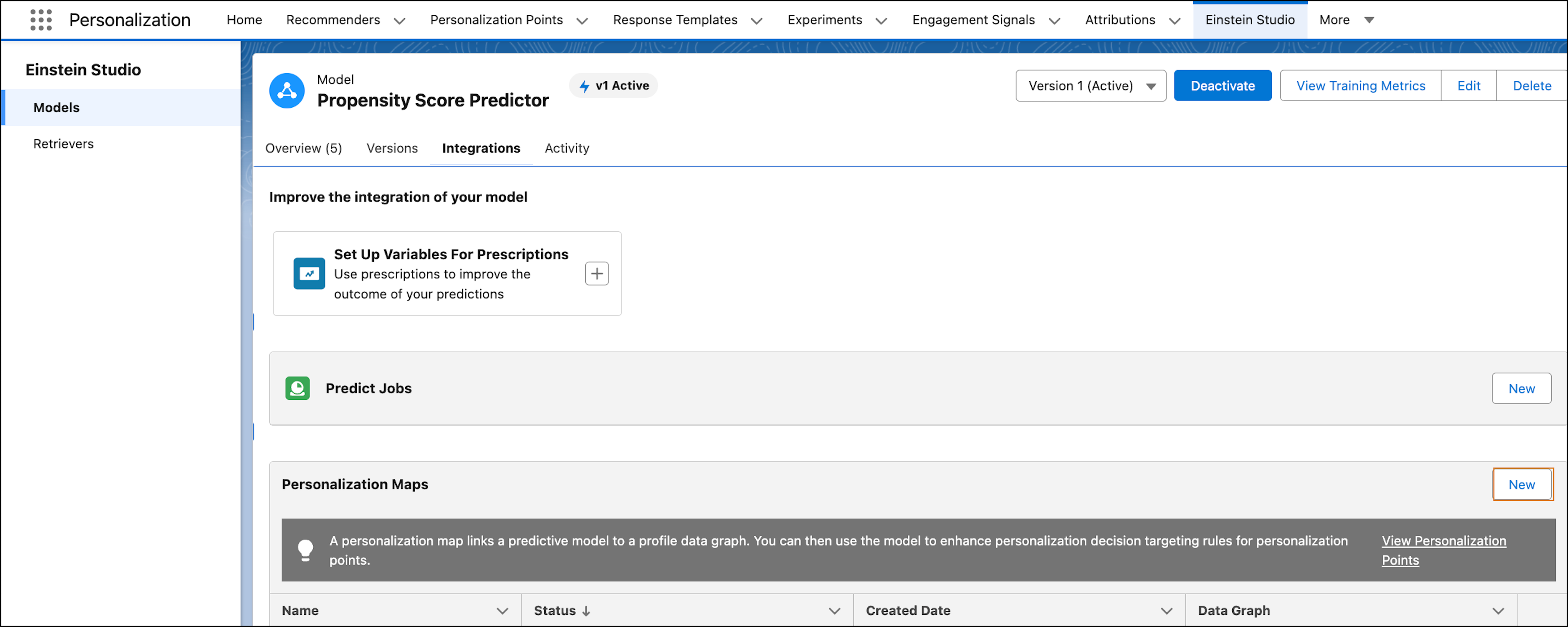
From the model details, click the Integrations tab.
-
To create a new personalization map, click New.
-
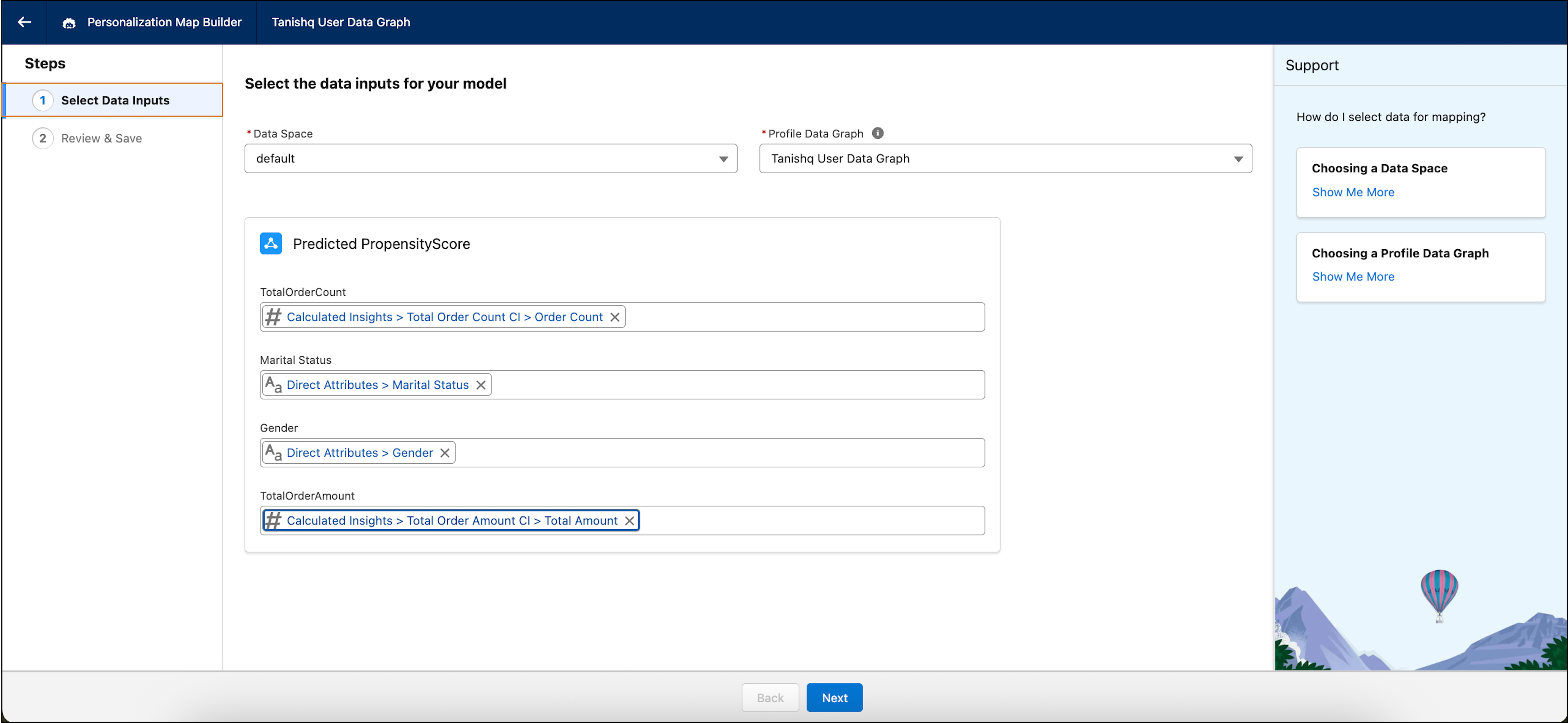
Select a data space and profile data graph.
-
Identify the fields in the data graph map you want to use to generate the personalized
prediction.
-
Click Next.
-
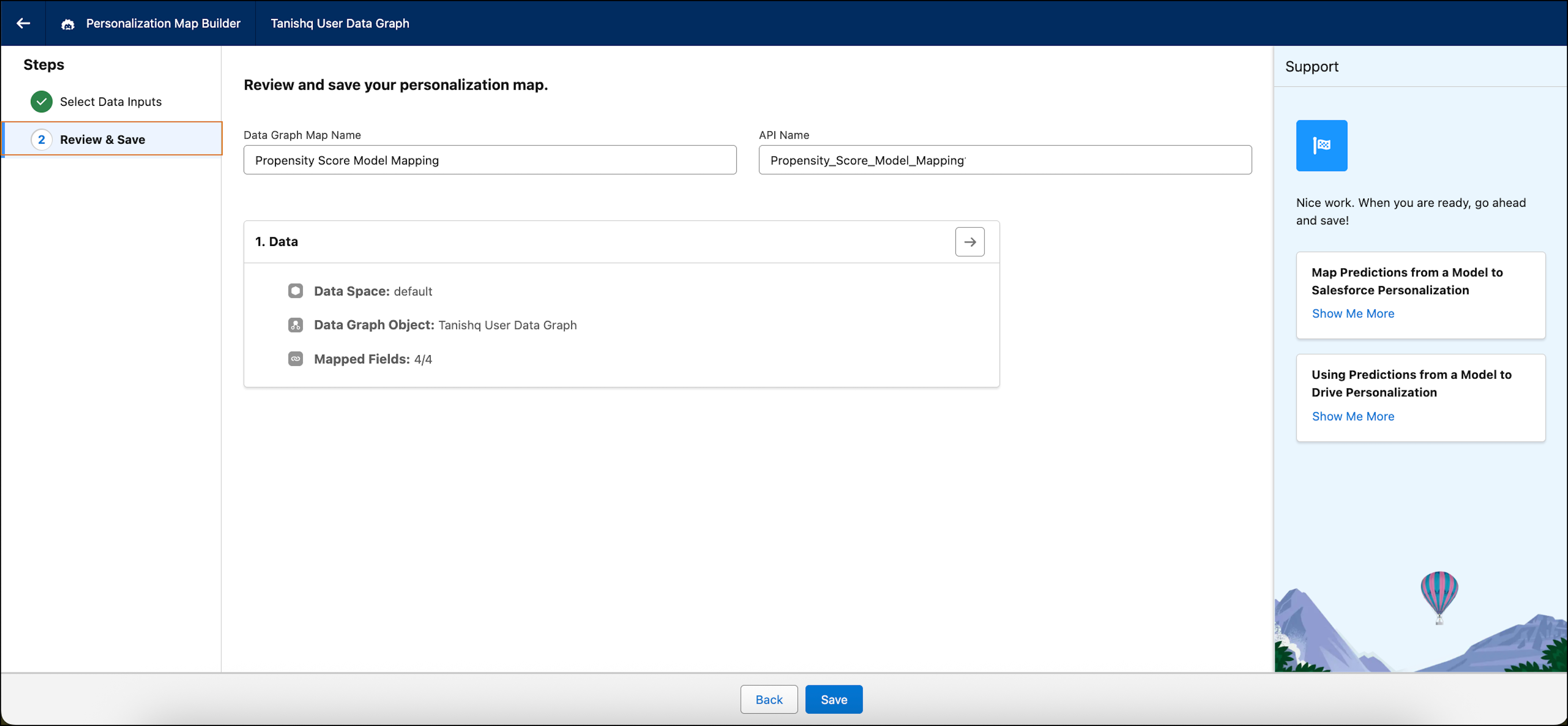
Review the mapping.
-
Save your settings.
After linking your model with a real-time profile data graph, you can use the model in
Salesforce Personalization targeting rules to get personalized recommendations.