
Create a model that uses historical data to predict future outcomes. Select and structure your data source and define the desired outcome. Then train the model to reveal predictive inferences and insights by using AI, machine learning, and statistical analysis.
Required Editions
| Available in: All Editions supported by Data 360. See Data 360 edition availability. |
| User Permissions Needed | |
|---|---|
| Allow users to manage models in AI Models | Enables you to create, update, and delete models in AI Models. |
| Permission sets | |
|---|---|
| Data Cloud Architect | Admin-level access to all AI Models features, including the ability to create, update, delete, and activate models. |
| Data Cloud User | Restricted access to use a model, including getting predictions and improvements derived from a model. |
To train a model, here are some data requirements to consider.
| Requirement | Minimum | Maximum |
|---|---|---|
| Number of rows | 400 |
20 million 5 million for the XGBoost algorithm |
| Number of variables (fields or columns) | 3 (1 outcome variable plus 2 other fields) |
50 with manual selection 350 with automatic selection. From these fields, Autopilot considers only the 50 most relevant ones. |
Using predictive models to generate inferences consumes Data 360 credits for billing. Learn more about how predictive AI impacts credit consumption in Billing Considerations for Predictive AI.
-
Choose Type
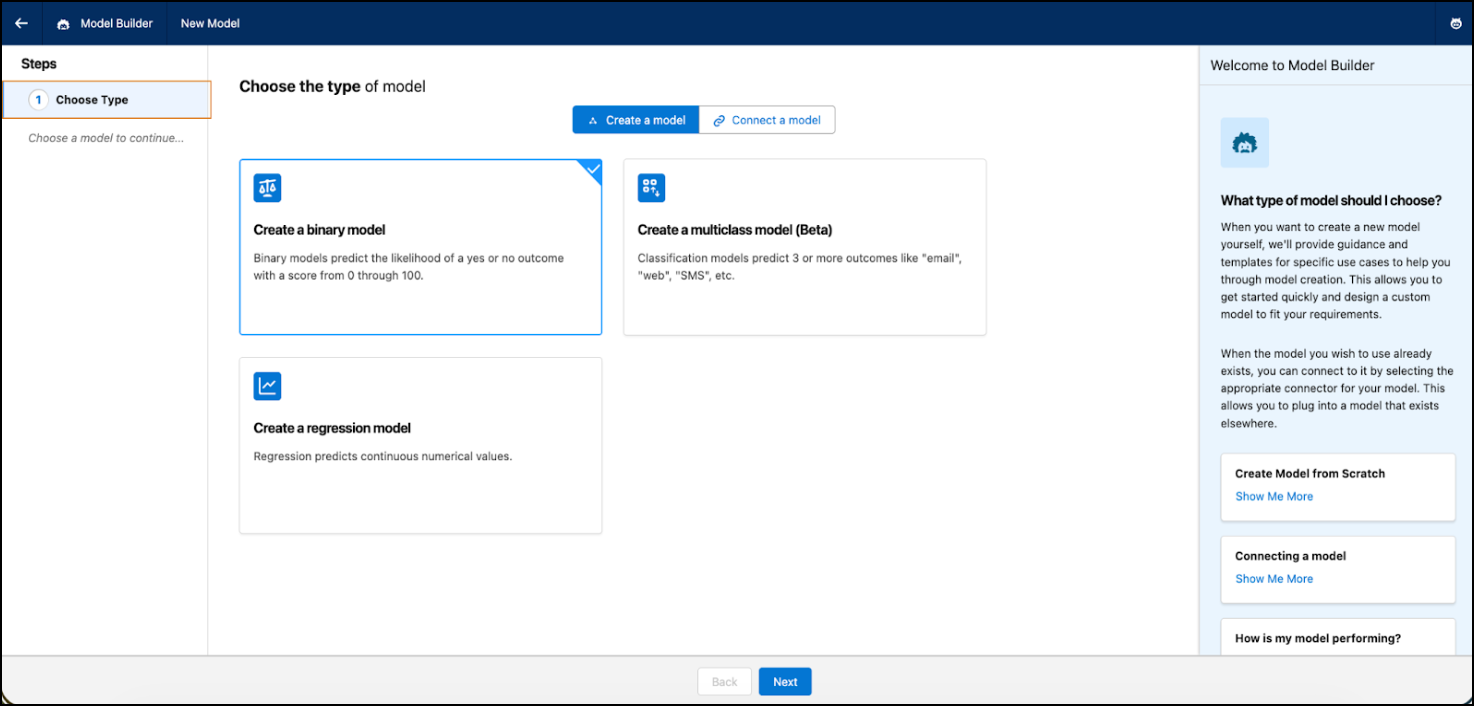
Based on your use case, select a binary, regression, or multiclass model.
-
Select Data
Select the source of data to train your model with. Einstein uses the data to train and test the model.When selecting a data source, consider some guiding questions.
Question Guidance What outcome (such as a KPI) do you want to predict? Predictive modeling detects patterns related to three types of use cases: regression (continuous numbers), binary classification (two-value text outcomes), or multiclassification (from 3 through 10 possible outcomes). Ideal data candidates for predictive modeling often involve KPIs associated with large volumes of data and many business decisions. Which variables do you want to include? Deciding which variables to include impacts the quality and interpretability of a predictive model. When variables are meaningful and relevant, it becomes simpler for stakeholders and business users to understand the relationships between factors and trust the predicted outcomes. Where can you find this information? Understanding where the data comes from is valuable in assessing quality, identifying bias, and adhering to data governance and compliance. -
Select Training Data
Use all records in the data source to train the model. Or, specify conditions to restrict the records used to train the model.
- To select a specific subset of data to train the model, click Filtered Set of Records.
-
Define your filter condition.
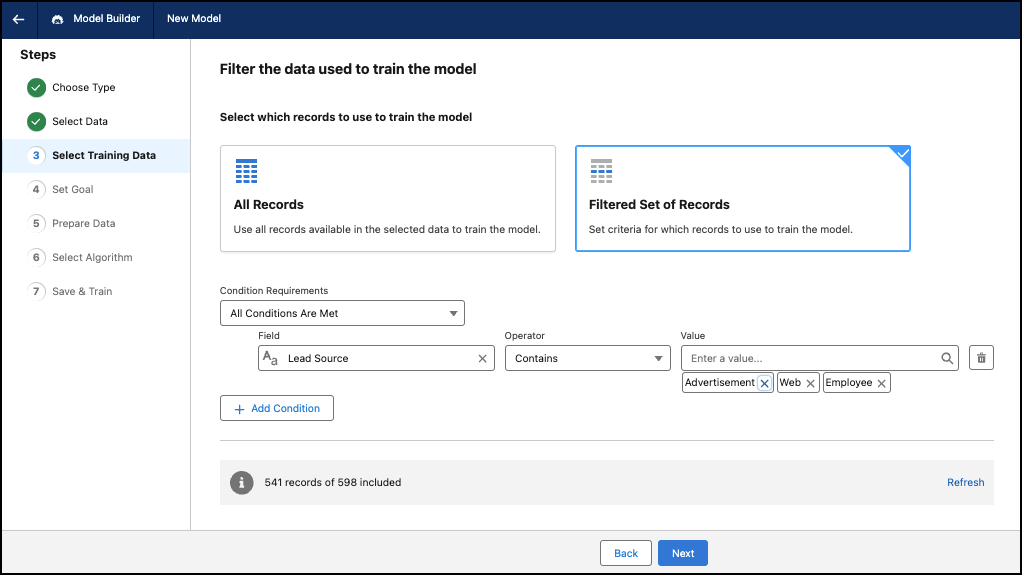
Logic Description Condition Requirements All Conditions Are Met—if all conditions are true, the filter is applied. If one of the conditions is false, the filter isn’t applied.
Any Condition Is Met—if one condition is true, the filter is applied.
Field Based on the data source. The data attribute or variable to use when applying the filter. Operator Defines the relationship between the field and condition. The available operators depend on the field type. Value Specific value to assess the field. For text fields, select one or multiple values. For numeric fields, enter a value. For date fields, use the calendar to select a date.
-
Set Goal
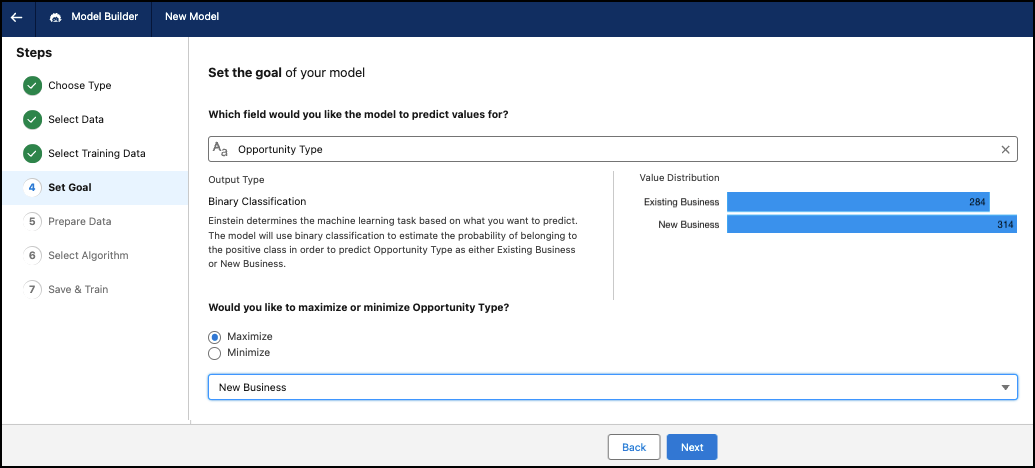
Select a business problem that you want to solve. Examine the key performance indicators (KPIs) you want to improve. Explore which candidate KPIs can benefit the most from deploying an AI-powered solution.
- Select the field that you want to predict values for. Decide which outcome variable you want to explore, and at what granularity. The outcome variable can be a KPI value (such as revenue, discount, cost measure, or duration) or other quantifiable outcome. You can also use categories (text fields) with two values (binary) as an outcome variable.
- Choose whether to maximize or minimize your goal. Model Builder builds and trains a model to optimize the outcome variable accordingly. For example, you can maximize net margin or minimize customer churn.
-
Prepare Data
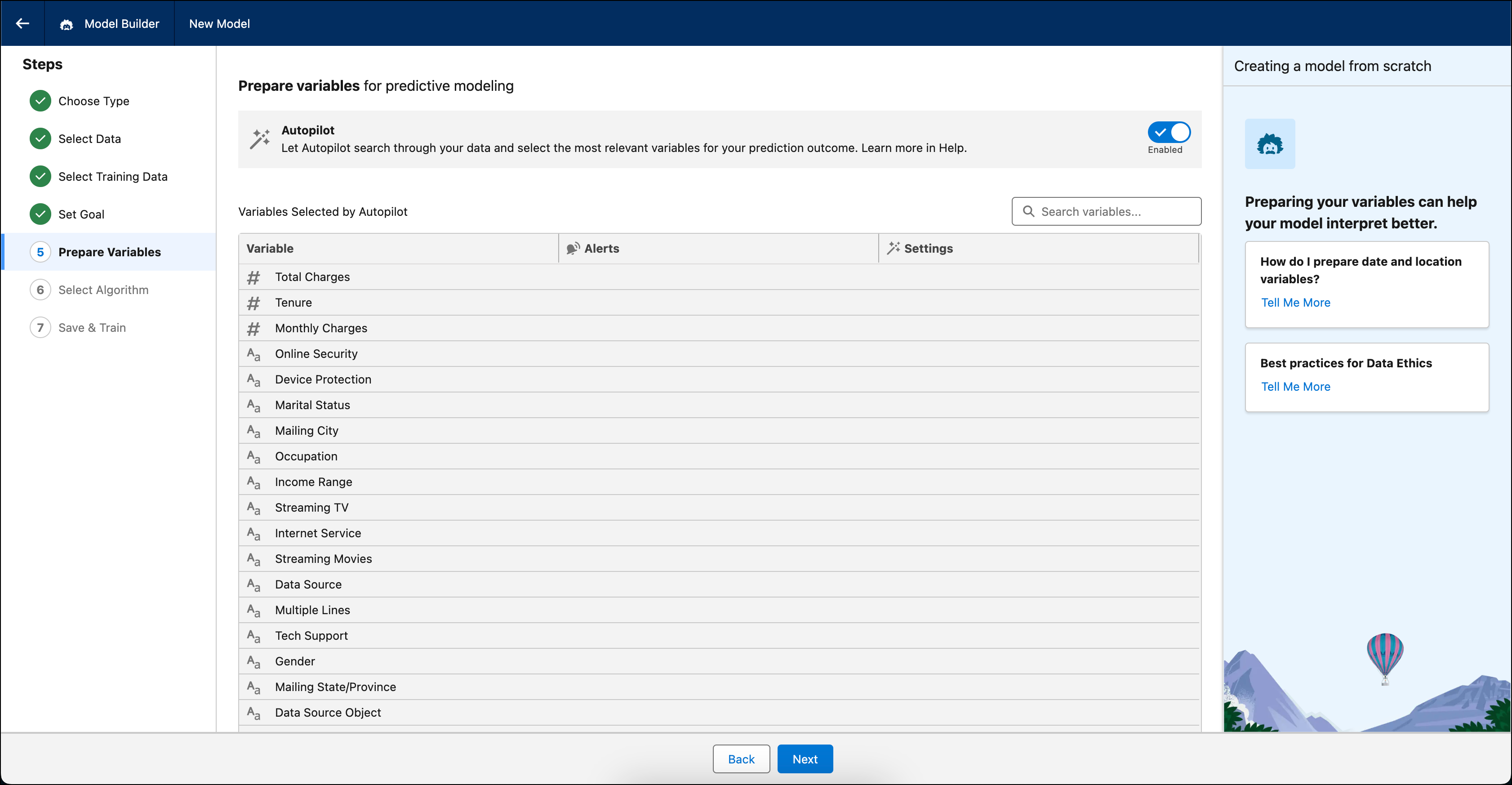
Select what fields to include as the model's variables. Make sure that the variables are relevant to the prediction outcome you want. Refine data to provide better results by using variables that are accurate, complete, and representative of real-world business operations in terms of volume and diversity. Don’t use fields that contain sensitive data or personally identifiable information (PII).
Some fields that are available when you select a data source might not be available as model variables during data preparation. Model Builder automatically reviews the fields in your data and can exclude fields that aren't suitable for model training.
A field can be excluded for these reasons:
- Constant values: Fields with the same value (no variation), or that are entirely empty, are excluded because they don't provide useful predictive information.
- Missing values: Fields with a high proportion of missing values can be excluded.
- No data available: This can occur if data hasn't finished populating, such as when a data transform is still running. Fields with no data are excluded.
- Identifier fields: Fields whose values are mostly unique, such as customer IDs, record IDs, email addresses, URLs, or phone numbers. These fields are excluded because they don't provide useful predictive information.
- Free-text fields: Text fields that can't be converted into model variables, such as unstructured notes, can be excluded.
- High-cardinality fields: Text or categorical fields in which most values are distinct can be excluded because they can behave like identifiers.
- Low variance: Numeric fields with little variation can be excluded.
- Redundant fields: Duplicate or highly correlated fields can be excluded when they provide little additional information.
- Aggregate fields: Aggregate fields aren't supported as model variables. As a result, they’re unavailable during data preparation.
The number of fields and filtering depend on the training mode. Standard supports fewer fields, while Autopilot supports more candidate fields and performs automated variable selection.
-
Select Algorithm
The algorithm is the approach, or the computational procedure, the model uses to learn from the data and make predictions. You can also turn on Automatic Selection, so Model Builder can automatically select an algorithm with the highest impact on your prediction and use case.
-
Choose the algorithm for your model.
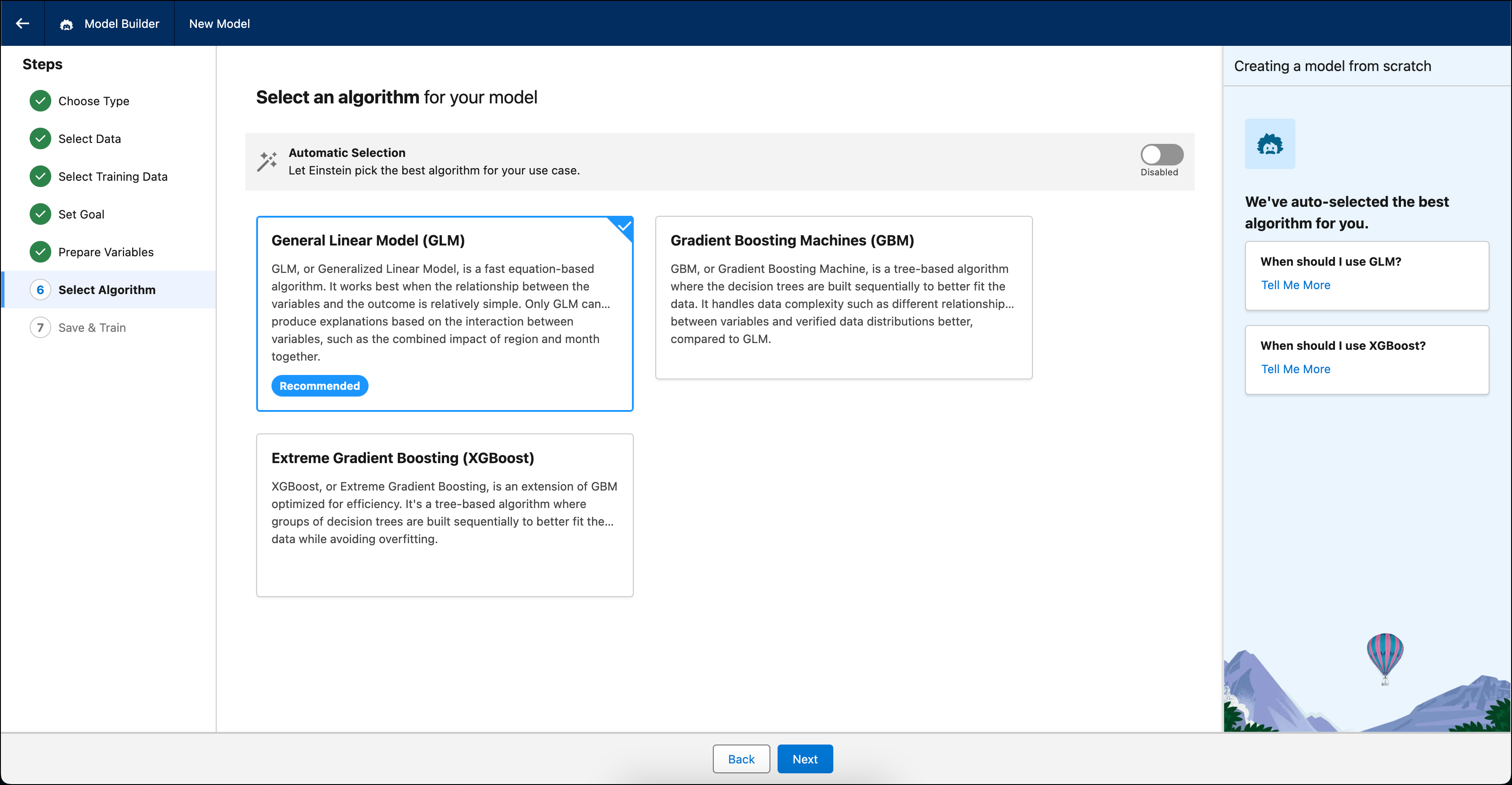
Algorithm Description GLM Default. Generalized Linear Model (GLM) is an equation-based algorithm that typically completes quickly. It works best when the relationship between the variables and the outcome is relatively simple. Only GLM can produce explanations based on the interaction between variables, such as the combined impact of region and month together. GBM Gradient Boosting Machine (GBM), is a tree-based algorithm where the decision trees are built sequentially to better fit the data. It handles data complexity such as different relationships between variables and varied data distributions better, compared to GLM. XGBoost Extreme Gradient Boosting (XGBoost), is an extension of GBM that’s optimized for efficiency. It's a tree-based algorithm where groups of decision trees are built sequentially to better fit the data, while avoiding overfitting.
-
Choose the algorithm for your model.
-
Review and Train
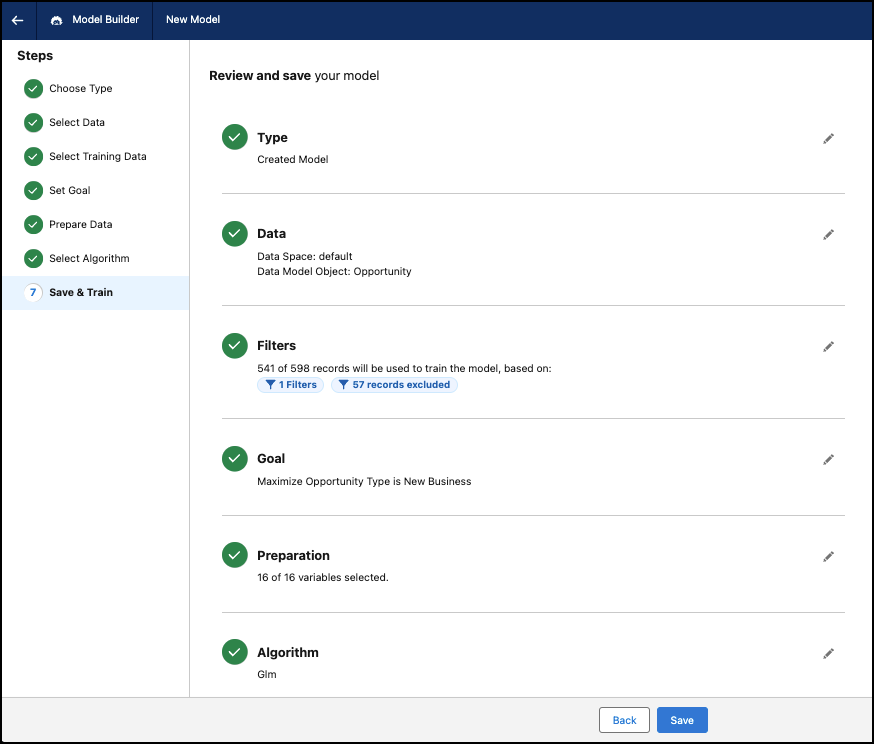
Train your model after reviewing the details.
-
Review the details of the model. Optionally, click the pencil icon to edit a
step.
 Note
NoteYou can edit all steps when creating a model. After you create the model, you can't edit steps such as: Choose Type, Select Data, and Set Goal.
-
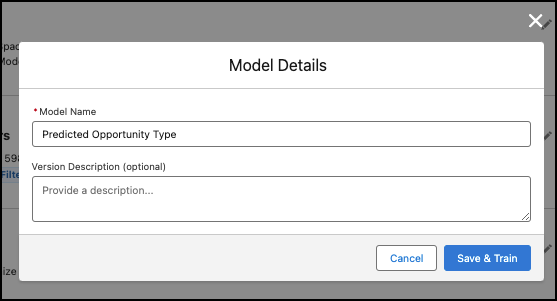
Click Save to enter a name and an optional description for
your model, and click Save & Train to create the
model.
-
Review the details of the model. Optionally, click the pencil icon to edit a
step.

Model Builder analyzes your data and trains the model based on your settings. Model creation takes time, and you can track its progress as it builds.
After the model is created, you can find it in the Predict section in AI Models. See AI Models Home.
- Address Data Issues
Handle common issues that you can encounter when you prepare data for model building and after you train a model. - Apply Transformations to Your Data
Transform modeling data to improve the reliability, accuracy, and explainability of predictions. For models created from scratch, Model Builder automatically transforms unstructured text and replaces missing data. You can also manually transform variables in binary or regression models.