
Use a custom SQL retriever to query Data 360 objects using a SQL statement. To build your query, select an object, write a SQL query, specify parameter values, and configure citations. Review and run your query to validate accurate results before you save and activate the retriever.
Required Editions
| Available in: All Editions supported by Data 360. See Data 360 edition availability. |
| User Permissions Needed | |
|---|---|
| To manage retrievers or versions in AI Models (create, edit, test, and delete) |
Allow users to manage models in AI Models OR Data Cloud Architect permission set |
| To access data with retrievers |
For the Knowledge object: read access to the object AND Allow View Knowledge app permission. For all other standard objects: read access to the object AND appropriate sharing rules. For more information see, Set Your Internal Organization-Wide Sharing Defaults. |
Select a Retriever Type and Data Space
- In AI Models, select Retrieve, then New Retriever.
- Select Custom SQL Retriever as the retriever type. Click Next.
- Select the data space that contains your data. Click Next.
Define Retriever Search Query
- In the Query tab, browse the list of objects and select an object.
- Write a SQL query in the query editor.
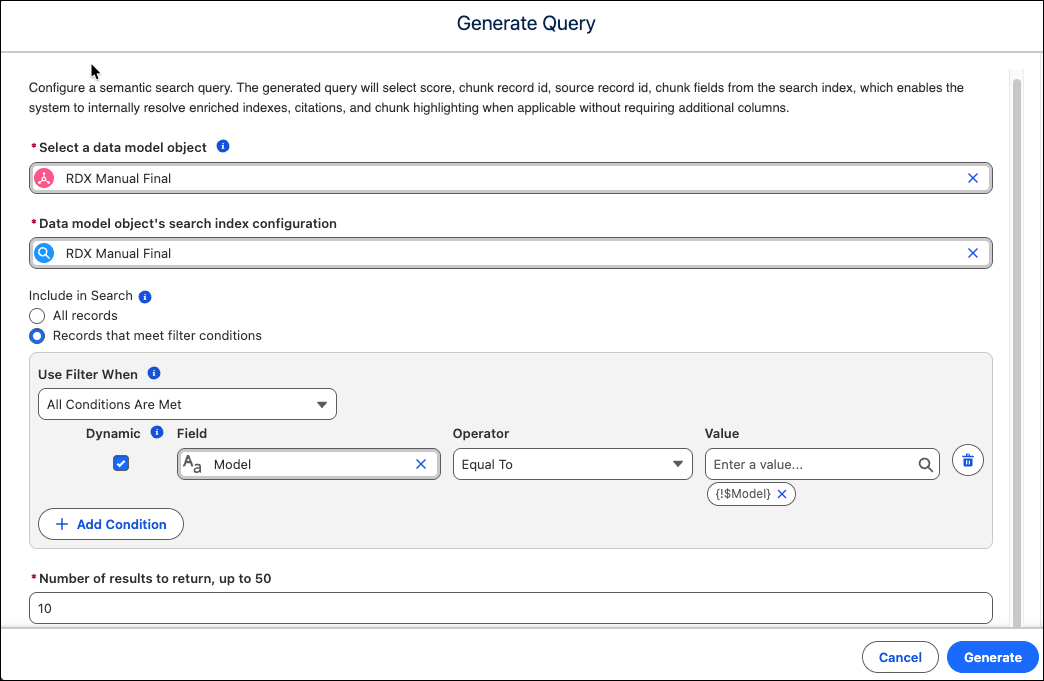
- Alternatively, select Generate Query to generate a query based on an existing search index. Configure your retriever options such as the data model object, search index configuration, pre-filters, and number of results to return.
-
Specify the parameter values for the query, such as the main search string and any
default values.
The retriever substitutes these values at run time to help with testing and evaluation.
- Review your SQL query for errors and suggestions.
Run and Activate a Custom SQL Retriever
- To test your SQL query, click Run.
- Validate the results from your SQL query.
- Optionally, configure the number of results to return and citations settings in Retriever Configuration.
-
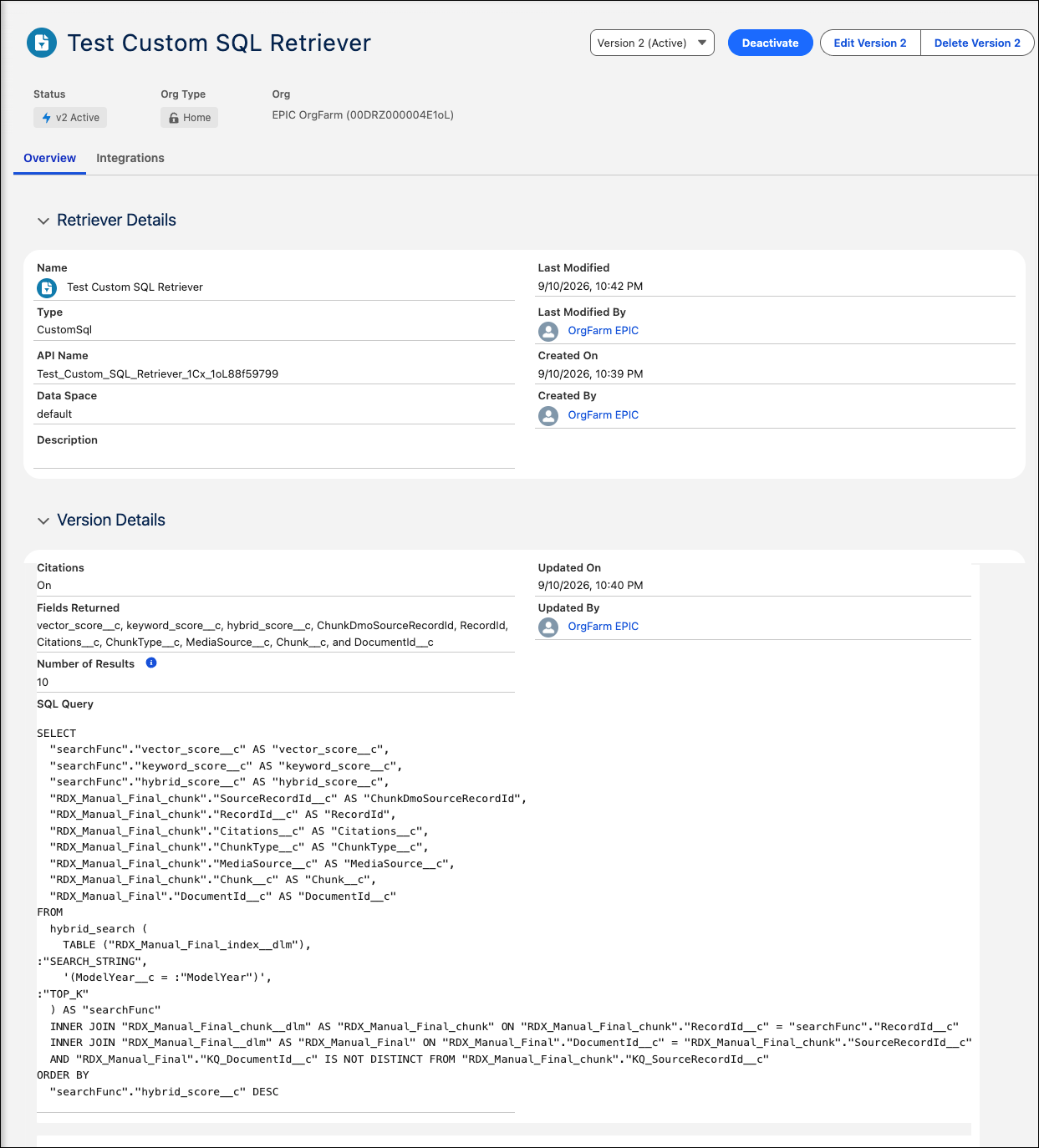
To review retriever details, click Next.
Save your Custom SQL Retriever.
- Activate the retriever.
Generate Custom SQL Query
Custom SQL Retriever Details
After you activate the custom SQL retriever, use it in Prompt Builder, Flow, and Agents.