To consume predictions in Salesforce, connect your Databricks model with Data 360 and define the prediction criteria for your use case.
Required Editions
| USER PERMISSIONS
NEEDED |
| Allow users to manage models in AI Models |
Enables you to create, update, and delete models in AI Models. |
| PERMISSION SETS |
| Data Cloud Architect |
Admin-level access to all AI Models features, including the ability to create,
update, delete, and activate models. |
| Data Cloud User |
Restricted access to use a model, including getting predictions and
improvements derived from a model. |
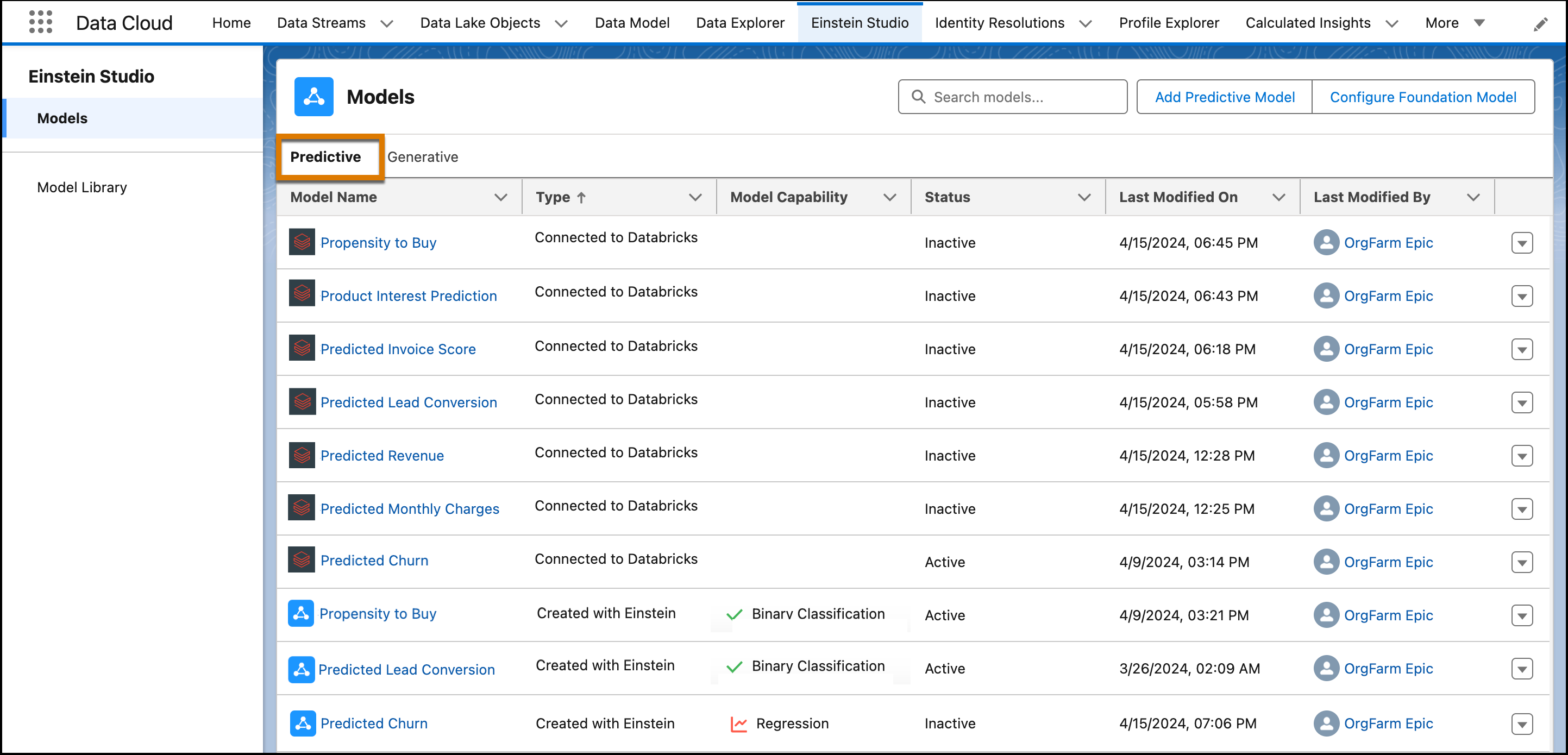
- In AI Models (formerly Einstein Studio), on the Predictive tab, click Add Predictive
Model.
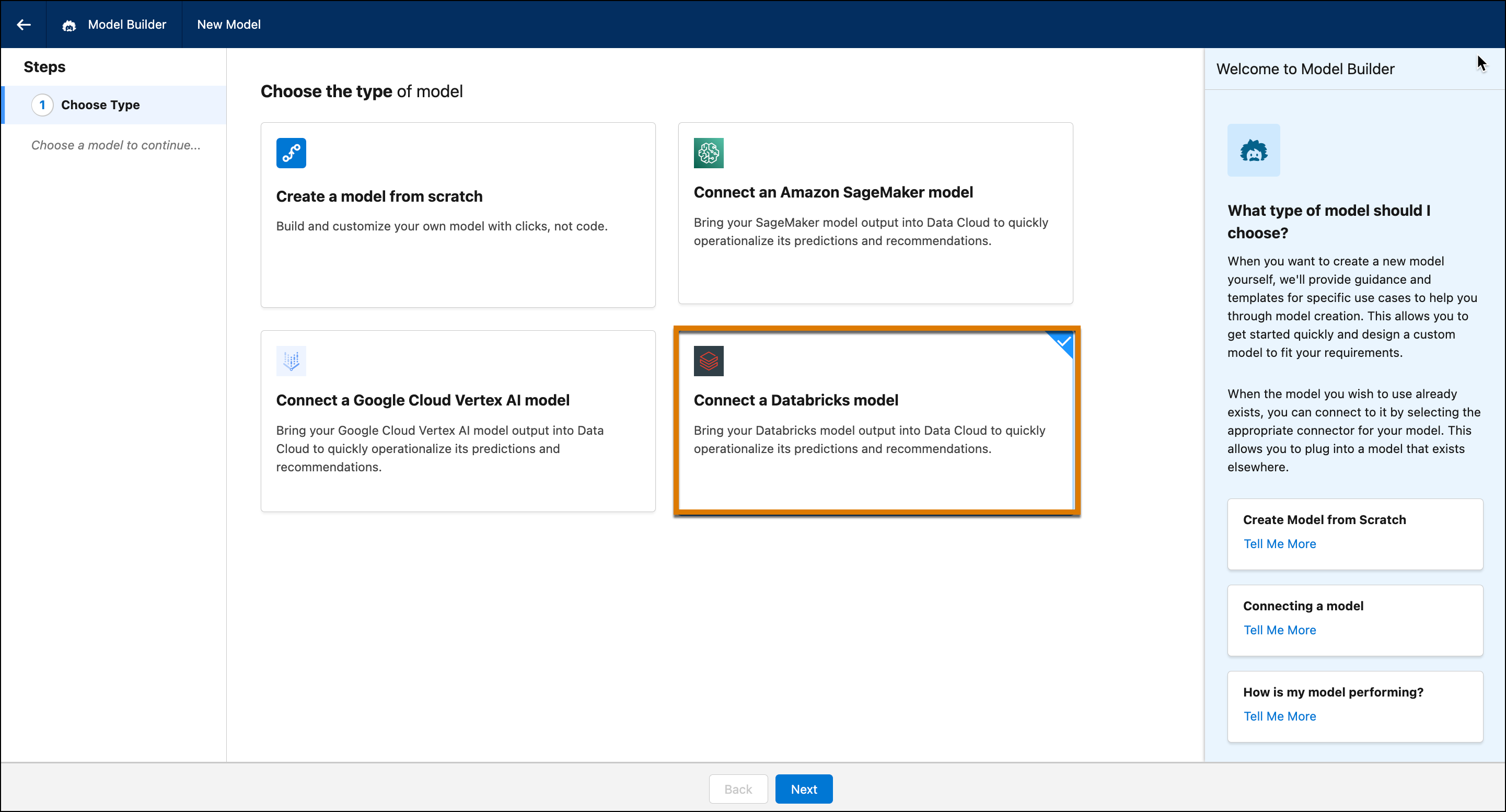
- To choose your model type, click Connect a Databricks model.
Then click Next.
- To connect the endpoint and access your model inferences, specify these details. Then
click Next.
- Name—Endpoint name
- URL—Endpoint URL
- Authentication—Key-based and JWT (API gateway required for both)
- Auth Header—Authorization header
- Secret Key—Bearer <personal access token>
- Request Format—The format for requesting data from the application or server
- Response Format—The format for providing data from a server response.
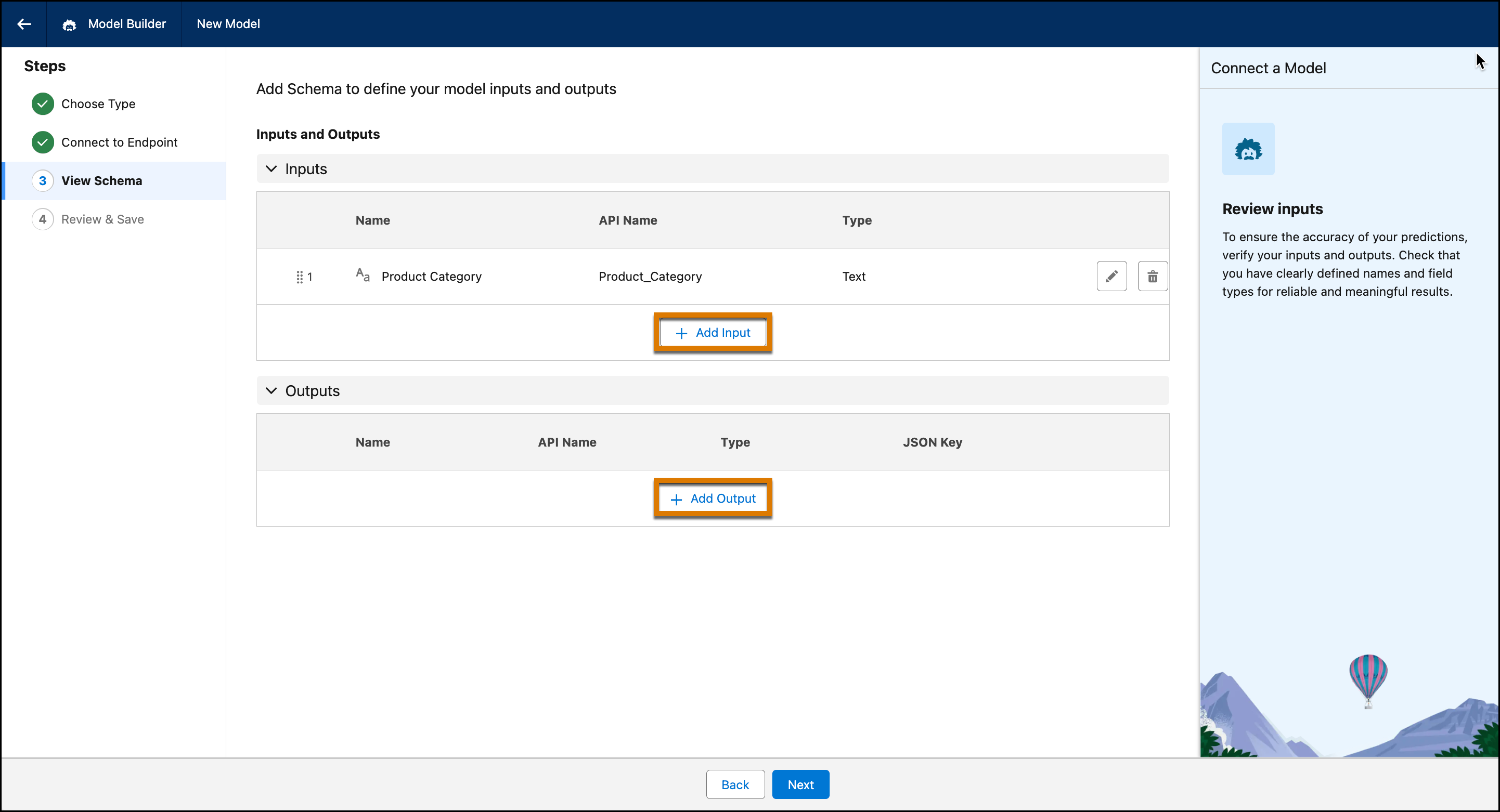
- To add schema, click Enter the inputs and outputs.
- To add inputs (variables) that can impact your prediction, click Add
Input. Then specify a name, an API name, and select the data type. Save
your work as you add the inputs.
- To add your outputs, click Add Output. Then specify a name,
an API name, a data type, and the JSON Key in a format similar to
“$.predictions”. Save your work as you add the outputs.
- Click Next.
- Review your model settings.
- To update your model settings, click the section where you want to make changes. Then
navigate through the flow to review all settings.
- If you’re satisfied with your settings, click Save.
- Name your model and click Save & Connect. After the model is
connected, you can find it on the model list view on the Predictive Models tab.
- To view your model details, click the model. You can activate, edit, or delete a model
on this page.
- After the model is active, go to the Usage tab to create prediction jobs to consume
your predictions.
- If you created a batch prediction, click Run to refresh your
prediction scores.

 Important You must position the inputs in the order that matches your Databricks Select Query. To move an input, drag it to the preferred position in the Inputs section.
 Note With streaming predictions, new inferences are initiated only when there’s a change in the input on your Data Model Object (DMO).