
Send more personalized communications by applying related attributes and filters. You can send related attributes to Marketing Cloud Engagement, Data Cloud, and cloud file storage platforms such as Amazon S3, SFTP, Microsoft Azure Blob Storage, and Google Cloud Storage (GCS).
Required Editions
| Available in: All Editions supported by Data 360. See Data 360 edition availability. |
| User Permissions Needed | |
|---|---|
| Add attributes to an activation |
One of these permission sets:
|
- In Data 360, click Segments, and select a segment.
- Under Activations, click New.
- Select the activation target, and click Continue.
- Select the contact point, and click Next.
- Click Add Attributes.
-
Drag attributes from the Attributes or
Shortcuts tabs.
Shortcuts and standard attributes from the same DMO are grouped in the same container. Shortcuts that you create in the segment builder are available in activation.
If a shortcut uses a path that conflicts with the active DMO path on the canvas, that shortcut is disabled until you remove the conflicting path-driving attribute or shortcut.
 Note For engagement data, activation supports a 90-day lookback window. If related attributes are selected for an activation with a rapid segment publish, the lookback window is seven days. Activation considers engagement data within this window, and any records outside of this window aren't considered when selecting your output values.
 - Click Save.
-
To apply criteria to attribute values, go to a selected DMO, and click
Add Filters.
Adding filters is optional but recommended to personalize a message with only relevant values. Filters are applied at the DMO level and impact all the attributes within the DMO.
When you add filters, drag attributes from the Attributes tab or the Shortcuts tab. For each DMO, the first path you select becomes the active path for filtering. If a shortcut uses a path that conflicts with the active DMO path on the canvas, that shortcut is disabled until you remove the conflicting path-driving attribute or shortcut.
When you drag a shortcut into a filter, the operator and value are blank by default. Enter the operator and value before you save.
- From the attribute library, drag the attributes to the canvas to use as filters and define the filter criteria.
- Click Done.
-
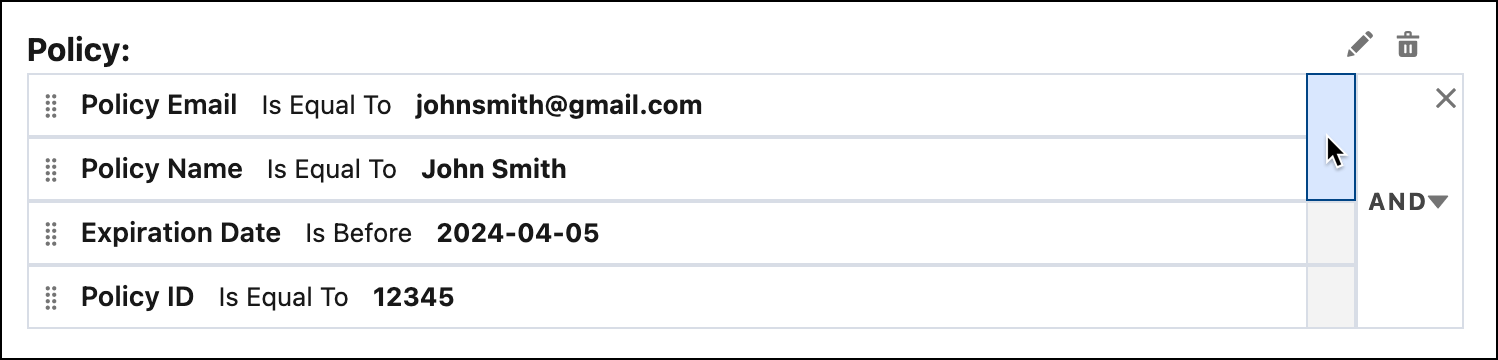
Within the DMO, use nested operators by adding AND or OR operators to create more
complex filters. Nest up to three levels of attributes.
- Click Done, and then click Save.
-
For the selected DMOs, set limits and sort your data.
- For Max # of Attribute Values, select the number of relevant values to use for your marketing campaign.
- For Sort By, select how to sort the data.
- Click Continue.
- Name your activation, and click Done.
- Considerations for Selecting Related Attributes in Data 360 Activations
Related attributes are data fields that belong to data model objects (DMO) connected to your primary or activation DMO. These attributes help you access information from other objects that are linked through a defined relationship path. There’s a direct relationship with the DMO, related attributes, and the filters you can apply.